WorkDesk Platform Guide
Everything you need to know about WorkDesk — how the platform is structured, what each module does, and how to get started with your account.
Open Full User GuideWhat is WorkDesk?
WorkDesk is a project management platform built to help organizations move from chaos to clarity. It replaces scattered spreadsheets, endless email threads, and disconnected tools with one unified system — organizing every piece of work across departments, teams, projects, and tasks in a single, structured hierarchy.
Why WorkDesk?
Most teams juggle multiple tools for task tracking, meetings, chat, and documentation — leading to context switching and missed updates. WorkDesk brings everything under one roof so you can plan, track, and collaborate without leaving the platform.
Platform Structure
WorkDesk organizes work into a clear hierarchy. Every piece of work has a place, a purpose, and an owner:
| Level | What it is | Managed By |
|---|---|---|
| Organization | Your entire company — one per WorkDesk instance | Super Admin |
| Department | Functional division (Engineering, HR, Sales, etc.) | Admin |
| Team | Sub-group within a department (e.g. Frontend Team) | Manager |
| Project | Time-boxed initiative with goals, tasks, and members | Manager / Admin |
| Work Package | Individual task, bug, or feature inside a project | Assignee |
Key Features
Every module is designed to solve a real workdesk problem. Here is what WorkDesk offers out of the box:
At-a-glance view of KPIs, assigned tasks, upcoming meetings, and recent team activity — all on one screen.
Create tasks, bugs, and features with priority levels, due dates, status tracking, and built-in time logging.
Group related work into projects with member roles, progress tracking, deadlines, and activity history.
Mirror your real org chart — structure departments, assign managers, and keep teams focused.
Schedule with agendas, send invites, track attendance, and store minutes linked to projects.
Project-based threaded chat rooms for focused conversations without jumping to Slack or Teams.
Unified view of every meeting, deadline, and project milestone — filter by team or department.
Personal space for private task lists and notes — your own productivity hub inside WorkDesk.
Login to WorkDesk
Use the credentials provided by your administrator to sign in.
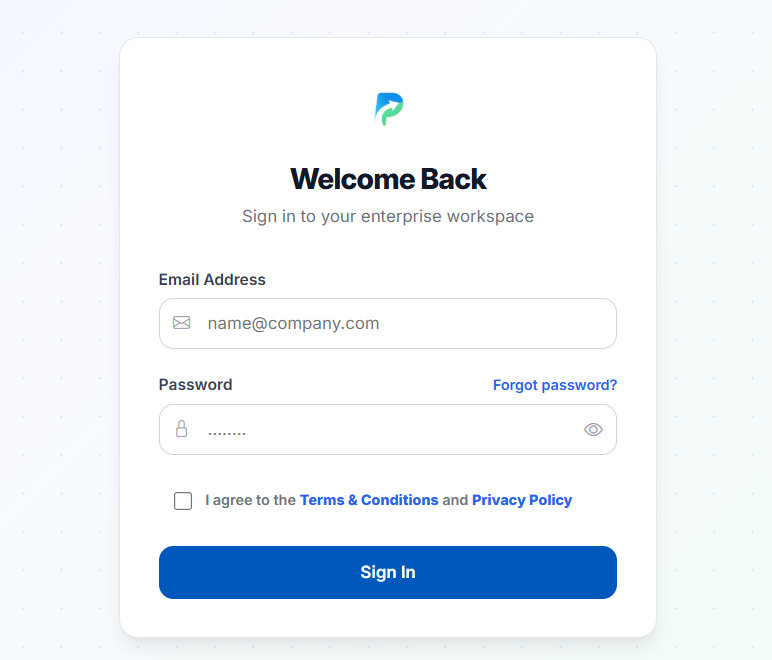
- 1Open the WorkDesk URL
Use the link your administrator shared. The login page loads automatically.
- 2Enter your Email
Type the email registered for you by your admin.
- 3Enter your Password
Type your password. Click the eye icon to toggle visibility.
- 4Accept Terms & Conditions
Check the box — the Sign In button only activates after this.
- 5Click "Sign In"
You land directly on your personalized Dashboard.
Change your initial password right after logging in — go to Settings → Change Password inside the app.
Forgot / Reset Password
Use the OTP-based recovery flow if you've forgotten your password.
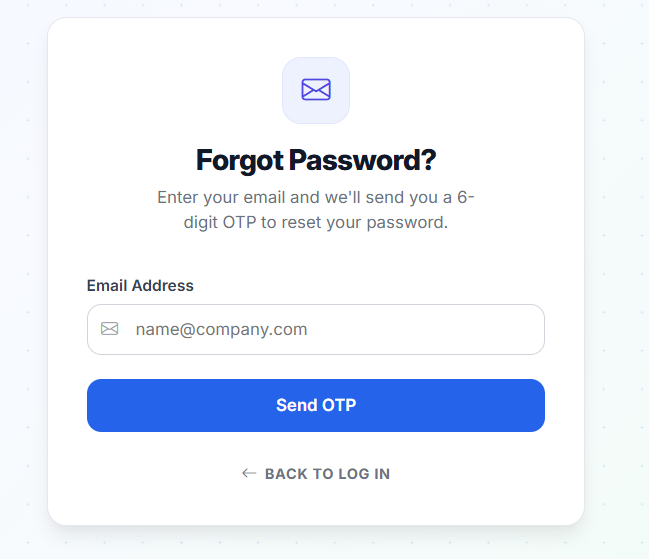
- 1Click "Forgot password?"
On the login page, just above the password field.
- 2Enter your Email and click "Send OTP"
A 6-digit one-time passcode is sent to your inbox.
- 3Enter the 6-digit OTP
Type the code from the email into the OTP field.
- 4Set a new password
Minimum 6 characters. Enter twice to confirm.
- 5Log in with your new password
Return to the login page and sign in normally.
OTP codes expire after a short time. Request a new one if yours expires. Never share your OTP with anyone.
If you never received credentials or can't reset, contact your organization's WorkDesk administrator.