Dashboard Overview
The Dashboard is your personal home screen — a summary of everything that matters to you: your projects, assigned tasks, upcoming meetings, and recent activity.
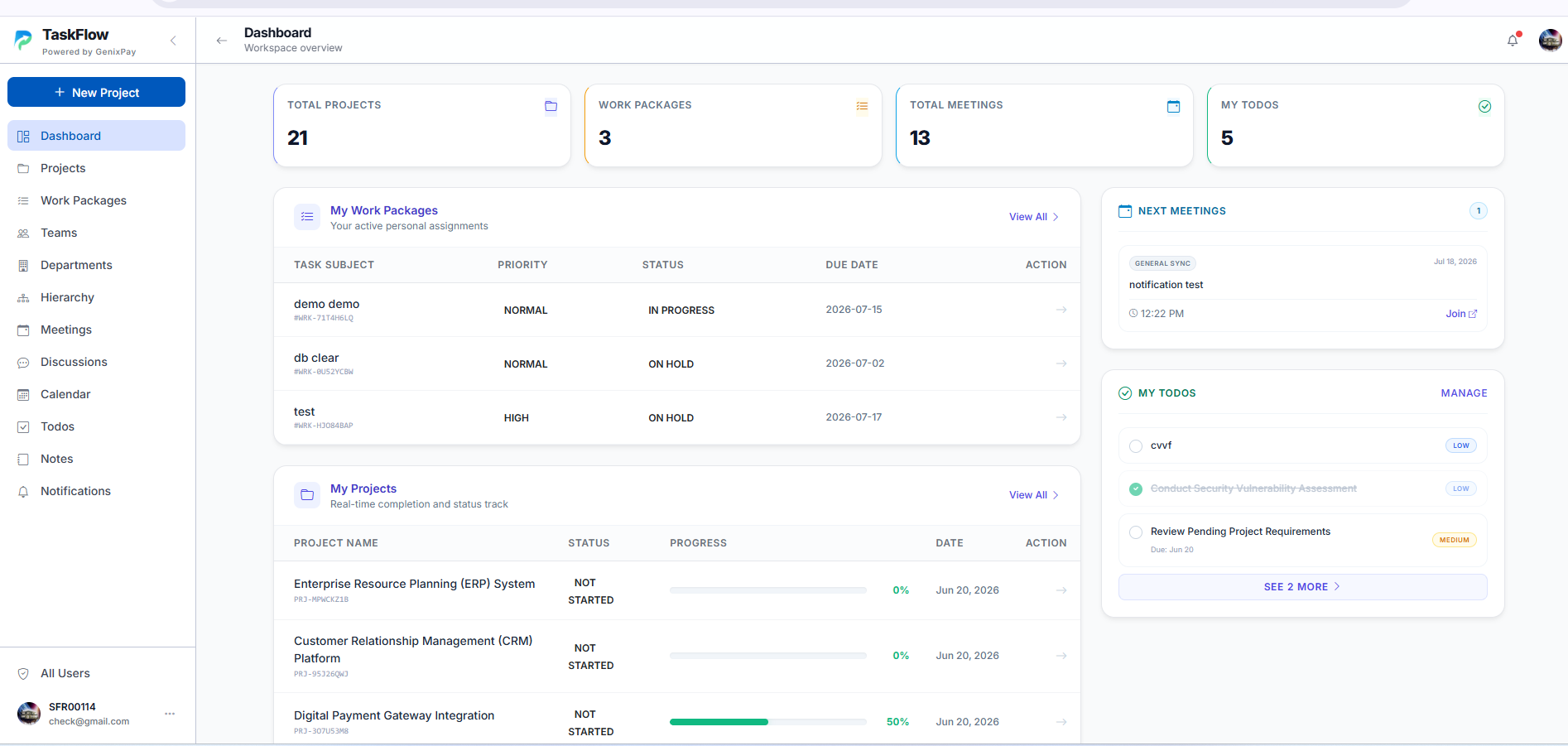
KPI Cards
At the top of the dashboard, four summary cards give you instant numbers:
| Card | Icon | What It Shows |
|---|---|---|
| Total Projects | Number of projects you are a member of | |
| Work Packages | Total work packages assigned to you | |
| Total Meetings | Number of meetings you are part of | |
| My Todos | Number of personal todos you have created |
My Work Packages
| Column | What It Shows |
|---|---|
| Task Subject | Name and ID of the work package |
| Priority | HIGH MEDIUM LOW |
| Status | Current state (INITIAL, IN PROGRESS, ON HOLD, COMPLETED) |
| Due Date | Task deadline |
Shows up to 3 items. Click any row or View All to go to the full Work Packages page.
My Projects
| Column | What It Shows |
|---|---|
| Project Name | Project title and ID |
| Status | Active, Completed, etc. |
| Progress | Completion percentage bar |
| Date | Project creation date |
Click any row or View All to go to the full Projects page.
Next Meetings
Shows your upcoming meetings as cards with:
| Field | What It Shows |
|---|---|
| Project Badge | Which project the meeting is for |
| Title | Meeting name |
| Date & Time | When the meeting is scheduled |
| Join Link | Click to open the meeting link (if provided) |
Shows up to 3 items. Click View All to see the full Meetings page.
My Todos
Shows your personal todos as compact cards with:
| Field | What It Shows |
|---|---|
| Checkbox | Click to mark as done (strikethrough style) |
| Title | Todo name |
| Due Date | If set, shown below the title |
| Priority Badge | HIGH MEDIUM LOW |
Shows up to 3 items. Click Manage or Add Task to go to the Todos page.
Click any project or work package row on the dashboard to jump directly into its details page.
Departments
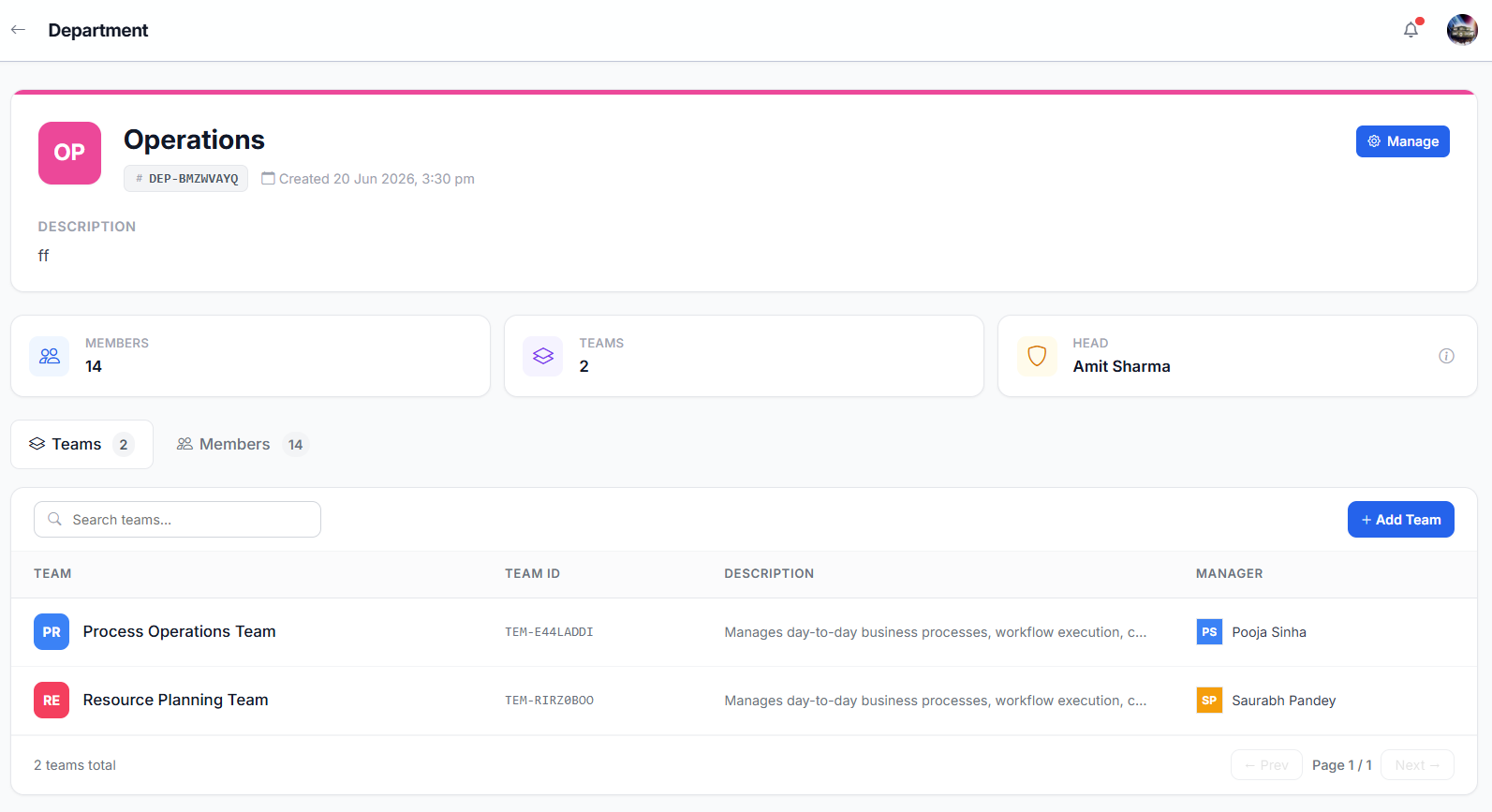
Departments are functional divisions of your organization (e.g., Engineering, HR, Sales). As an Employee, you belong to one department and can view its details, members, and associated teams.
Your Department
- 1Navigate to Departments
Click "Departments" in the sidebar.
- 2View your department
You will see your assigned department. Click the department card to open its detail page.
Department Detail Sections
| Section | What You See |
|---|---|
| Overview | Department description and head |
| Teams | All teams within your department |
| Members | Full member list with roles and designations |
| Hierarchy | Chart showing reporting structure |
As an Employee, you can only view your department. Creating, editing, deleting departments, changing the head, and managing members are handled by your Department Admin or Super Admin.
Teams
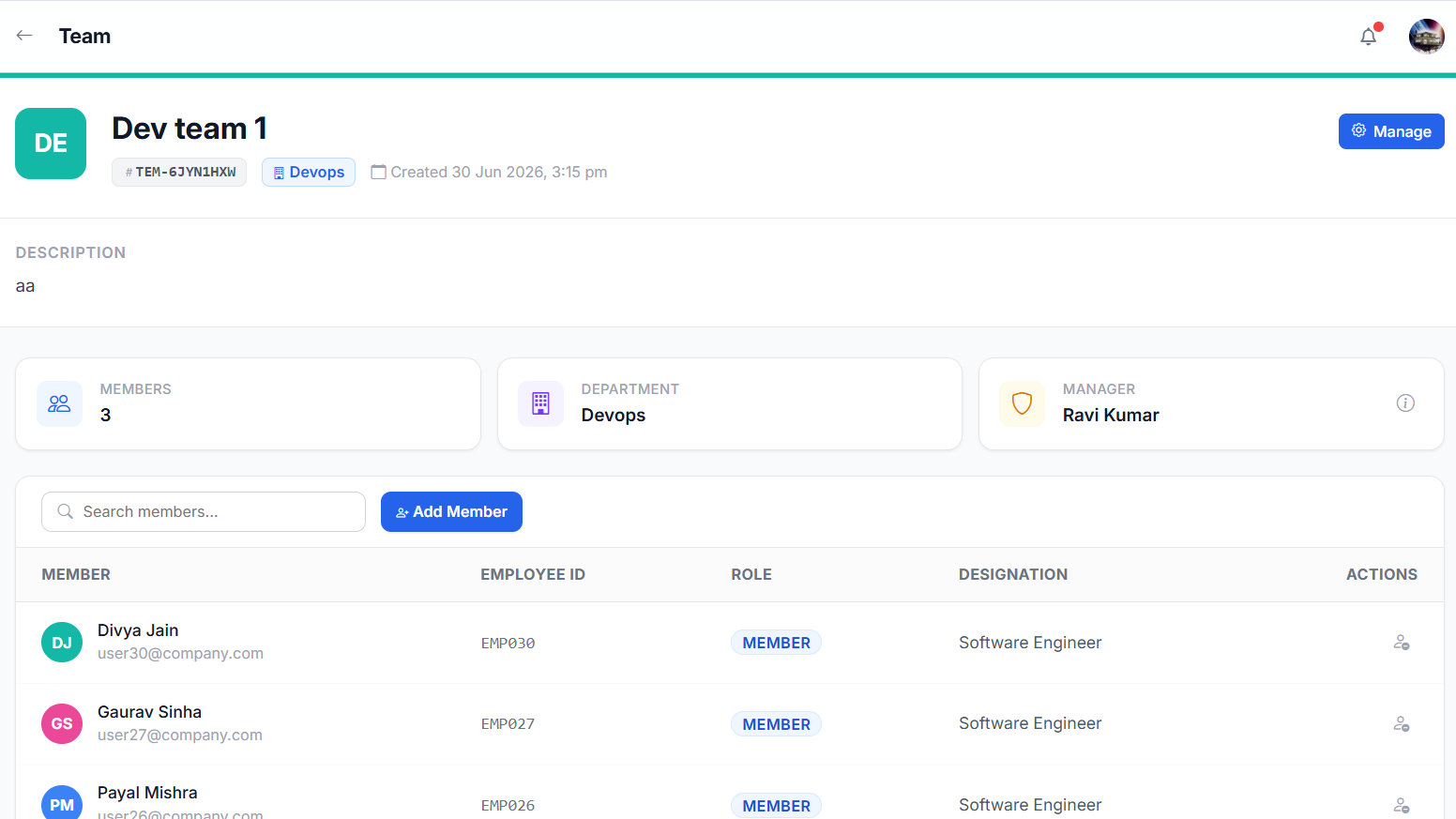
Teams are sub-groups within a department (e.g., Frontend Team, QA Team). As an Employee, you can view the team you are assigned to — its members, manager, and associated projects.
Your Team
- 1Navigate to Teams
Click "Teams" in the sidebar. You will see your assigned team.
- 2Open team detail
Click the team card to view its full details — members, manager, and projects.
Team Detail Sections
| Section | What You See |
|---|---|
| Overview | Team name, description, and manager |
| Members | All team members with roles |
| Projects | Projects this team is working on |
As an Employee, you can only view your team. Creating teams, adding/removing members, and changing the team manager are handled by your Manager, Department Admin, or Super Admin.
Projects
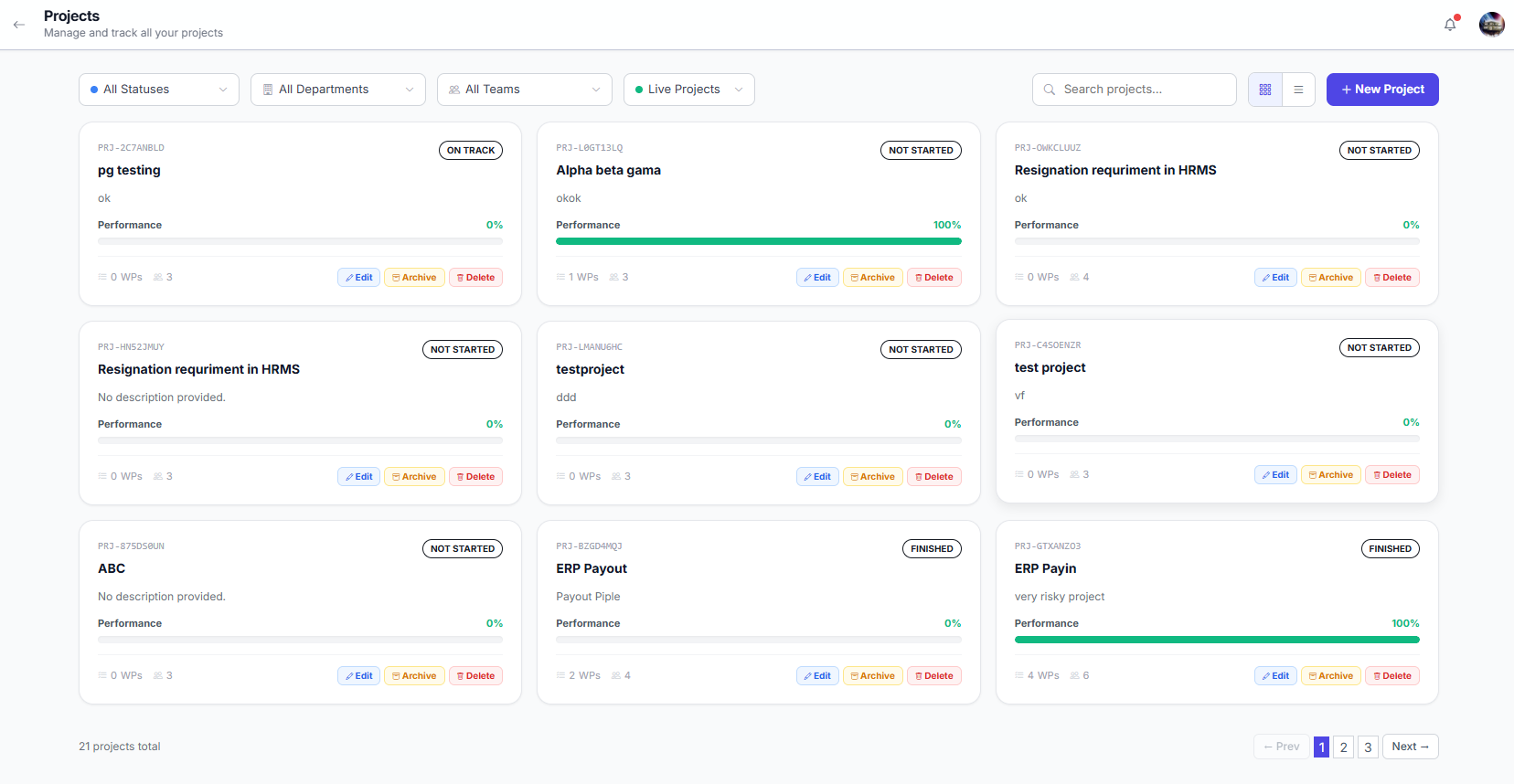
Projects are time-boxed initiatives where work gets done. You are added to projects by your Manager, Admin, or Super Admin. As an Employee, you can view projects you are a member of — their details, work packages, members, and discussions.
Your Projects
- 1Navigate to Projects
Click "Projects" in the sidebar. You will see all projects you are a member of.
- 2Browse project cards
Each card shows the project name, status, progress bar, member count, and due date.
Project Details
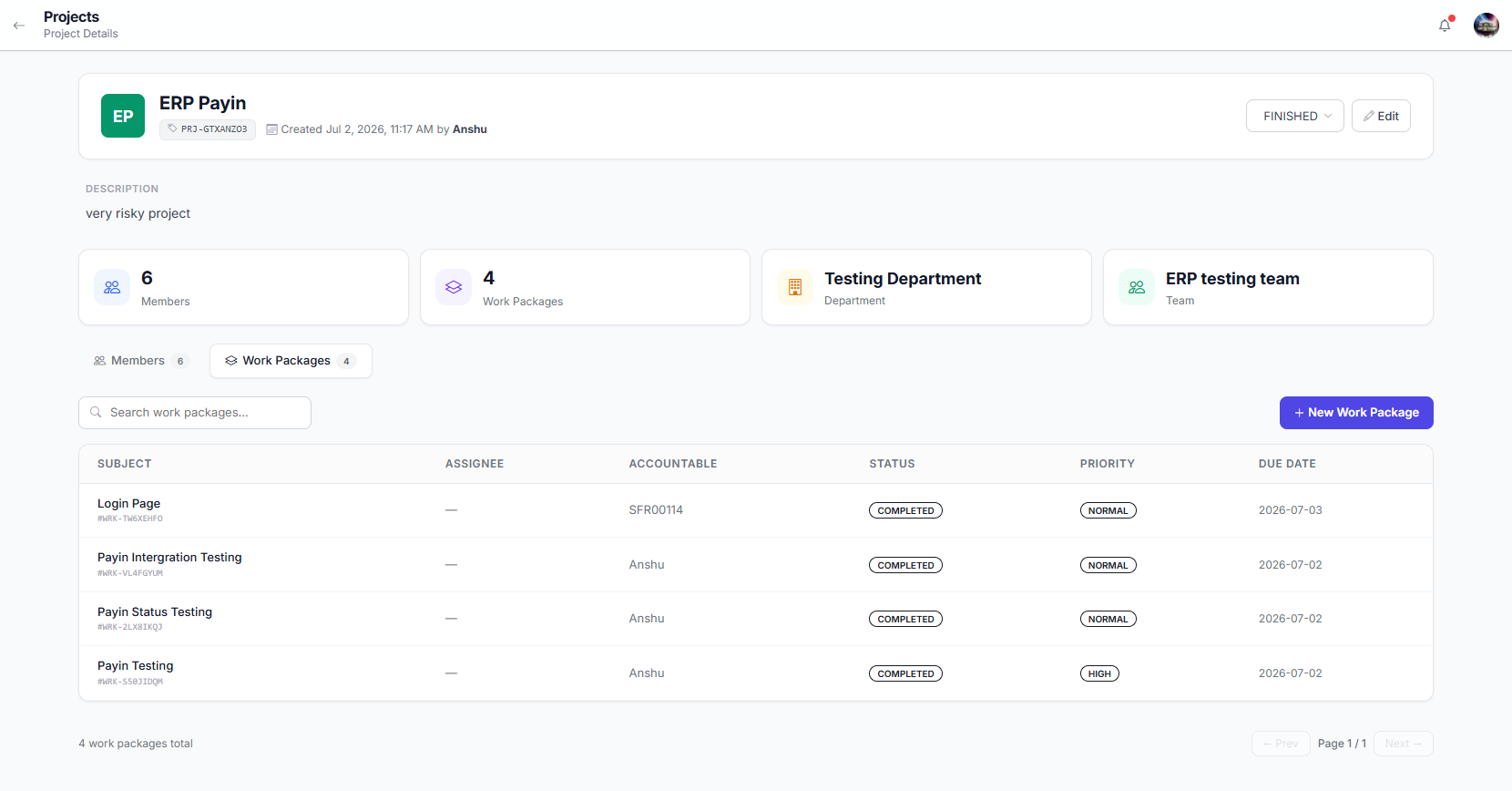
- 1Click a project card
Opens the project detail page.
Project Detail Sections
| Section | What You See |
|---|---|
| Overview | Description, start date, and deadline |
| Work Packages | All tasks inside this project |
| Members | Full member list |
| Discussion | Project Group Discussion chat |
As an Employee, you can view project details, members, and work packages. Creating, editing, archiving, or deleting projects are handled by your Manager, Admin, or Super Admin.
Work Packages
Work packages are individual tasks, bugs, or features inside a project. As an Employee, you can see work packages where you are the Assignee (the person doing the work) or the Accountable person (the creator responsible for overseeing it). You can update status, log time, and add comments on your assigned work packages.
Work Package Board
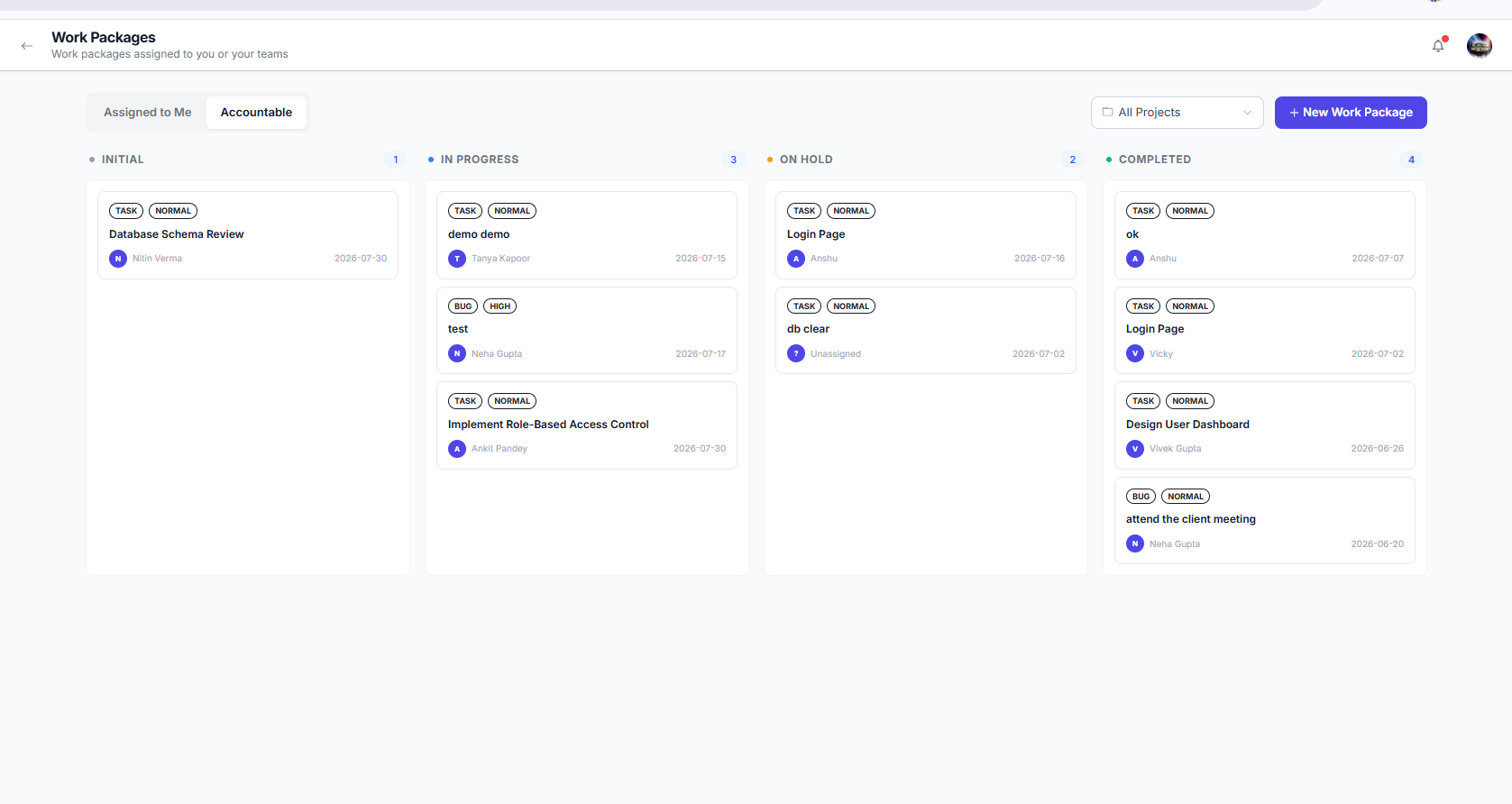
You can drag and drop cards between columns to update the status of your assigned work packages.
Work Package Fields
| Field | Description |
|---|---|
| Subject | Title of the work package |
| Status | INITIAL → IN PROGRESS → ON HOLD → COMPLETED |
| Priority | LOW, NORMAL, HIGH, CRITICAL |
| Assignee | The person doing the work (you or a teammate) |
| Accountable | The creator — responsible for ensuring the work gets done |
| Due Date | Deadline — triggers calendar integration and overdue alerts |
| Estimated Hours | Planned effort — compared against actual logged time |
Viewing Work Packages
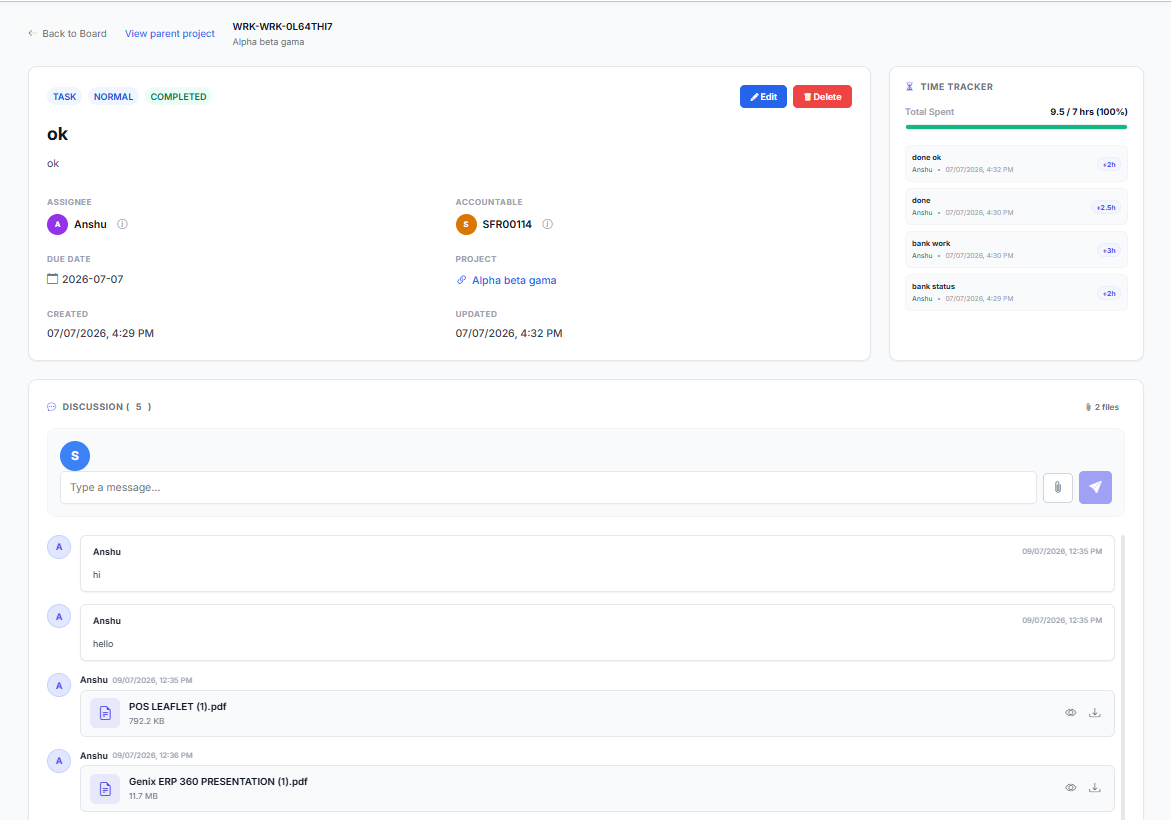
- 1Navigate to Work Packages
Click "Work Packages" in the sidebar. The page opens with two tabs.
- 2Assigned to Me
Work packages where you are the assignee — the person doing the work. This is your main tab.
- 3Accountable
Work packages you created and are responsible for overseeing. Only visible for Manager, Admin, and Super Admin roles — hidden for Employee.
Update Status
- 1Open a work package
Click on the work package card on the board or list.
- 2Change the status
Select a new status from the dropdown (INITIAL, IN PROGRESS, ON HOLD, COMPLETED).
- 3Or drag and drop
Move the card between columns on the Kanban board to update the status instantly.
When you start a task, change the status to IN PROGRESS. Mark COMPLETED when done. Your Manager, Admin, or Super Admin sees this in real time.
Log Time
Only the Assignee can log time on a work package. The Accountable person, Admin, Manager, and Super Admin can view time entries but cannot create or edit them.
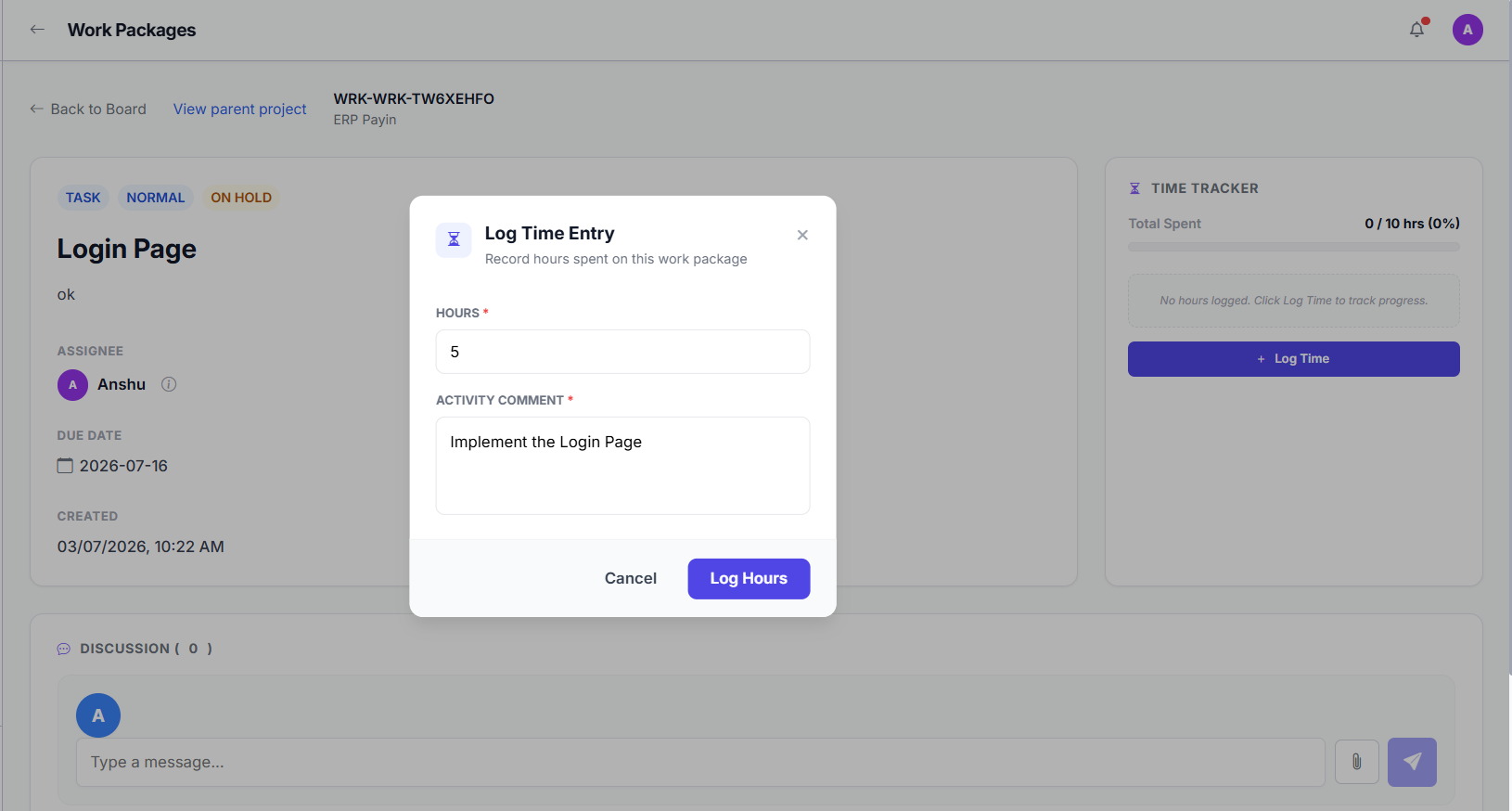
- 1Open a work package assigned to you
Click on the work package card.
- 2Click "Log Time"
Found in the Time Tracker panel on the right side.
- 3Enter hours and optional note
Use decimals, e.g.,
2.5for 2 hours 30 minutes. Add a note describing what was done. - 4Click "Save"
The total logged time updates immediately.
Add Comments
Only the Assignee and the Accountable person can add comments on a work package. Both users can communicate, share progress updates, ask questions, and discuss task-related information. Other users can view the comments but cannot add or edit them.
- 1Open a work package
Click on the work package card.
- 2Type your comment
Use the comment box at the bottom to communicate with the team.
- 3Click "Post"
Your comment is visible to all project members.
As an Employee, you can view work packages assigned to you, update the status, log time (if you are the Assignee), and add comments (if you are the Assignee or Accountable). Creating work packages, reassigning, or deleting them require higher role access.
Meetings
Meetings are scheduled by Managers, Admins, or Super Admins. As an Employee, you can view meetings you have been invited to — see the agenda, time, organizer, and other participants. You cannot create, edit, or cancel meetings.
View Your Meetings
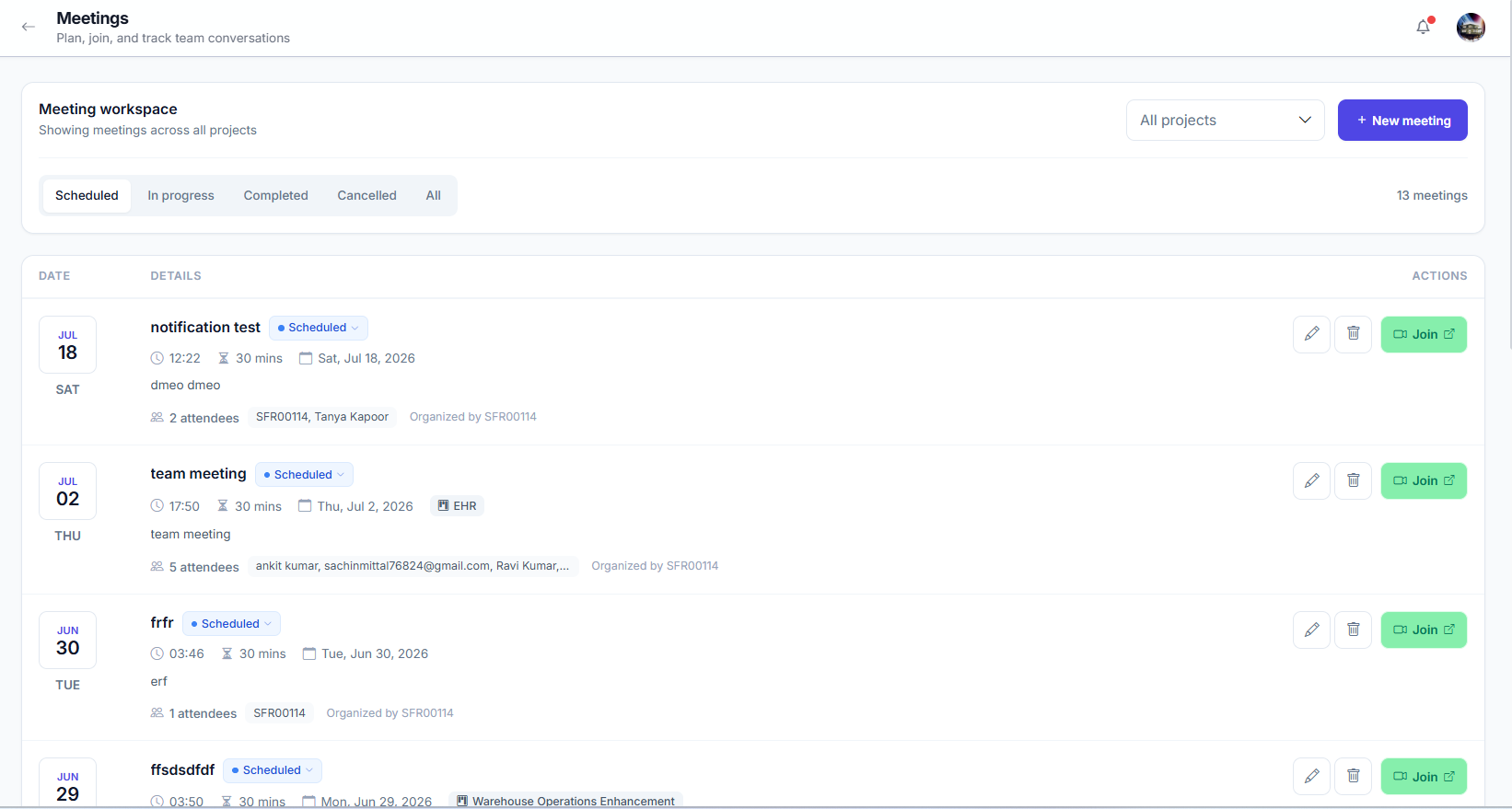
- 1Click "Meetings" in the sidebar
You see only meetings where you are a participant — either added manually by the organizer or auto-added because you are a member of a linked project.
- 2Click on a meeting to view details
See the full agenda, date & time, meeting link, organizer, and the complete participant list.
How You Get Added to a Meeting
- 1Project Link
If a meeting is linked to a project you are a member of, all project members are automatically added to the participant list.
- 2Manual Invitation
The meeting creator can manually invite any organization member — you will appear in the participant list and receive a notification.
- 3External Email Invitation
For people outside the organization (clients, vendors, etc.), the meeting creator can send an email invitation with the meeting link. This is only for non-members; if you are already an organization member, you will be added via Project Link or Manual Invitation instead.
Meeting Fields
| Field | Description |
|---|---|
| Title | Meeting name and agenda |
| Date & Time | When the meeting is scheduled |
| Duration | How long the meeting is expected to last |
| Organizer | Who scheduled the meeting |
| Participants | List of all invited attendees |
| Meeting Link | Click to join the meeting online |
| Status | SCHEDULED, ONGOING, COMPLETED, or CANCELLED |
When a Manager, Admin, or Super Admin schedules a meeting and includes you, you automatically receive a notification. The meeting also appears on your Calendar.
Discussions
Discussions give you real-time messaging with your team. As an Employee, you can participate in discussion groups you are a member of — send messages, share files, react with emojis, and use @mentions. You cannot create, edit, or delete discussion groups.
View Discussion Groups
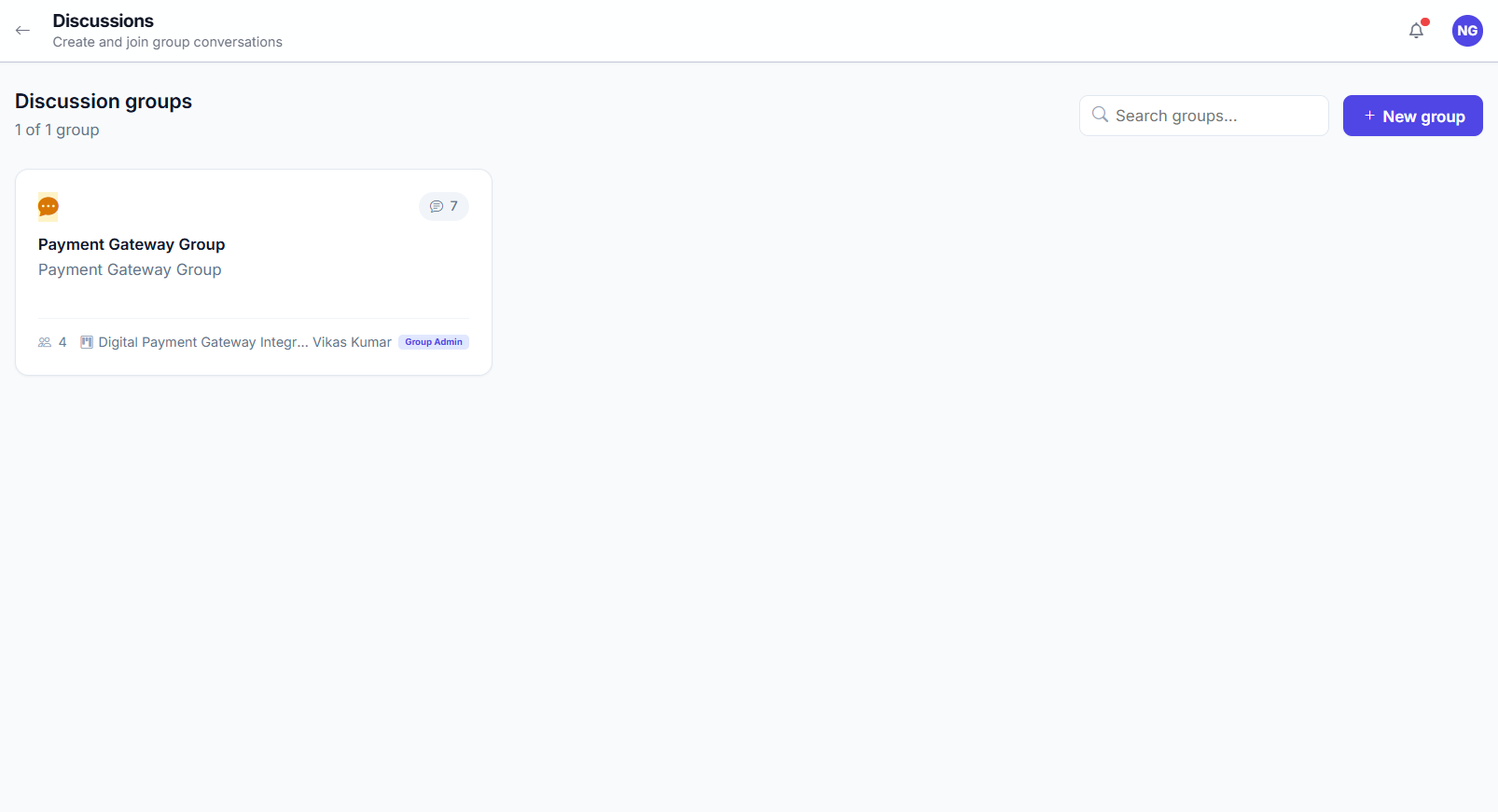
- 1Click "Discussions" in the sidebar
You see only discussion groups where you are a member — either added manually by the Group Admin or auto-added because you are a member of a linked project.
- 2Click on a group to open it
The group opens with the chat interface showing all messages, file attachments, and the member list.
Group Chat
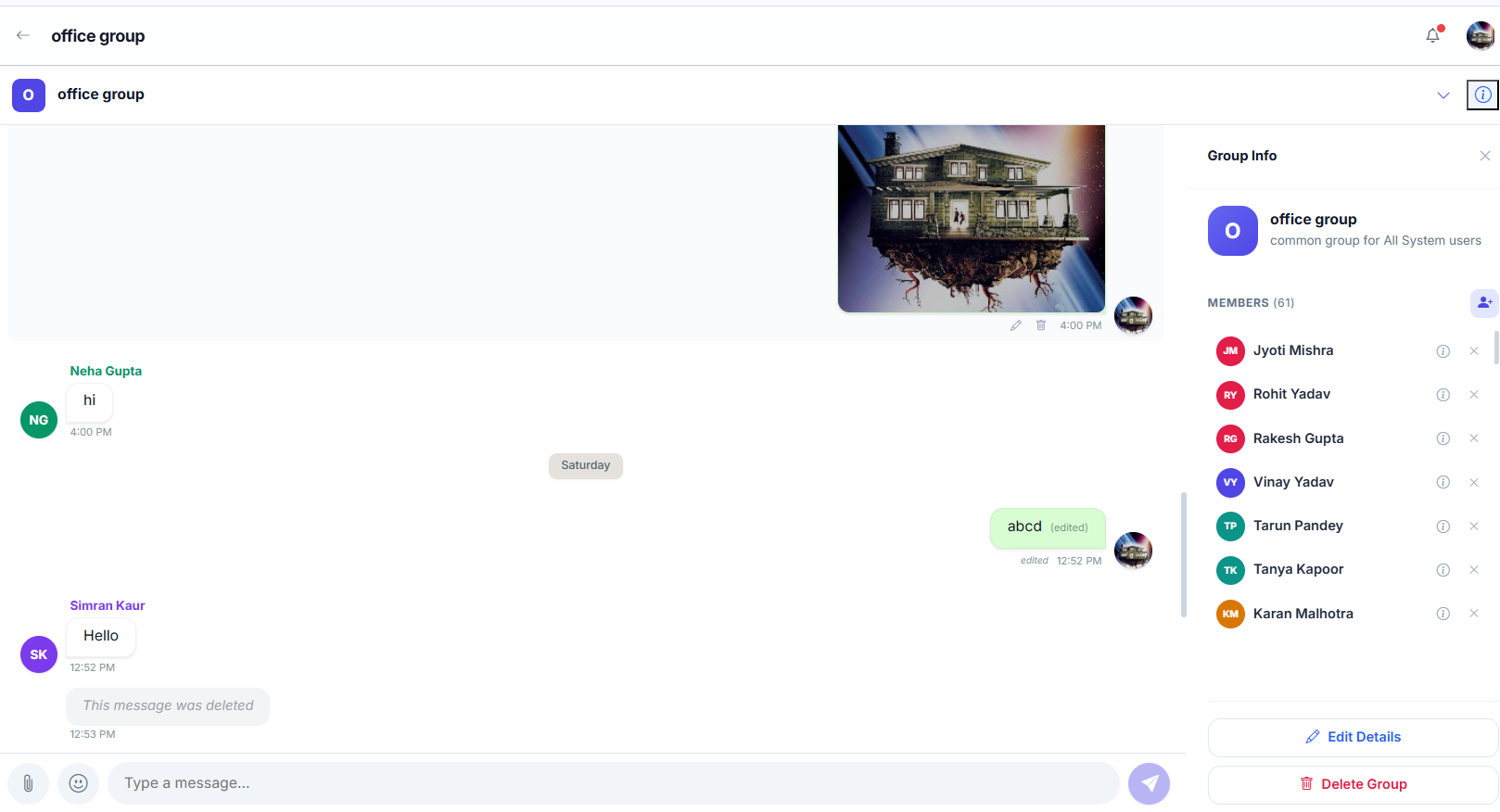
- 1Type a message
Use the message input box at the bottom. Press Enter or click Send to post.
- 2Attach files
Click the attachment icon to upload files alongside your message. Supported: images, documents, and any file type.
- 3Use @mentions
Type @ to mention specific group members. They receive an email notification when mentioned.
- 4React with emojis
Click the emoji picker to add reactions to messages.
As an Employee, you can send messages, share files and images, react with emojis, use @mentions, edit and delete your own messages, and view chat history. You cannot create, edit, or delete discussion groups, add or remove members, or link/unlink projects.
Calendar
The Calendar is your central timeline — all your upcoming meetings, project deadlines, and work package due dates in one visual view. Never miss an important date. The calendar is personalized to show only events relevant to you.
View Your Calendar
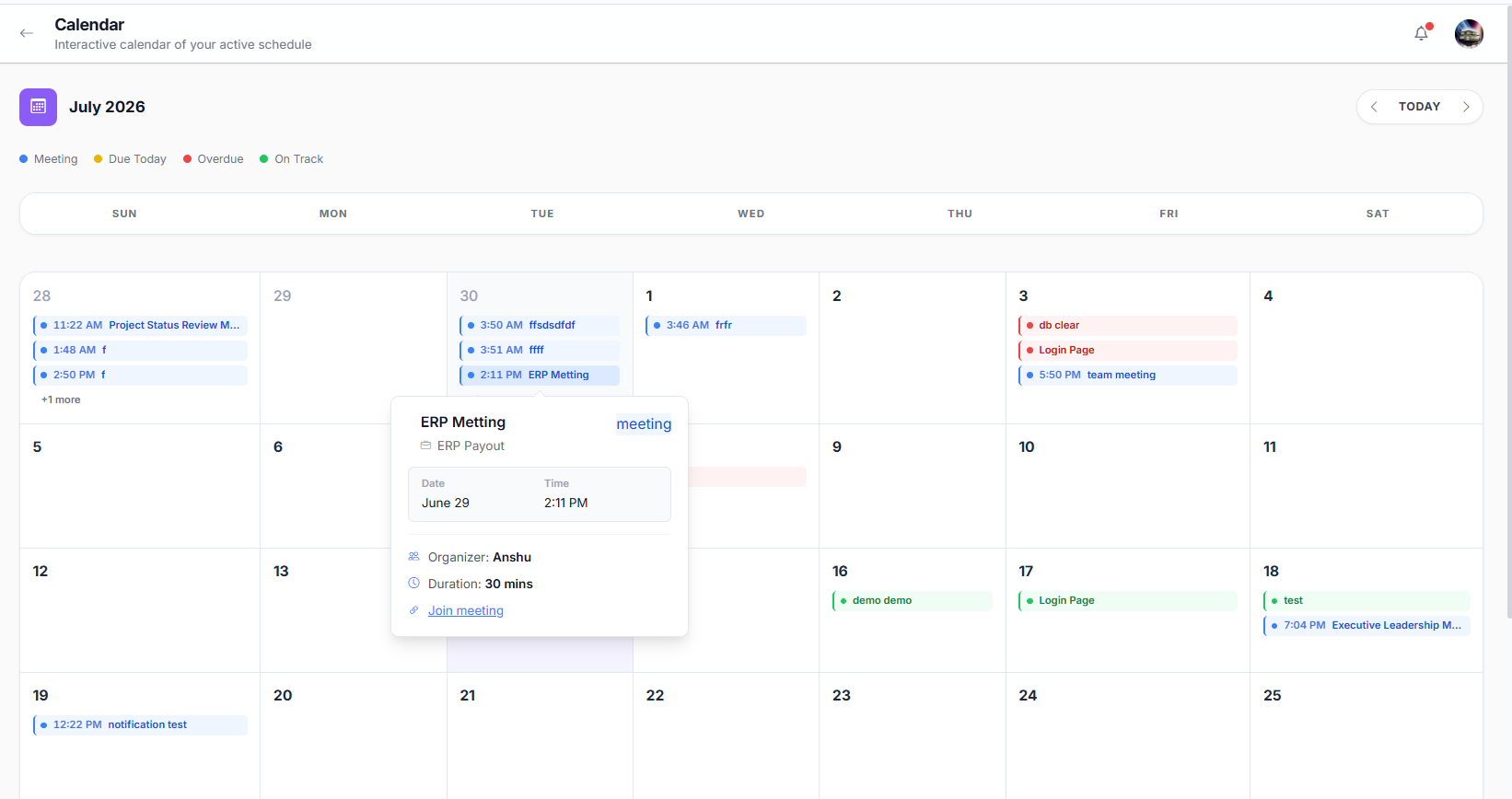
- 1Click "Calendar" in the sidebar
The calendar opens showing the current month with all your events.
- 2Click on a day to see events
A side panel shows all events for that day with details.
- 3Click on an event to navigate
Clicking a meeting takes you to the Meetings page. Clicking a work package or project takes you to its detail page.
What Appears on Your Calendar
- Meetingsmeetings you are invited to or participating in
- Work Package Due Dateswork packages where you are the assignee or accountable person, with due dates in the visible range
- Project Due Datesprojects you are a member of, with due dates in the visible range
Event Color Coding
- Blue — Meetings
- Yellow — Due Today
- Red — Overdue
- Green — On Track
Navigating the Calendar
- 1Previous / Next Month
Click the arrow buttons to move between months.
- 2Today Button
Click "Today" to jump back to the current date.
- 3Click any day
A side panel shows all events for that day — meetings, work package deadlines, and project deadlines.
The calendar shows only events relevant to your involvement: meetings you are invited to, work packages assigned to you or where you are accountable, and projects you are a member of. It is read-only — events are added automatically when Managers, Admins, or Super Admins schedule meetings or assign tasks.
Notes
Notes is your private workspace inside WorkDesk. Write meeting summaries, capture ideas, save reference information — stored securely and visible only to you. No one else can see or access your notes.
Your Notes
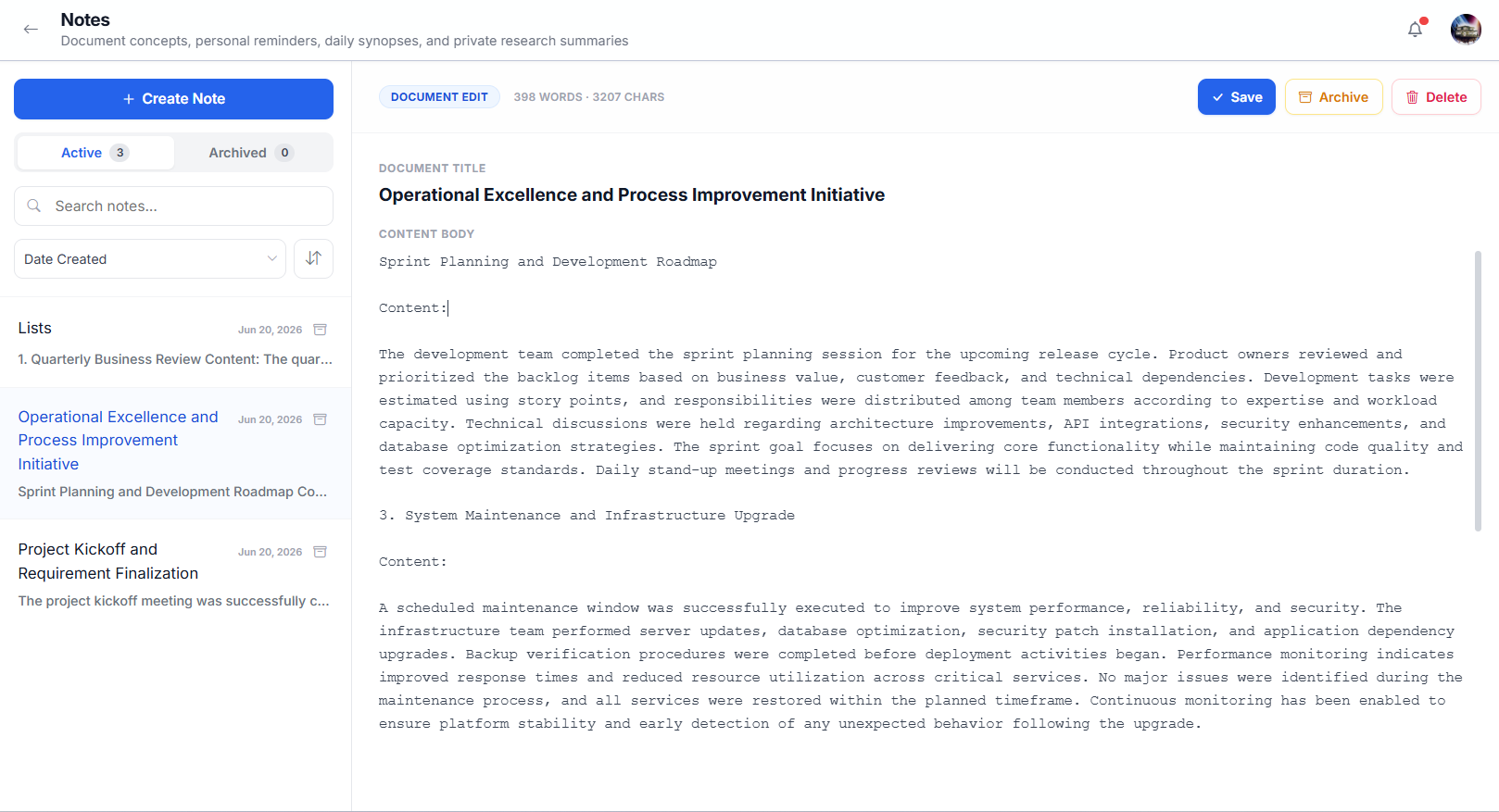
The Notes page has a two-panel layout: the left panel shows your note list with Active and Archived tabs, search box, and sort controls. The right panel is the editor where you write and edit your notes.
Creating a Note
- 1Click "Create Note"
Found at the top of the left panel. A blank note opens in the editor.
- 2Enter a title
Type a descriptive name, e.g., "Sprint 4 Planning Notes".
- 3Write your content
The editor supports bold, italic, bullet lists, and headings.
- 4Notes save automatically
Changes are saved as you type. You can also click Save manually.
Notes are tied to your account. No one else — not your Manager, Admin, or Super Admin — can see or access your notes. They are stored securely and visible only to you.
Todos
Todos are your private personal checklist in WorkDesk. Use them for reminders, personal action items, and anything you need to track that isn't a formal project task. Only you can see your todos.
Your Todo List
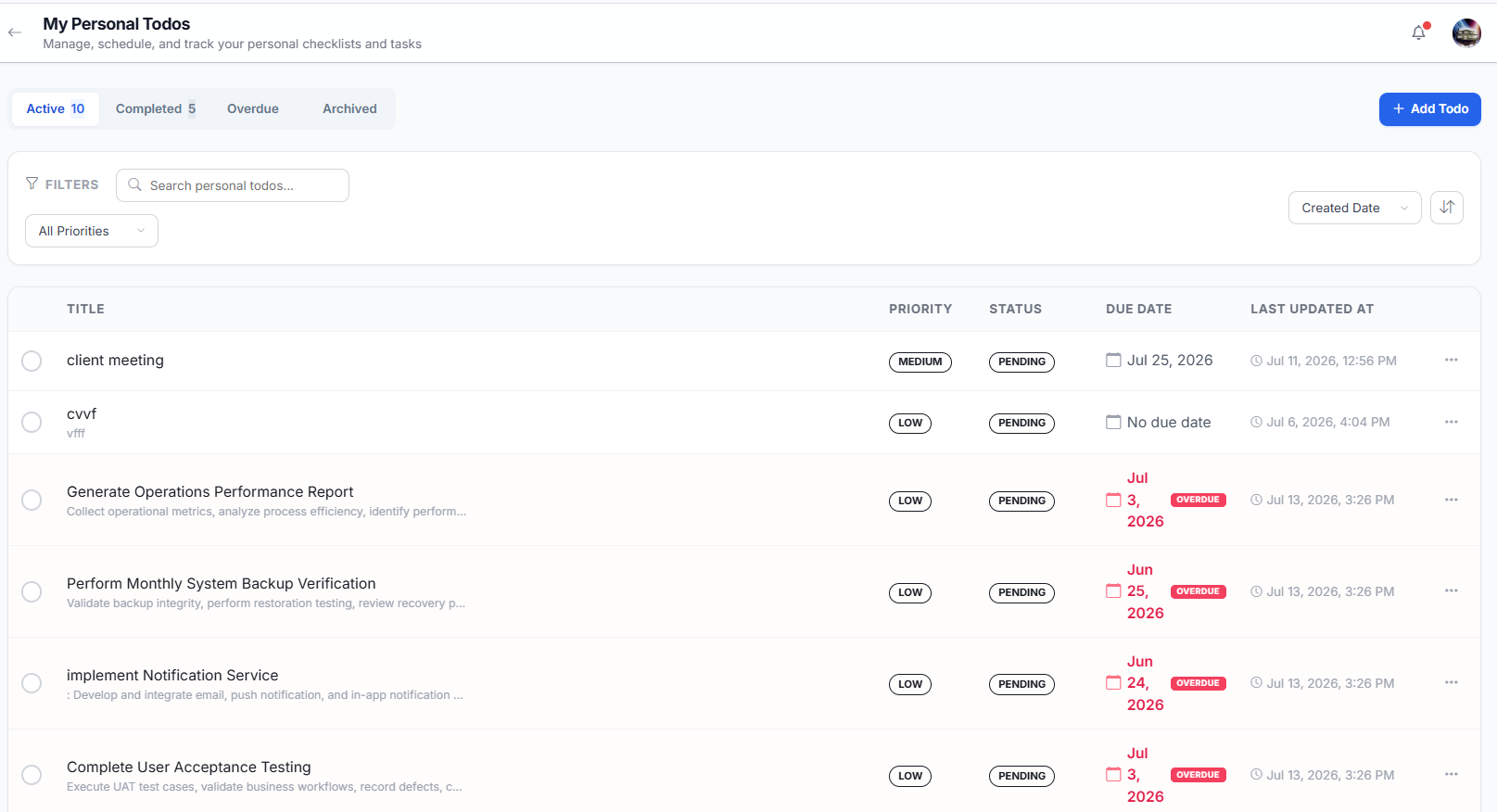
The Todos page is organized into four tabs:
| Tab | What It Shows |
|---|---|
| Active | Current todos that need your attention |
| Completed | Todos you have checked off |
| Overdue | Todos whose due date has passed without completion — highlighted in red |
| Archived | Todos you have archived to hide from Active without deleting |
Creating a Todo
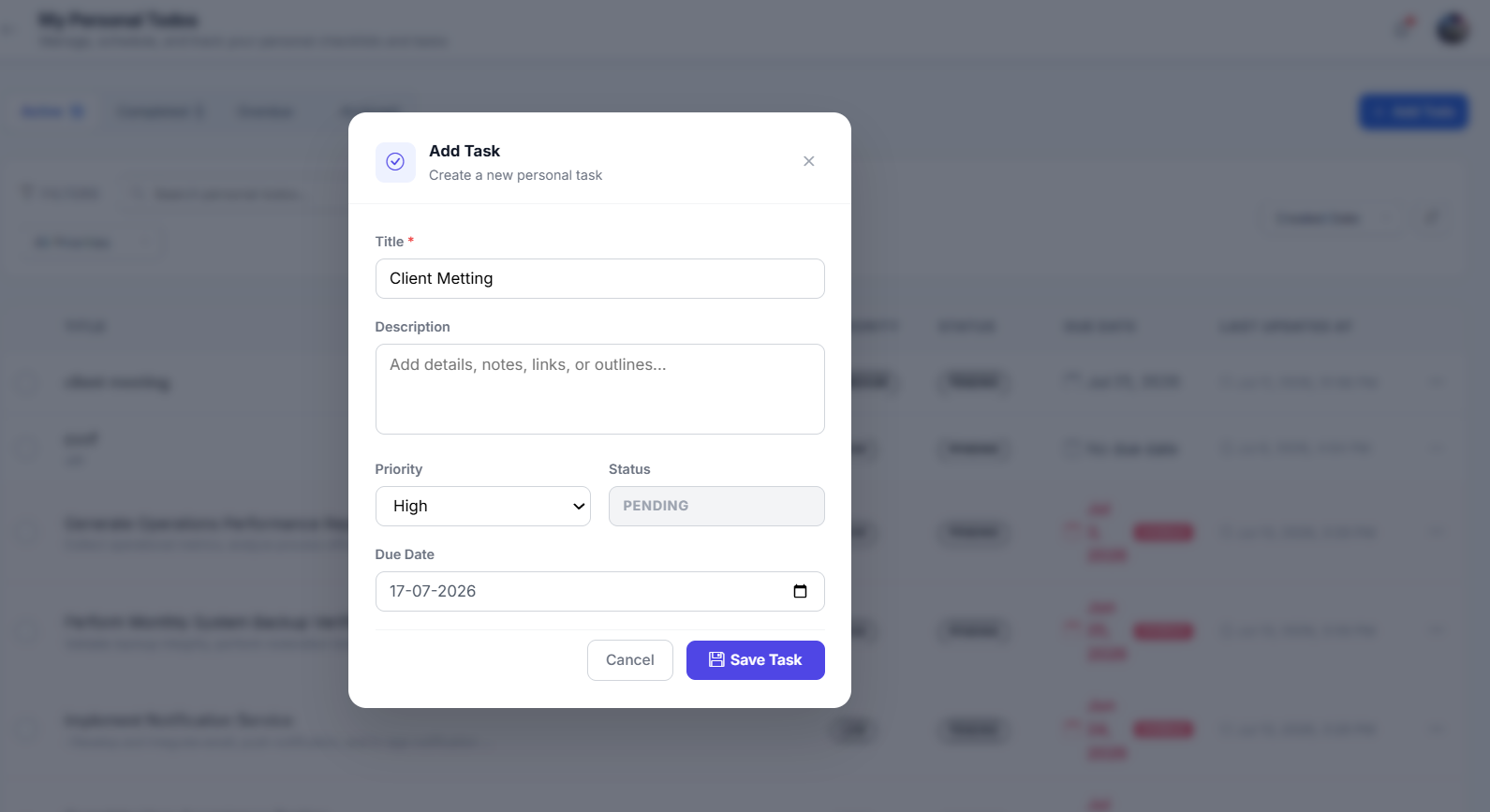
- 1Click "+ Add Todo"
Found at the top of the Todos page.
- 2Write a Title and optional Description
The title appears in the list and on your Dashboard. An optional description adds context or sub-steps.
- 3Set a Priority and Due Date
Choose LOW, MEDIUM, or HIGH. Adding a due date makes the todo appear on the Calendar and moves it to the Overdue tab if not completed in time.
- 4Click "Create"
The item appears in your Active tab and on the Dashboard Todos widget.
Managing Todos
| Action | How |
|---|---|
| Complete | Click the circular checkbox next to the todo. It moves to the Completed tab and the title gets a strikethrough. |
| Clear Completed | On the Completed tab, click Clear Completed to delete all completed todos at once. |
| Archive | Click the three-dot menu (…) → Archive. Hides from Active without deleting. Restore later from the Archived tab. |
| Delete | Click the three-dot menu → Delete. Permanent and cannot be undone. |
Settings
Manage your personal account in one place — view your profile information, update your profile photo, change your password, and control which notifications you receive. Your profile details are maintained by your administrator; only the profile photo and notification preferences are editable by you.
Profile Information
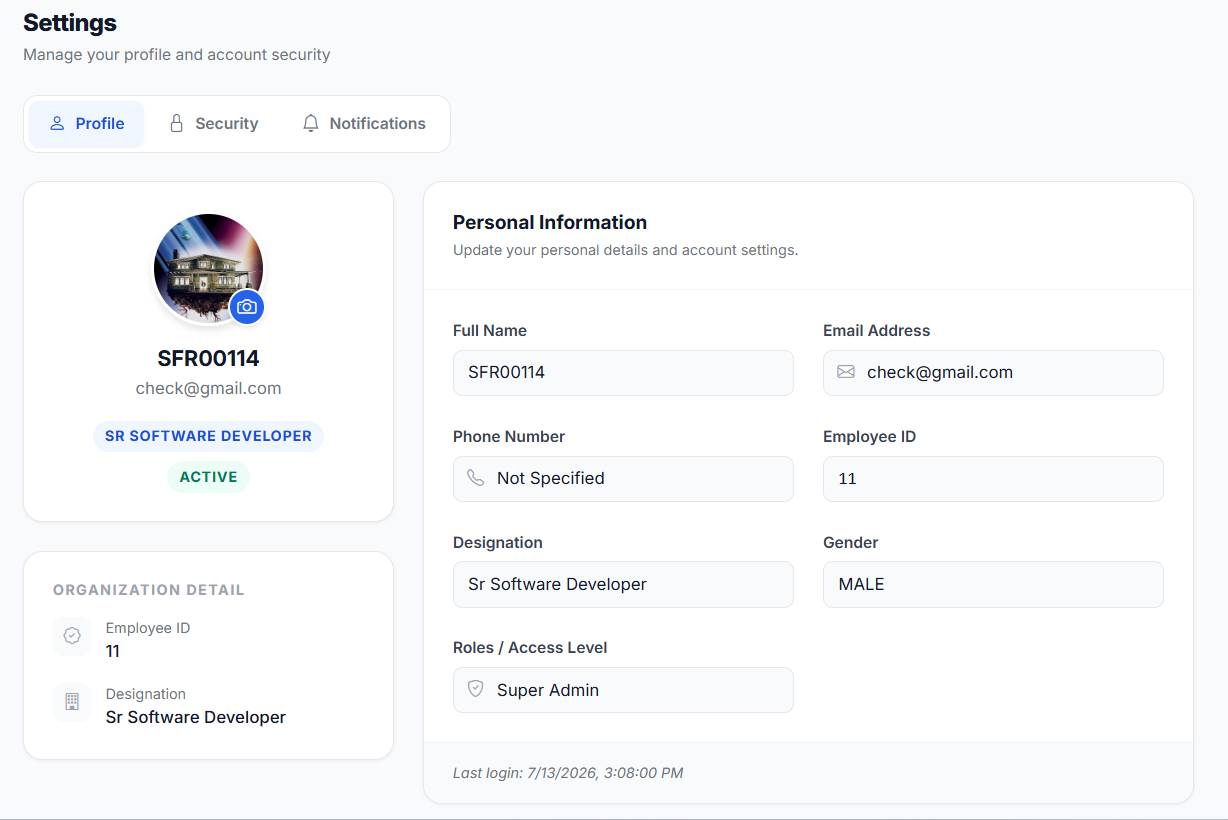
Go to Settings → Profile to view your account details. The left column shows your profile photo (with a camera icon to upload a new one), your name, email, role badge, and organization name. The right column displays a read-only form with all your personal information.
Profile Fields (Read-Only)
The following fields are displayed in the Personal Information form. All fields are read-only — they are managed by your administrator and cannot be changed from this page:
- Full Nameyour display name shown across WorkDesk
- Email Addressyour login email (used for authentication)
- Phone Numberyour contact number
- Employee IDyour organization’s unique identifier
- Designationyour job title
- Genderyour gender
- Roles / Access Levelyour system role
At the bottom of the form, you’ll see your last login time and the Organization section showing your department and team membership.
Your profile fields (name, email, designation, etc.) are set and maintained by your administrator. If any information is incorrect, contact your Admin or Super Admin to update it. Only the profile photo can be changed by you.
Change Your Profile Photo
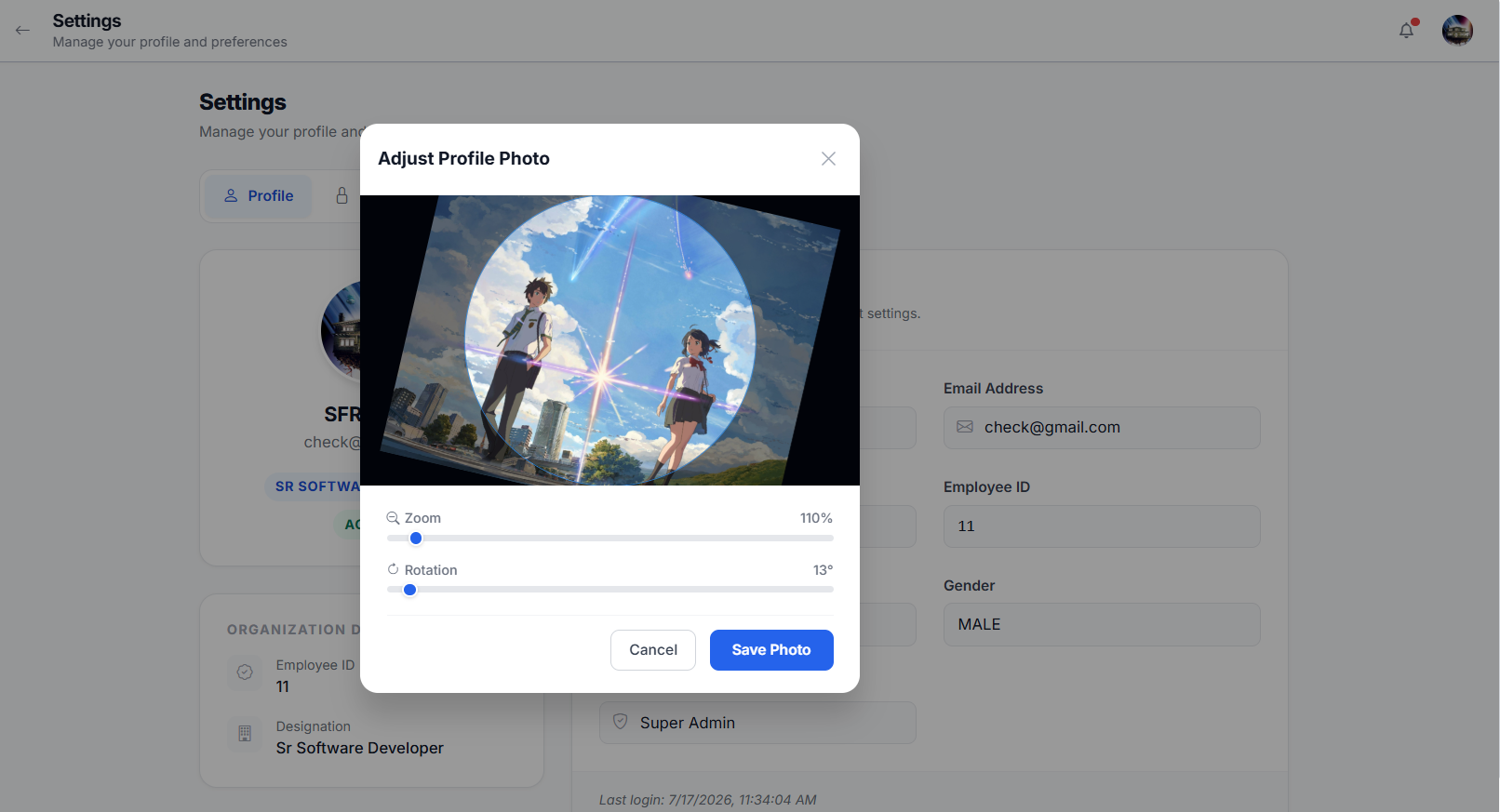
- 1Click the camera icon on your profile photo
In the left column of the Profile tab, hover over your current profile photo and click the camera icon overlay.
- 2Select an image file
Choose an image from your device (JPG or PNG recommended). The file picker opens.
- 3Adjust the crop area
Use the built-in cropper to drag and reposition the image inside the circular crop frame. Zoom in or out as needed.
- 4Click "Save"
Your new profile photo is uploaded and appears across all pages immediately — your avatar in the sidebar, work packages, discussions, and all other views.
Use a clear, well-lit headshot. A square image (1:1 ratio) works best with the circular crop. Avoid busy backgrounds.
Change Password
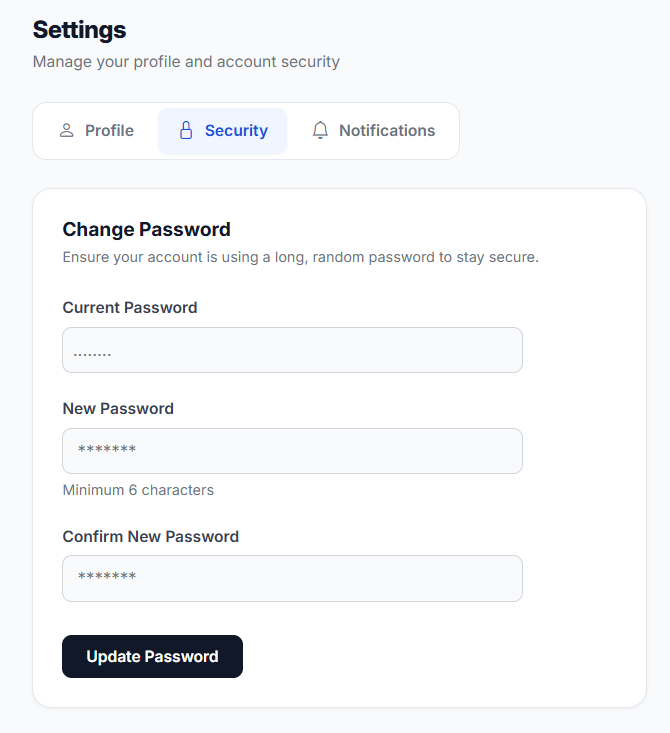
Go to Settings → Change Password to update your login password. You must know your current password to make this change.
- 1Go to Settings → Change Password tab
Click the Change Password tab at the top of Settings. A form with three fields appears.
- 2Enter your Current Password
Type your existing password in the first field. This verifies your identity before allowing the change.
- 3Enter your New Password
Choose a strong new password. Minimum 6 characters. A hint below the field reminds you of this requirement.
- 4Confirm the New Password
Retype your new password in the Confirm field — it must match the New Password field exactly.
- 5Click "Update Password"
Your password is changed immediately. You’ll need to log in with the new password on your next session.
Change your password regularly. Never share it. If you were given an initial password by your administrator, change it immediately after your first login. If you forget your current password, contact your Admin to reset it.
Notification Preferences
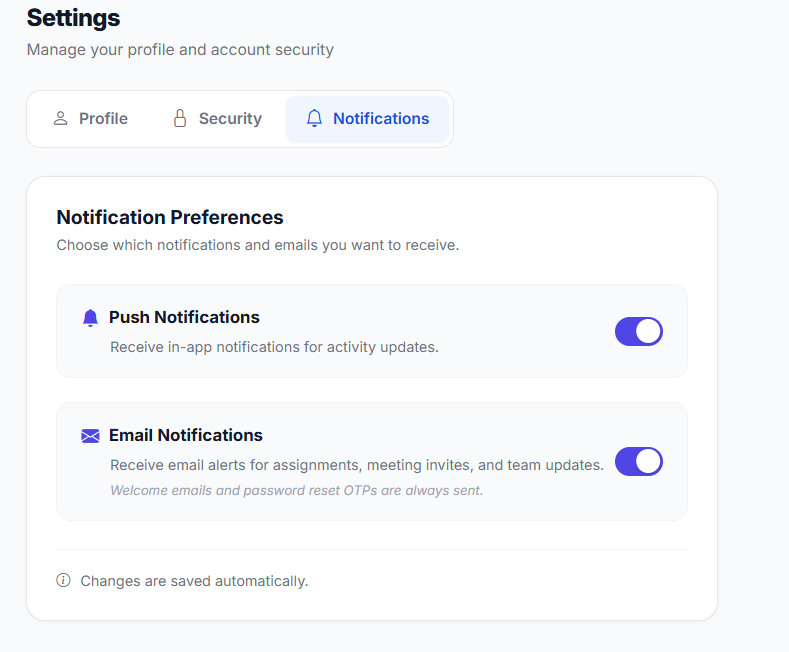
Go to Settings → Notifications to choose which notifications you receive. There are two independent toggles:
Push Notifications
- 1Locate the "Push Notifications" toggle
At the top of the Notifications tab. When enabled, you receive in-app notifications for activity updates (task assignments, meeting invitations, discussion replies, project changes, etc.).
- 2Toggle ON or OFF
Click the toggle switch to enable or disable. The change is saved automatically — no save button needed.
Email Notifications
- 1Locate the "Email Notifications" toggle
Below the Push Notifications toggle. When enabled, you receive email alerts for the same events — sent to your registered email address.
- 2Toggle ON or OFF
Click the toggle to enable or disable email notifications. Changes save automatically.
Viewing Your Notifications
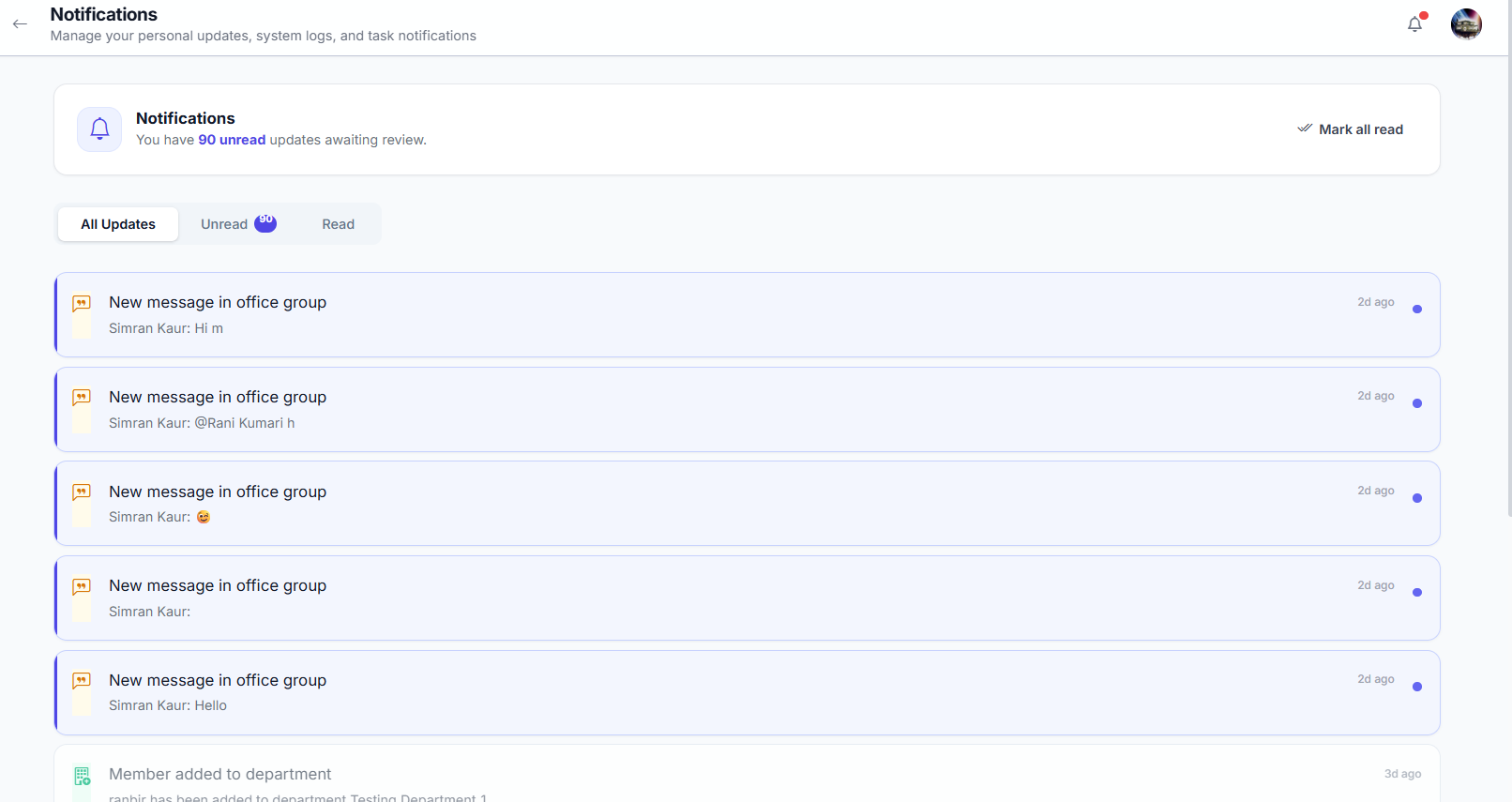
- 1Click the bell icon in the navigation bar
The bell icon () is in the top-right corner of the navigation bar. A badge shows the count of unread notifications.
- 2Browse your notifications
The panel opens showing all your recent notifications. Unread alerts are highlighted with a blue dot or background.
- 3Click a notification
Clicking any notification takes you directly to the related item — a work package, meeting, discussion, or project page.
- 4Mark as read
Clicking a notification marks it as read. The unread badge count decreases automatically.
Dashboard
Your personal home screen showing KPIs, work packages, projects, meetings, and todos. As a Manager, you see projects within your team and work packages where you are the assignee or accountable.
Dashboard Sections
| Section | What It Shows |
|---|---|
| KPI Cards | Total projects, work packages, pending tasks, and completed tasks |
| My Work Packages | Top 3 work packages where you are the assignee or accountable, with status and priority |
| My Projects | Projects in your team |
| Next Meetings | Upcoming meetings you are invited to |
| My Todos | Your personal active todos |
Your Dashboard shows projects within your team and work packages where you are the assignee or accountable. Use it to quickly check what needs your attention across your projects and team.
Departments
View your department details. As a Manager, you belong to one department and can see its teams, members, and head. Department management is handled by your Admin or Super Admin.
- 1Navigate to Departments
Click "Departments" in the sidebar. You will see your assigned department.
- 2Open department detail
Click the department card to view its detail page — teams, members, and reporting hierarchy.
Department Detail Sections
| Section | What You See |
|---|---|
| Overview | Department description and head |
| Teams | All teams within your department |
| Members | Full member list with roles and designations |
| Hierarchy | Chart showing reporting structure |
As a Manager, you can only view your department. Creating, editing, deleting departments, changing the head, and managing members are handled by your Department Admin or Super Admin.
Teams
As a Manager, you can view your own team and manage its members. Adding and removing members is limited to your team only — creating, editing, deleting teams, and changing the team manager require Admin or Super Admin access.
- 1Navigate to Teams
Click "Teams" in the sidebar. You will see your assigned team.
- 2Open team detail
Click the team card to view members, manager, and projects.
Add Members to Your Team
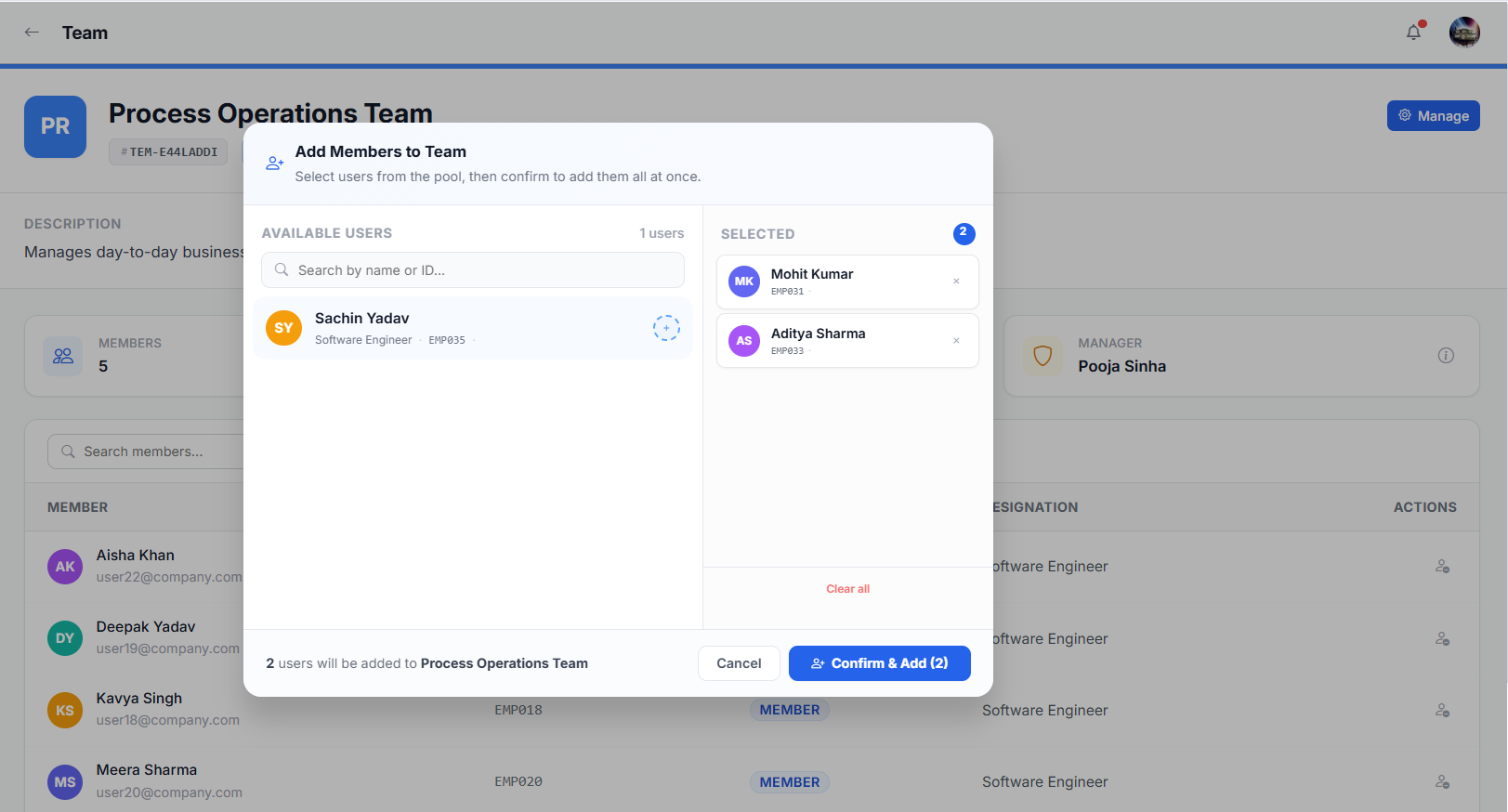
- 1Open your team detail page
Click on your team from the Teams list.
- 2Click "Add Member"
A user search dropdown appears. Search for users in your department who are not already in a team.
- 3Select a user
The user must belong to the same department as the team. Super Admin and Admin users cannot be added as team members.
- 4Confirm
The member is added and appears in your team list.
Remove Members from Your Team
- 1Open your team detail page
- 2Find the member
Browse the members list or use the search.
- 3Click the remove icon
Click the X button next to the member's name. You cannot remove yourself or the team manager.
- 4Confirm
The member is removed from the team, their project memberships are cleaned up, and assigned work packages are unassigned.
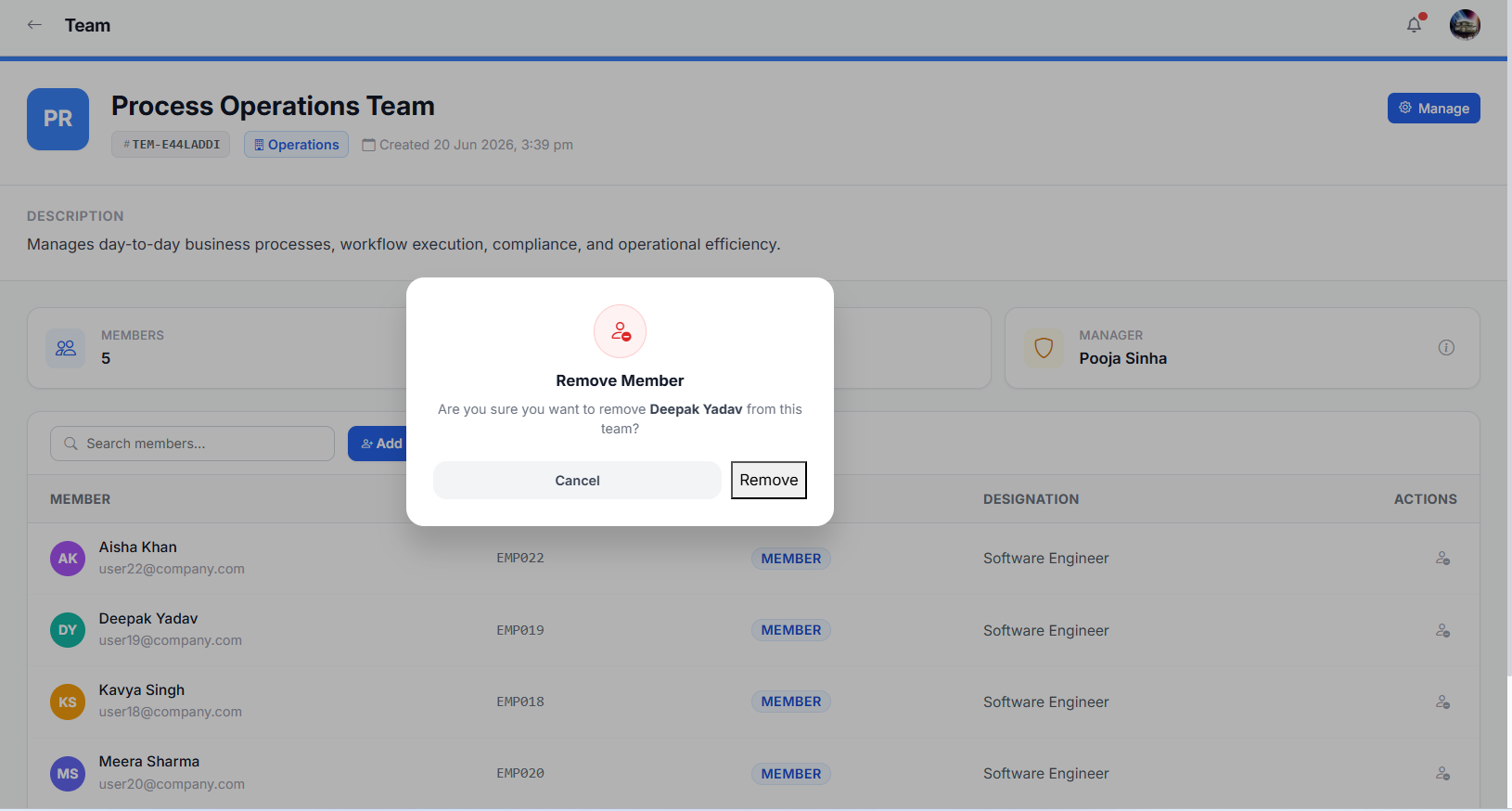
You can only add/remove members of your own team. The user must belong to the same department. Creating teams, changing team managers, and deleting teams require Admin or Super Admin access.
Projects
As a Manager, you can create projects for your own team, update project status, and manage project members. The department and team are locked to your own — only Admins and Super Admins can create projects for other teams.
Create a New Project
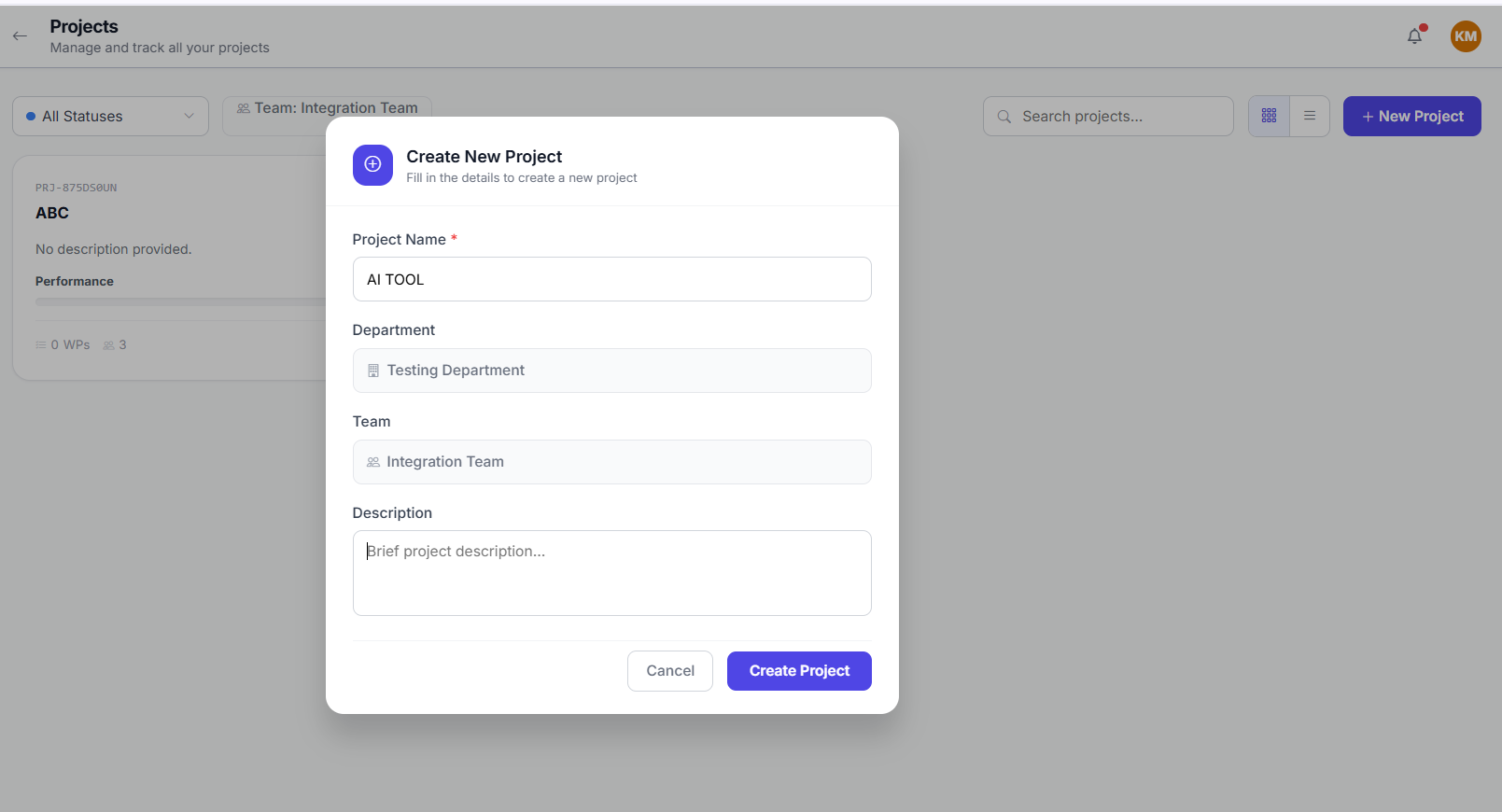
- 1Click "New Project"
Department and Team are pre-filled to your own team.
- 2Fill in project details
Enter the project name, description, status, and due date.
- 3Click "Create"
The project is created. You, all Super Admins, the department admin, and the team manager are automatically added as members.
You can only create projects for your own team. The Department and Team fields are auto-locked.
Edit Project Status
- 1Open the project detail page
Click on the project name.
- 2Click the edit icon
You can change the project status (PLANNING / IN PROGRESS / COMPLETED / ON HOLD).
- 3Save
The status is updated and all members are notified.
Add Members to a Project
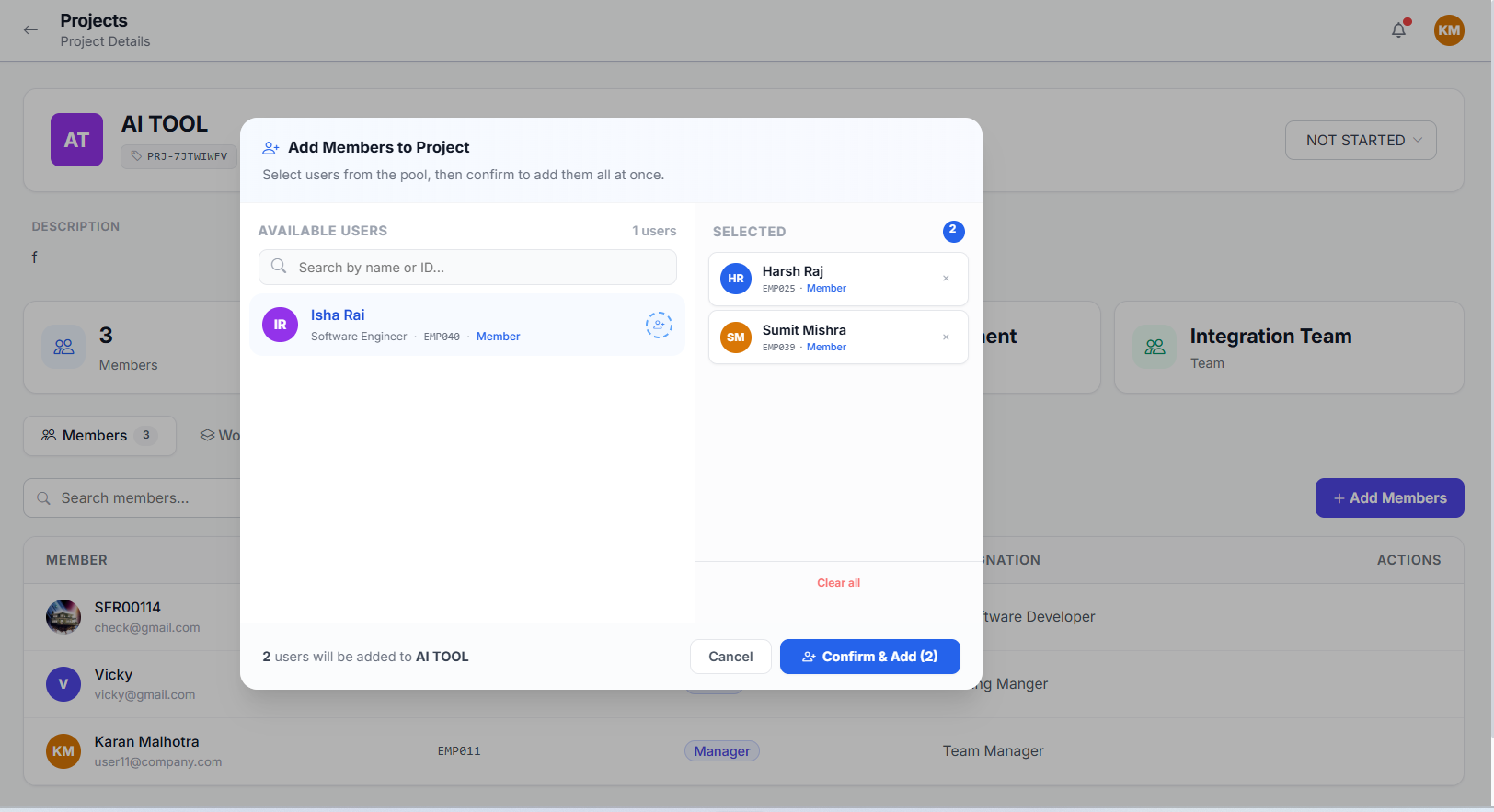
- 1Open the project detail page
Click on the project name.
- 2Click "Add Member"
A user search dropdown appears, showing users from the project's assigned team.
- 3Select a user
Only users who are members of the project's assigned team (or its manager) can be added.
- 4Confirm
The member is added. They are also auto-added to all linked discussion groups and meetings.
Remove Members from a Project
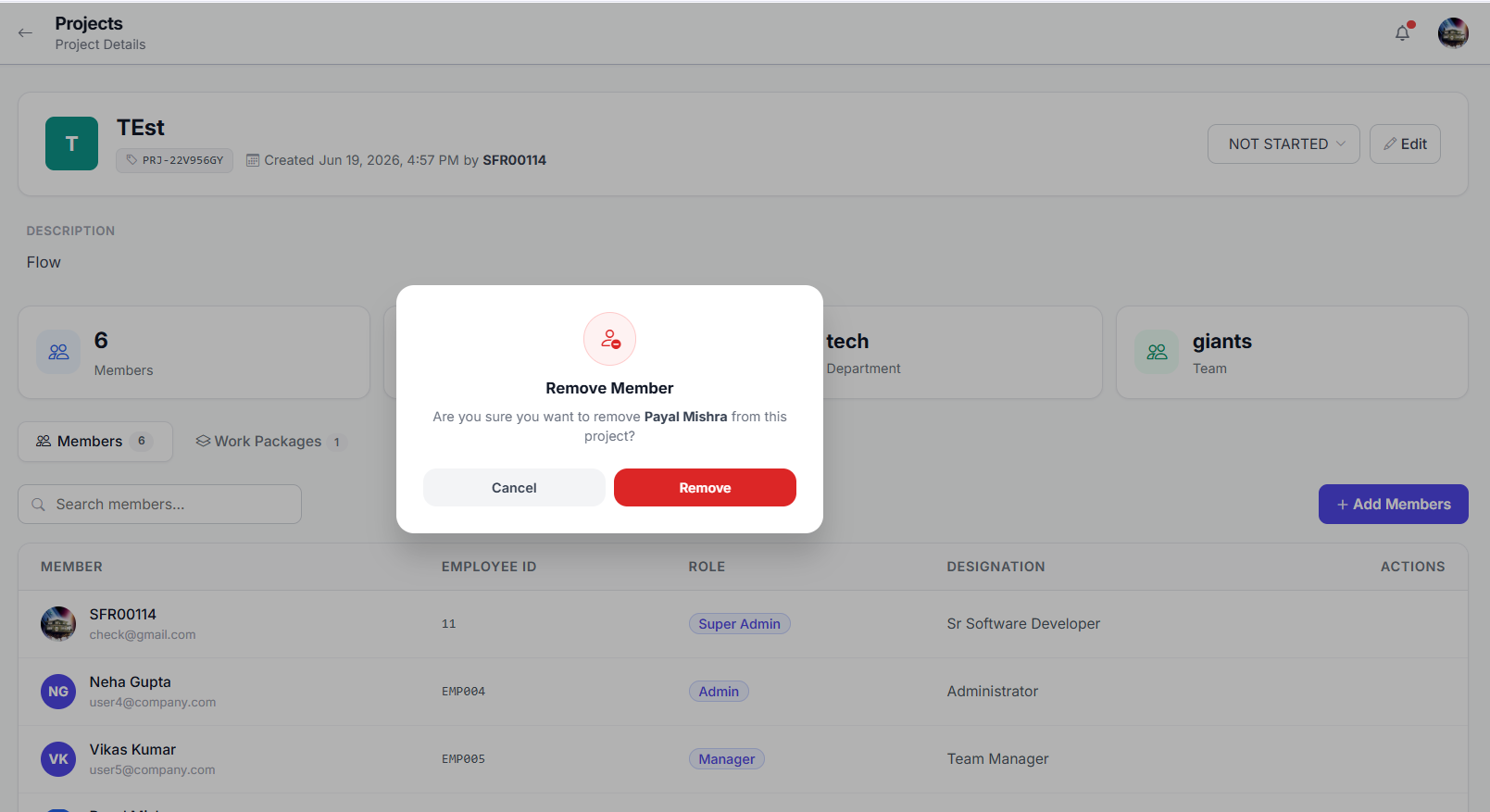
- 1Open the project detail page
- 2Find the member
Browse the project members list.
- 3Click the remove icon
Click the X button next to the member's name. You can only remove MEMBER-role users.
- 4Confirm
The member is removed from the project and all linked meetings and discussion groups.
You can only remove MEMBER-role users from projects. You cannot remove other Managers, Admins, or Super Admins. You also cannot remove yourself from a project.
Work Packages
As a Manager, you can create work packages for your team, assign them to Employees or other Managers, update any work package you are involved in, and manage the Accountable tab. The Accountable person is the one who created the work package and is responsible for ensuring it gets done.
Work Package Tabs
You see two tabs: Assigned to Me (work packages where you are the assignee) and Accountable (work packages you created and are responsible for overseeing).
Create a Work Package
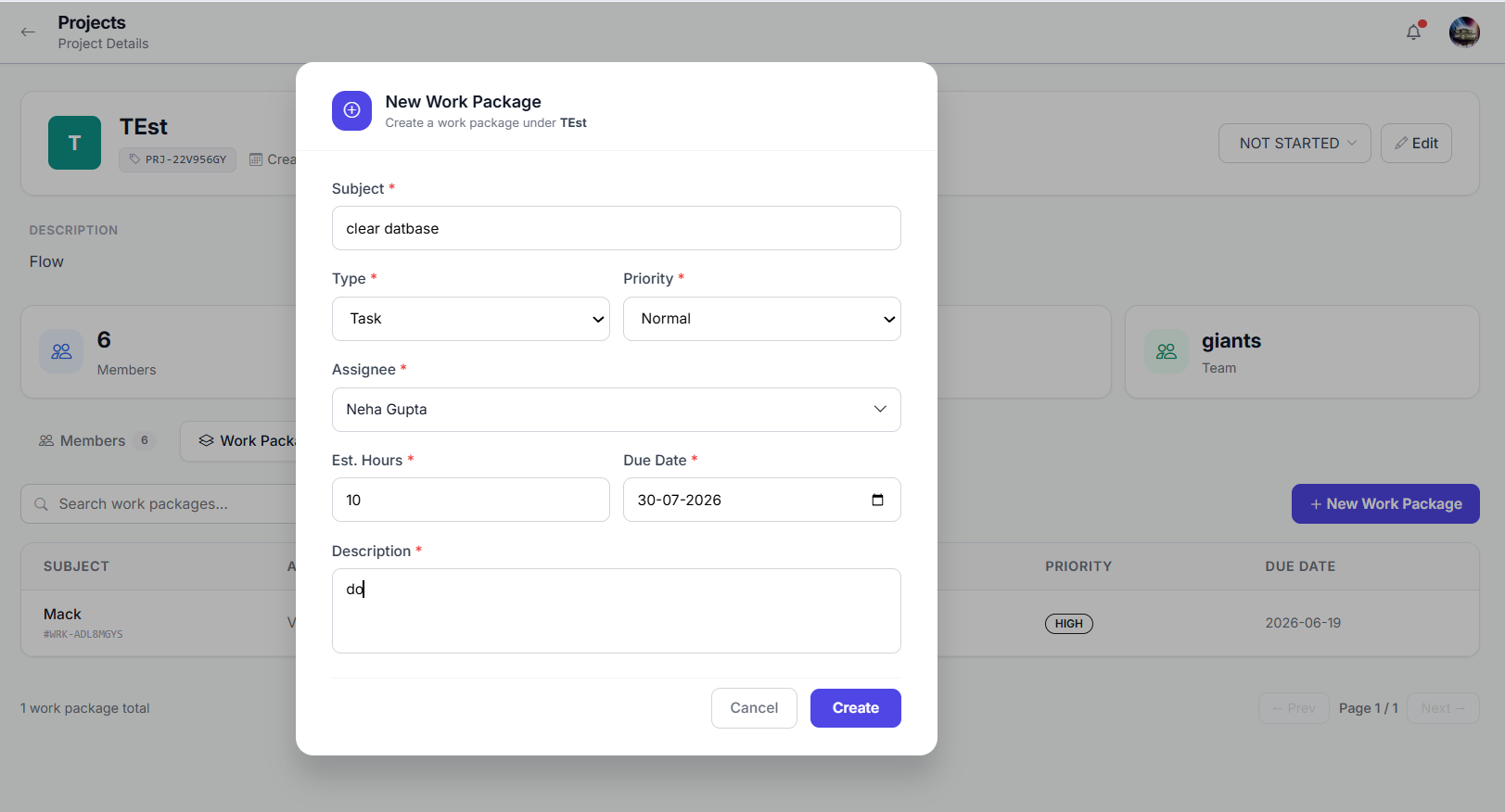
- 1Click "New Work Package"
Visible on the Work Package list page.
- 2Fill in the details
Enter Subject, Description, select Project, choose Assignee, set Priority, Estimated Hours, and Due Date.
- 3Click "Create"
The work package is created with status INITIAL. You are set as the Accountable person.
You can assign work packages to Employee role users only. You cannot assign to Super Admin or Admin users. The assignee must be a member of the project and belong to your team.
Edit a Work Package
- 1Open a work package
Click on any work package card on the board or list.
- 2Click "Edit"
You can update title, description, priority, due date, status, and assignee.
- 3Save changes
The work package is updated and the assignee is notified.
Only the Accountable person (the creator) or a privileged role (Manager, Admin, Super Admin) can edit or reassign a work package. The Assignee can only update status and log time.
Status Board (Kanban)
- 1Open the project
Navigate to the project containing the work packages.
- 2Drag and drop
Move a work package card from one column to another to update its status.
Work Package Detail & Time Tracking
Work Package Fields
| Field | Description |
|---|---|
| Subject | Title of the work package |
| Status | INITIAL → IN PROGRESS → ON HOLD → COMPLETED |
| Priority | LOW, NORMAL, HIGH, CRITICAL |
| Accountable | The creator (you, when you create it) |
| Assignee | Team member responsible for doing the work |
| Estimated Hours | Expected effort in hours |
| Due Date | When the task should be completed |
The Assignee is the person doing the work. The Accountable person is the one who created the work package and is responsible for ensuring it gets done. Only the Accountable person (or a privileged role) can reassign or delete a work package.
Log Time
Only the Assignee can log time on a work package. You can view time entries but cannot create or edit them unless you are the Assignee.
Add Comments
Only the Accountable and the Assignee can add comments. Both users can communicate, share progress updates, and discuss task-related information. Other users can view the comments but cannot add or edit them.
- 1Open a work package
Click on the work package card.
- 2Type your comment
Use the comment box at the bottom.
- 3Click "Post"
Your comment is visible to all project members.
Meetings
As a Manager, you can create meetings for your team, invite participants, and manage meetings you created.
View Meetings
Navigate to Meetings from the sidebar. You see:
- Meetings you created
- Meetings you were invited to as a participant
- Every meeting in the organization — the Super Admin is always added as an ADMIN participant
Create a Meeting
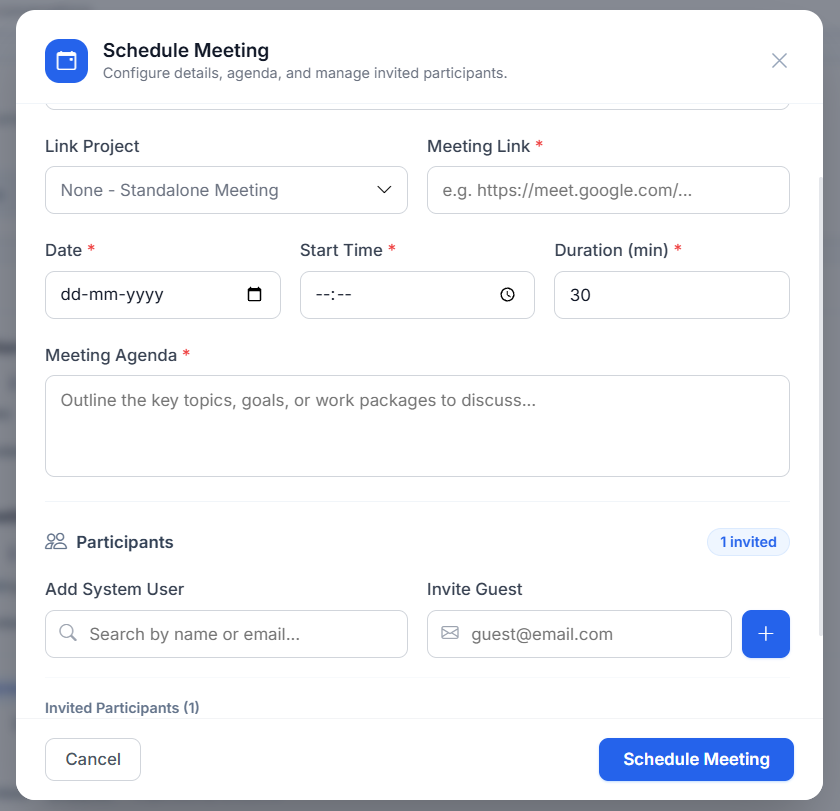
- 1Click "New Meeting"
Found on the Meetings list page.
- 2Enter meeting details
Title, Description, Date & Time, Duration (in minutes), and Meeting Link (URL).
- 3Link a project (optional)
If you link a project, all project members are automatically added to the participant list. You can remove anyone before saving.
- 4Add participants
Invite organization members manually, or add external participants by entering their email addresses. You receive an email invitation with the meeting link.
- 5Click "Create"
You are automatically added as an ADMIN participant. The Super Admin is also auto-added. All participants receive notifications and the meeting appears on their Calendar.
Participant Types
- Auto-added project membersfrom linked projects
- Organization membersmanually invited by you
- External participantsinvited via email addresses
Edit a Meeting
- 1Open the meeting detail page
Click on the meeting title from the list.
- 2Click "Edit"
You can update the title, description, date, time, duration, meeting link, and participants. The edit button appears if you are the organizer.
- 3Save changes
If the date or time changed, all participants receive an updated email invitation. If only participants changed, newly added participants receive an invitation.
Cancel a Meeting
- 1Open the meeting detail page
Click on the meeting title.
- 2Click "Cancel Meeting"
This button is only visible if you are the organizer.
- 3Confirm
The meeting status changes to CANCELLED and all participants are notified.
If you cannot see the Edit or Cancel buttons, it means you are not the meeting organizer. Only the organizer and Super Admin can edit or cancel meetings.
Discussions
As a Manager, you can create discussion groups for your team, add or remove members, and participate in real-time group chats. The creator automatically becomes the Group Admin with full management access.
View Discussion Groups
Navigate to Discussions from the sidebar. You see groups where you are a member — either created by you or where you were added.
Create a Discussion Group
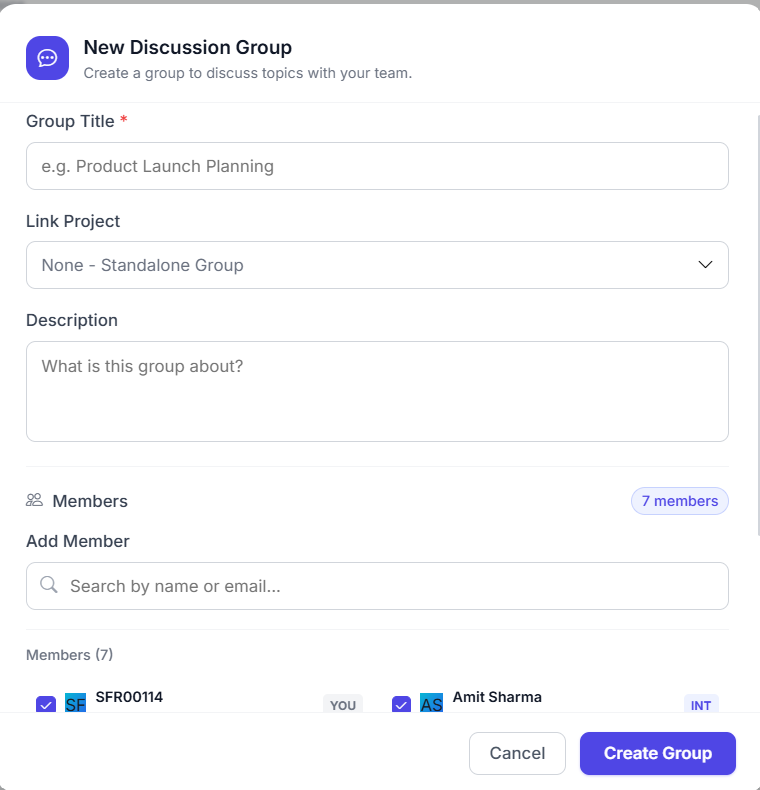
- 1Click "New Discussion"
A form modal will appear.
- 2Enter group details
Title and Description for the discussion group.
- 3Link a project (optional)
If you link a project, all project members are automatically added to the participant list. You can review and remove anyone before creating.
- 4Add participants
Invite organization members manually in addition to project members.
- 5Click "Create"
You are automatically set as the Group Admin. All participants are notified and a system message appears in the chat.
Add Members
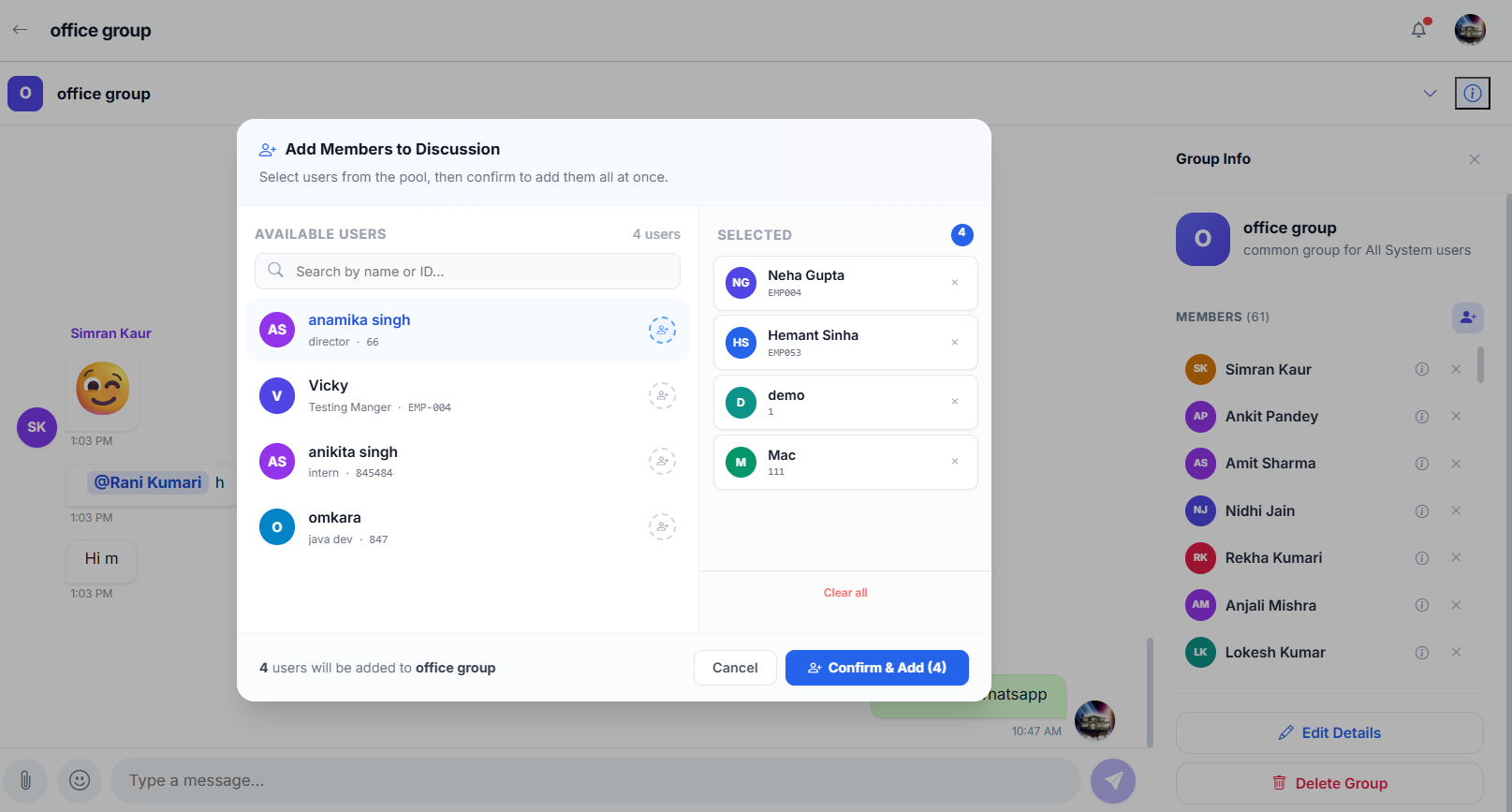
- 1Open the discussion group
Click on the group name from the list.
- 2Click the info icon
Opens the right-side panel showing group details and member list.
- 3Click "Add Member"
Search for and select users to add to the group.
- 4Confirm
The member is added and a system message appears in the chat.
Remove Members
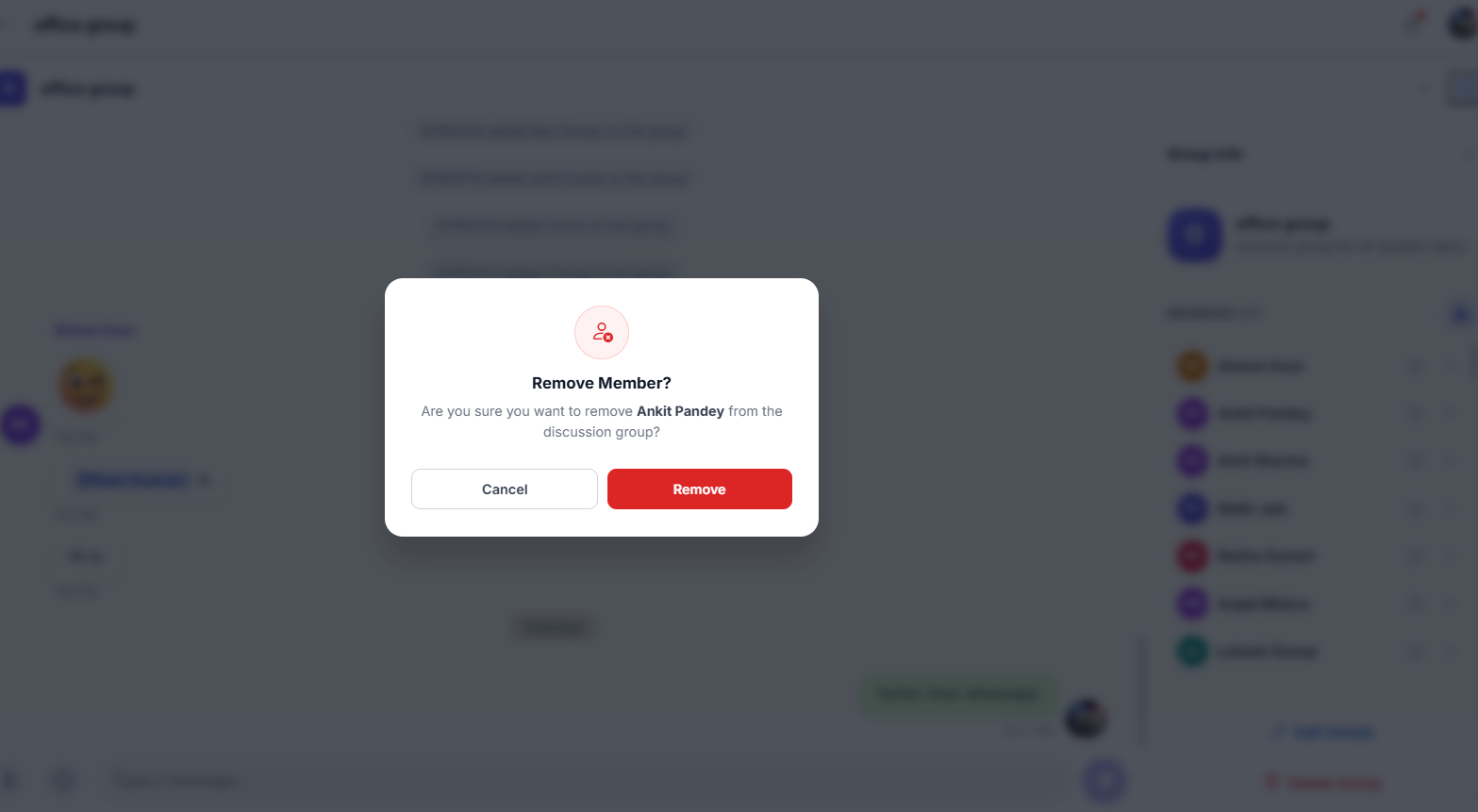
- 1Open the discussion group
Click on the group name.
- 2Click the info icon
Opens the right-side panel.
- 3Click the remove icon next to a member
A confirmation dialog will appear.
- 4Confirm
The member is removed and a system message appears.
You cannot remove the group creator — only Super Admin can remove the creator. You also cannot leave a group you created; you must delete it instead.
Edit a Discussion Group
- 1Open the discussion group
Click on the group name.
- 2Click "Edit"
You can update the title, description, and manage linked projects and members.
- 3Save changes
All members are notified of the update.
Delete a Discussion Group
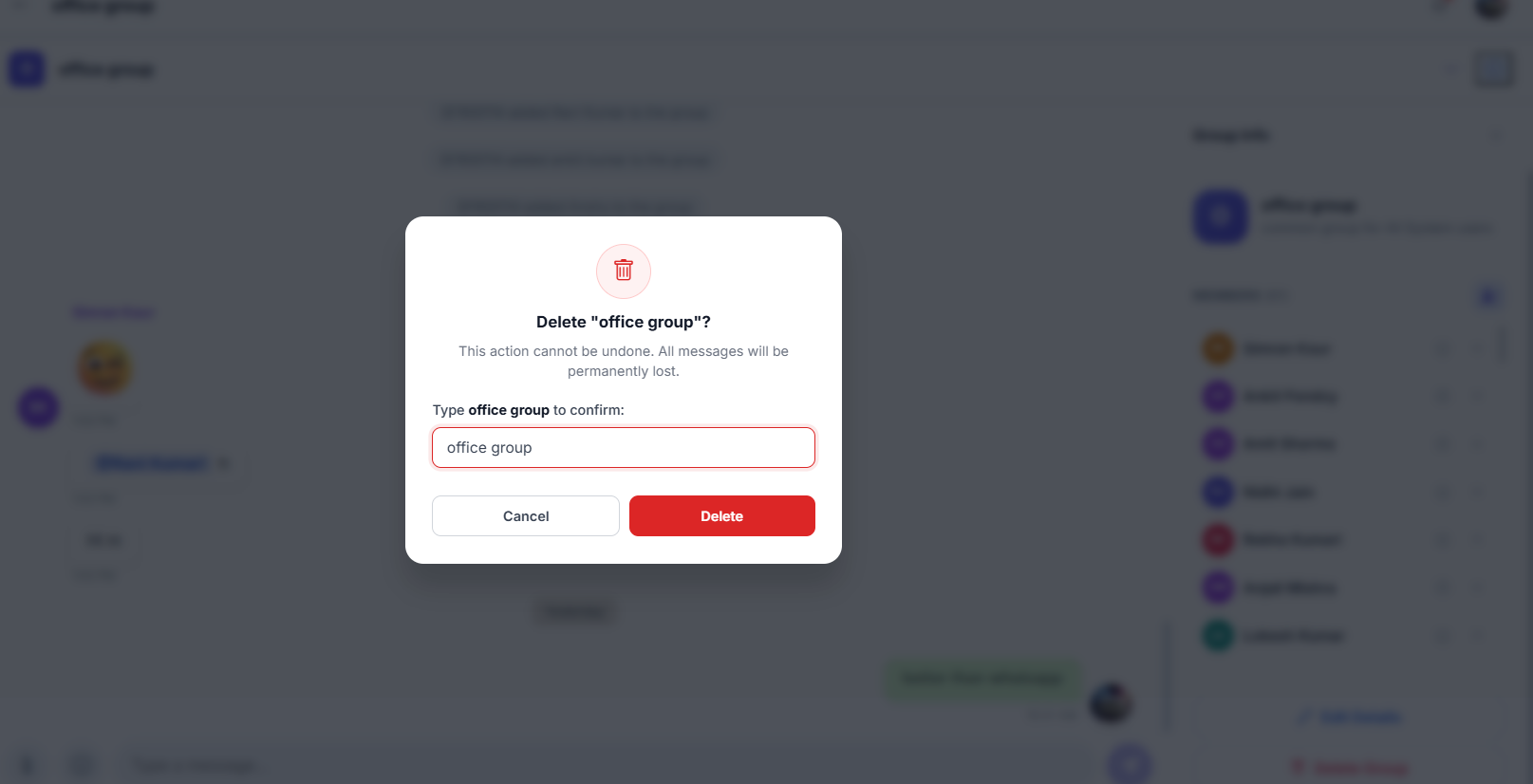
- 1Open the discussion group
Click on the group name.
- 2Click "Delete Group"
A confirmation dialog will appear. This button is only visible for the Group Admin (creator) or Super Admin.
- 3Confirm
The group is permanently deleted and all members are notified.
Send Messages
- 1Open a discussion group
Click on the group name from the list.
- 2Type a message
Use the message input box at the bottom. You can attach files, use emojis, and @mention members.
- 3Send
Press Enter or click the send button. Messages appear in real-time for all group members.
Calendar
The Calendar is your central timeline — all your upcoming meetings, project deadlines, and work package due dates in one visual view. The calendar is personalized to show only events relevant to you.
View Your Calendar
- 1Click "Calendar" in the sidebar
The calendar opens showing the current month with all your events.
- 2Click on a day to see events
A side panel shows all events for that day with details.
- 3Click on an event to navigate
Clicking a meeting takes you to the Meetings page. Clicking a work package or project takes you to its detail page.
What Appears on Your Calendar
- Meetingsmeetings you organized or are participating in
- Work Package Due Dateswork packages where you are the assignee or accountable person, with due dates in the visible range
- Project Due Datesprojects you are a member of, with due dates in the visible range
Event Color Coding
- Blue — Meetings
- Yellow — Due Today
- Red — Overdue
- Green — On Track
Navigating the Calendar
- 1Previous / Next Month
Click the arrow buttons to move between months.
- 2Today Button
Click "Today" to jump back to the current date.
- 3Click any day
A side panel shows all events for that day — meetings, work package deadlines, and project deadlines.
The calendar is a read-only view of your events. To create or edit meetings, use the Meetings page. Events are added automatically when meetings are scheduled or tasks are assigned to you.
Notes
Notes is your private workspace inside WorkDesk. Write meeting summaries, capture ideas, save reference information — stored securely and visible only to you. No one else can see your notes.
View Your Notes
- 1Click "Notes" in the sidebar
The left panel shows your note list with Active and Archived tabs; the right panel is the editor. Use the search box to find notes by keyword, and the sort dropdown to order by Date Created, Last Modified, or Title Name.
- 2Click on a note to open it
The note content loads in the editor panel on the right.
Create a Note
- 1Click "+ New Note"
A blank note opens in the editor.
- 2Enter a title
Type a descriptive name, e.g., "Sprint 4 Planning Notes".
- 3Write your content
The editor supports bold, italic, bullet lists, and headings.
- 4Notes save automatically
Changes are saved as you type. You can also click Save manually.
Notes are tied to your account. No one else — not your Admin or Super Admin — can see or access your notes. They are stored securely and visible only to you.
Todos
Todos are your private personal checklist in WorkDesk. Use them for reminders, personal action items, and anything you need to track that isn't a formal project task. Only you can see your todos.
Your Todo List
The Todos page is organized into four tabs:
- Activecurrent todos that need your attention
- Completedtodos you have checked off
- Overduetodos whose due date has passed without completion — highlighted in red
- Archivedtodos you have archived to hide from Active without deleting
Create a Todo
- 1Click "+ Add Todo"
Found at the top of the Todos page.
- 2Write a Title and optional Description
The title appears in the list and on your Dashboard. An optional description adds context or sub-steps.
- 3Set a Priority and Due Date
Choose LOW, MEDIUM, or HIGH. Adding a due date makes the todo appear on the Calendar and moves it to the Overdue tab if not completed in time.
- 4Click "Create"
The item appears in your Active tab and on the Dashboard Todos widget.
Manage Your Todos
- 1Complete a todo
Click the circular checkbox next to the todo. It moves to the Completed tab and the title gets a strikethrough.
- 2Edit a todo
Click on the todo to open its detail view. You can update the title, description, priority, and due date.
- 3Archive a todo
Click the three-dot menu (…) and select Archive. Hides from Active without deleting. Restore later from the Archived tab.
- 4Delete a todo permanently
Click the three-dot menu and select Delete. Permanent and cannot be undone.
- 5Clear Completed
On the Completed tab, click Clear Completed to delete all completed todos at once.
Todos are tied to your account. No one else — not your Admin or Super Admin — can see or access your todos. They are stored securely and visible only to you.
Settings
Manage your personal account in one place — view your profile information, update your profile photo, change your password, and control which notifications you receive. As a Manager, your profile details are maintained by your administrator; only the profile photo and notification preferences are editable by you.
Profile Information
Go to Settings → Profile to view your account details. The left column shows your profile photo (with a camera icon to upload a new one), your name, email, role badge, and organization name. The right column displays a read-only form with all your personal information.
Profile Fields (Read-Only)
The following fields are displayed in the Personal Information form. All fields are read-only — they are managed by your administrator and cannot be changed from this page:
- Full Nameyour display name shown across WorkDesk
- Email Addressyour login email (used for authentication)
- Phone Numberyour contact number
- Employee IDyour organization’s unique identifier
- Designationyour job title
- Genderyour gender
- Roles / Access Levelyour system role
At the bottom of the form, you’ll see your last login time and the Organization section showing your department and team membership.
Your profile fields (name, email, designation, etc.) are set and maintained by your administrator. If any information is incorrect, contact your Admin or Super Admin to update it. Only the profile photo can be changed by you.
Change Your Profile Photo
- 1Click the camera icon on your profile photo
In the left column of the Profile tab, hover over your current profile photo and click the camera icon overlay.
- 2Select an image file
Choose an image from your device (JPG or PNG recommended). The file picker opens.
- 3Adjust the crop area
Use the built-in cropper to drag and reposition the image inside the circular crop frame. Zoom in or out as needed.
- 4Click "Save"
Your new profile photo is uploaded and appears across all pages immediately — your avatar in the sidebar, work packages, discussions, and all other views.
Use a clear, well-lit headshot. A square image (1:1 ratio) works best with the circular crop. Avoid busy backgrounds.
Change Password
Go to Settings → Change Password to update your login password. You must know your current password to make this change.
- 1Go to Settings → Change Password tab
Click the Change Password tab at the top of Settings. A form with three fields appears.
- 2Enter your Current Password
Type your existing password in the first field. This verifies your identity before allowing the change.
- 3Enter your New Password
Choose a strong new password. Minimum 6 characters. A hint below the field reminds you of this requirement.
- 4Confirm the New Password
Retype your new password in the Confirm field — it must match the New Password field exactly.
- 5Click "Update Password"
Your password is changed immediately. You’ll need to log in with the new password on your next session.
Change your password regularly. Never share it. If you were given an initial password by your administrator, change it immediately after your first login. If you forget your current password, contact your Admin to reset it.
Notification Preferences
Go to Settings → Notifications to choose which notifications you receive. There are two independent toggles:
Push Notifications
- 1Locate the "Push Notifications" toggle
At the top of the Notifications tab. When enabled, you receive in-app notifications for activity updates (task assignments, meeting invitations, discussion replies, project changes, etc.).
- 2Toggle ON or OFF
Click the toggle switch to enable or disable. The change is saved automatically — no save button needed.
Email Notifications
- 1Locate the "Email Notifications" toggle
Below the Push Notifications toggle. When enabled, you receive email alerts for the same events — sent to your registered email address.
- 2Toggle ON or OFF
Click the toggle to enable or disable email notifications. Changes save automatically.
Viewing Your Notifications
- 1Click the bell icon in the navigation bar
The bell icon () is in the top-right corner of the navigation bar. A badge shows the count of unread notifications.
- 2Browse your notifications
The panel opens showing all your recent notifications. Unread alerts are highlighted with a blue dot or background.
- 3Click a notification
Clicking any notification takes you directly to the related item — a work package, meeting, discussion, or project page.
- 4Mark as read
Clicking a notification marks it as read. The unread badge count decreases automatically.
Dashboard
Your personal home screen showing KPIs, work packages, projects, meetings, and todos. As an Admin, you see projects and work packages within your department.
Dashboard Sections
| Section | What It Shows |
|---|---|
| KPI Cards | Total projects, work packages, pending tasks, and completed tasks |
| My Work Packages | Top 3 work packages where you are the assignee or accountable, with status and priority |
| My Projects | Projects you are a member of within your department |
| Next Meetings | Upcoming meetings you are invited to |
| My Todos | Your personal active todos |
As an Admin, you see projects within your own department. Super Admin sees projects across the entire organization. Use the Dashboard to monitor progress, then drill into specific projects from the sidebar.
Departments
Departments represent the highest level of organizational structure. As an Admin, you can view your assigned department, add members, and remove members. Creating, editing, deleting departments, and changing the head are restricted to Super Admin only.
As an Admin, you can only manage members within your own department. You can add users who are not yet assigned to any department, and remove existing members. Super Admin can manage members across all departments.
Add Members to Your Department
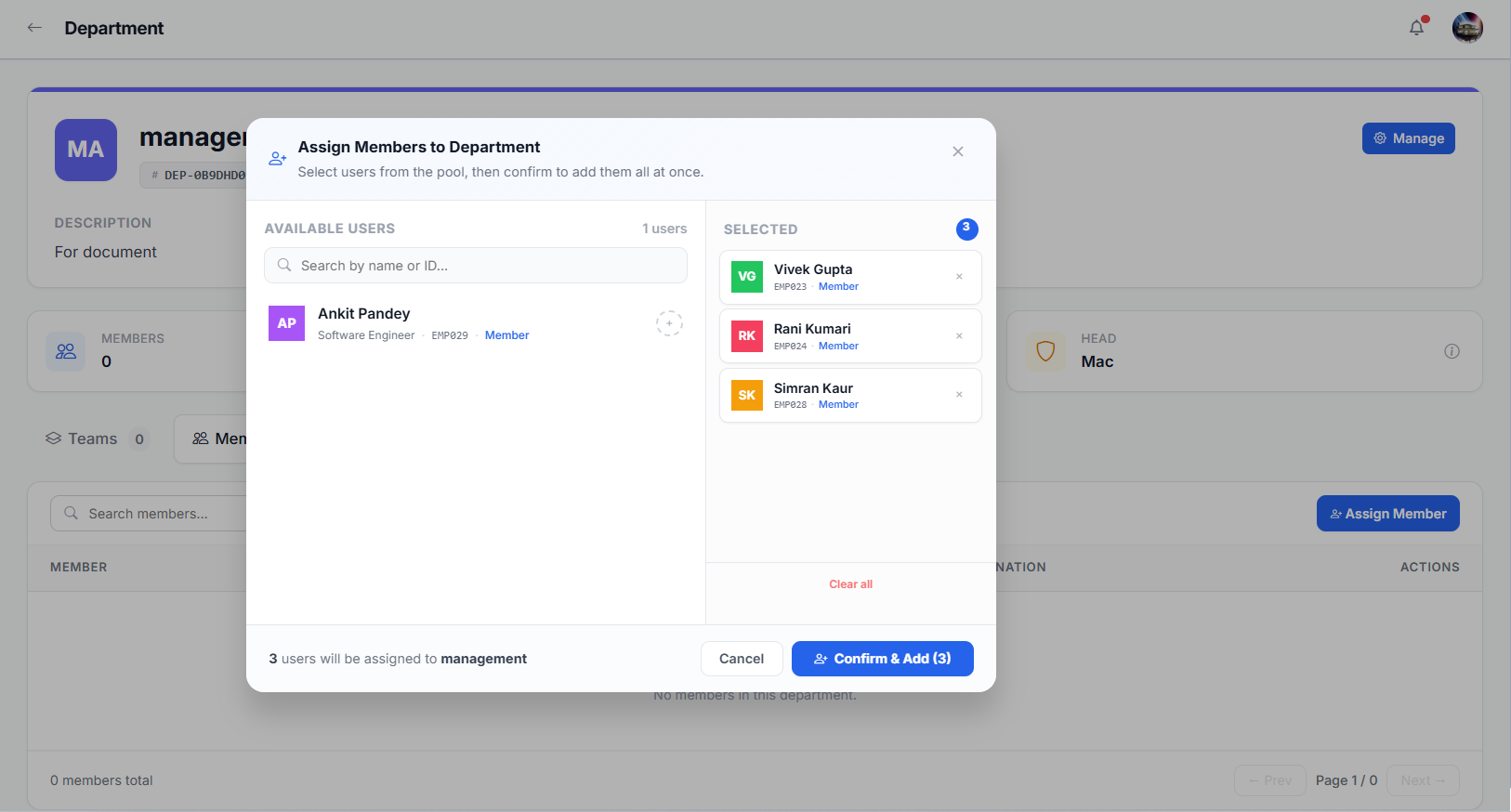
- 1Open the department detail page
Click on your department from the sidebar.
- 2Click "Add Member"
A user search dropdown appears. Search for users who are not yet assigned to any department.
- 3Select a user
The user must not already belong to another department. Super Admin cannot be added to any department.
- 4Confirm
The member is added to your department and appears in the members list.
Remove Members from Your Department
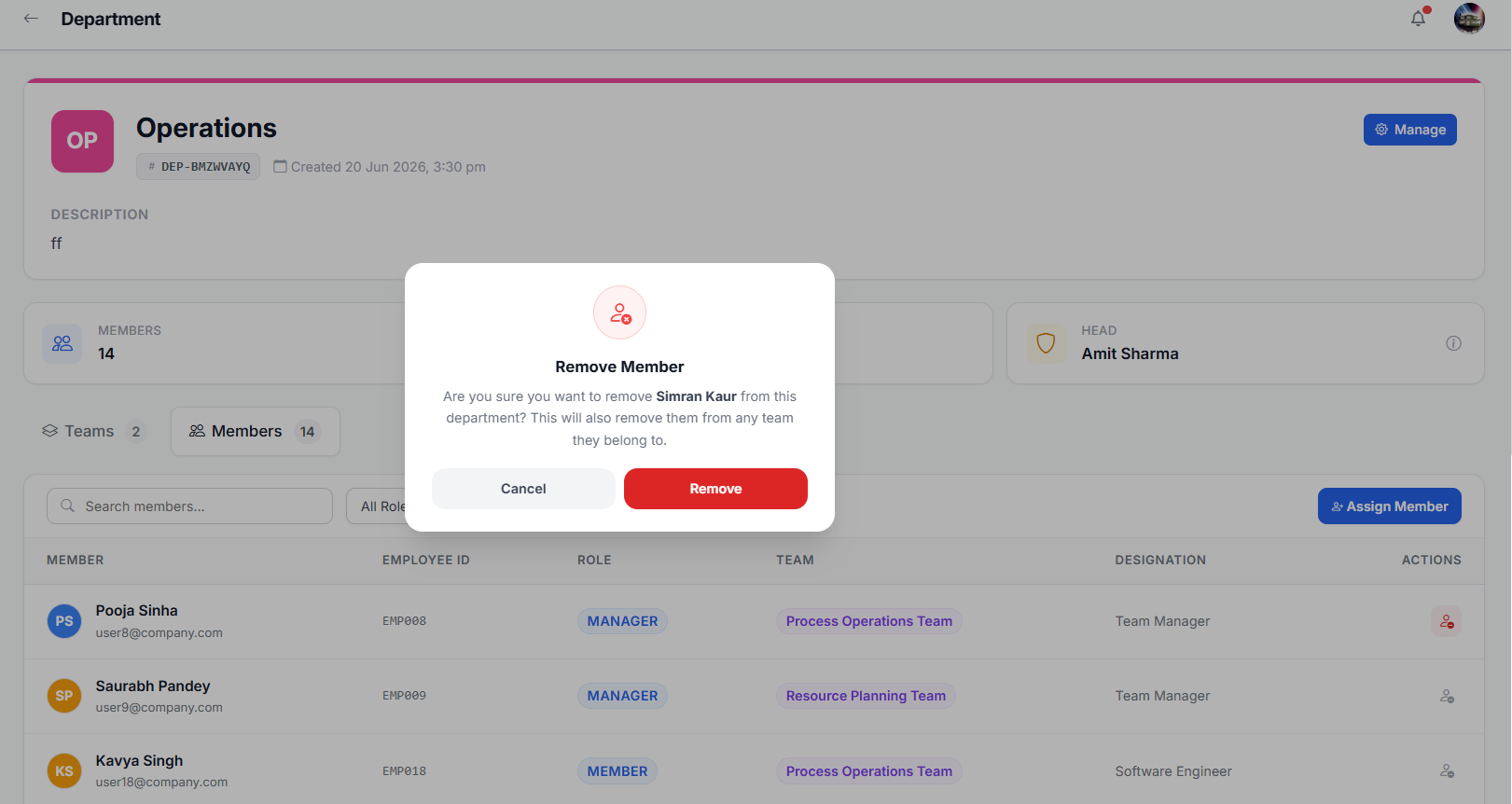
- 1Open the department detail page
Click on your department.
- 2Find the member
Browse the members list or use the search.
- 3Click the remove icon
Click the X button next to the member's name.
- 4Confirm
The member is removed from your department.
You cannot create, edit, or delete departments — only Super Admin can. You also cannot change the department head. You can only add or remove members within your own department. If you need these actions, contact your Super Admin.
Teams
Teams are groups of users within a department. As an Admin, you can create, edit, delete, and manage members of teams within your own department. You also change the team manager.
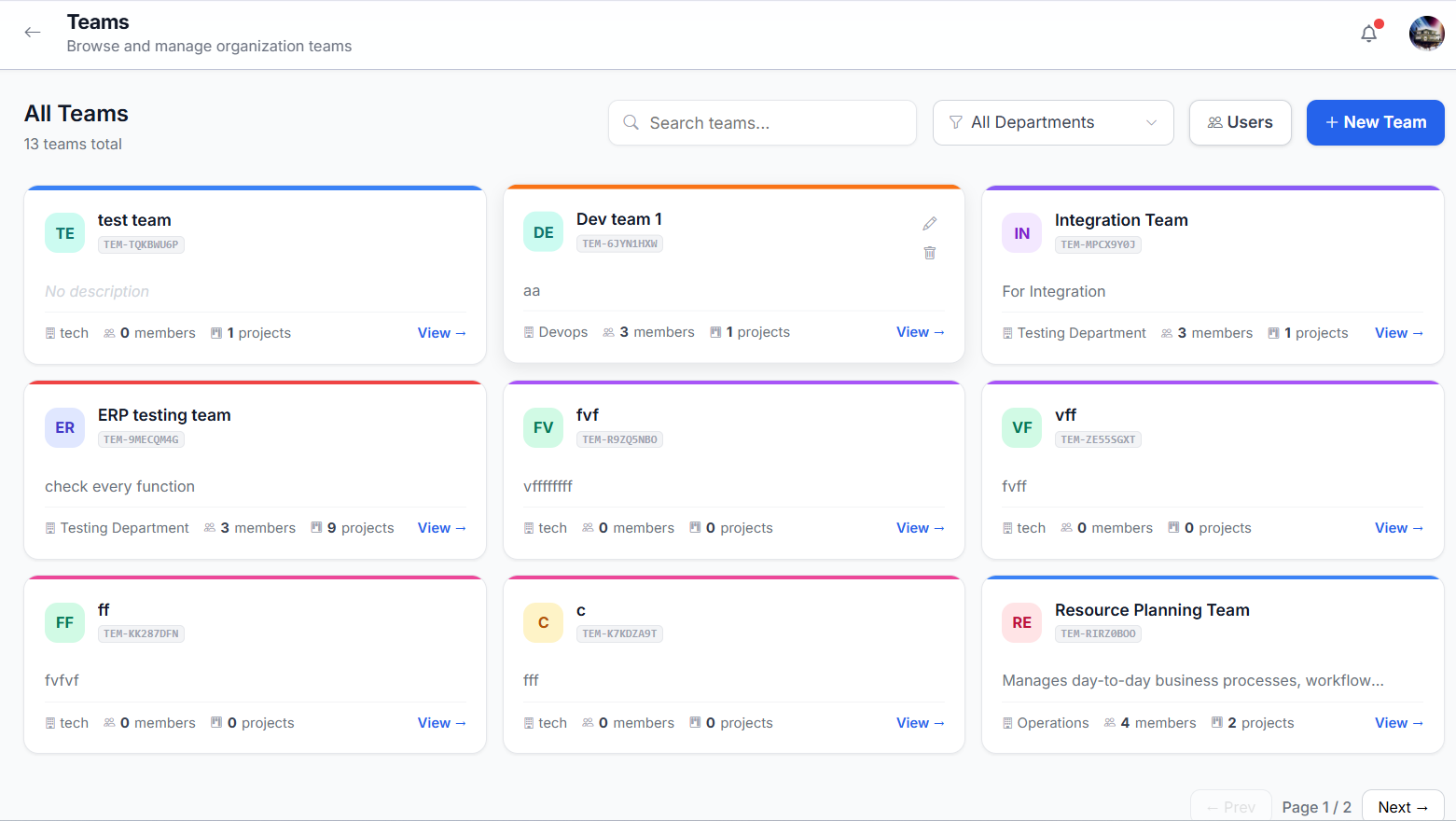
Create a New Team
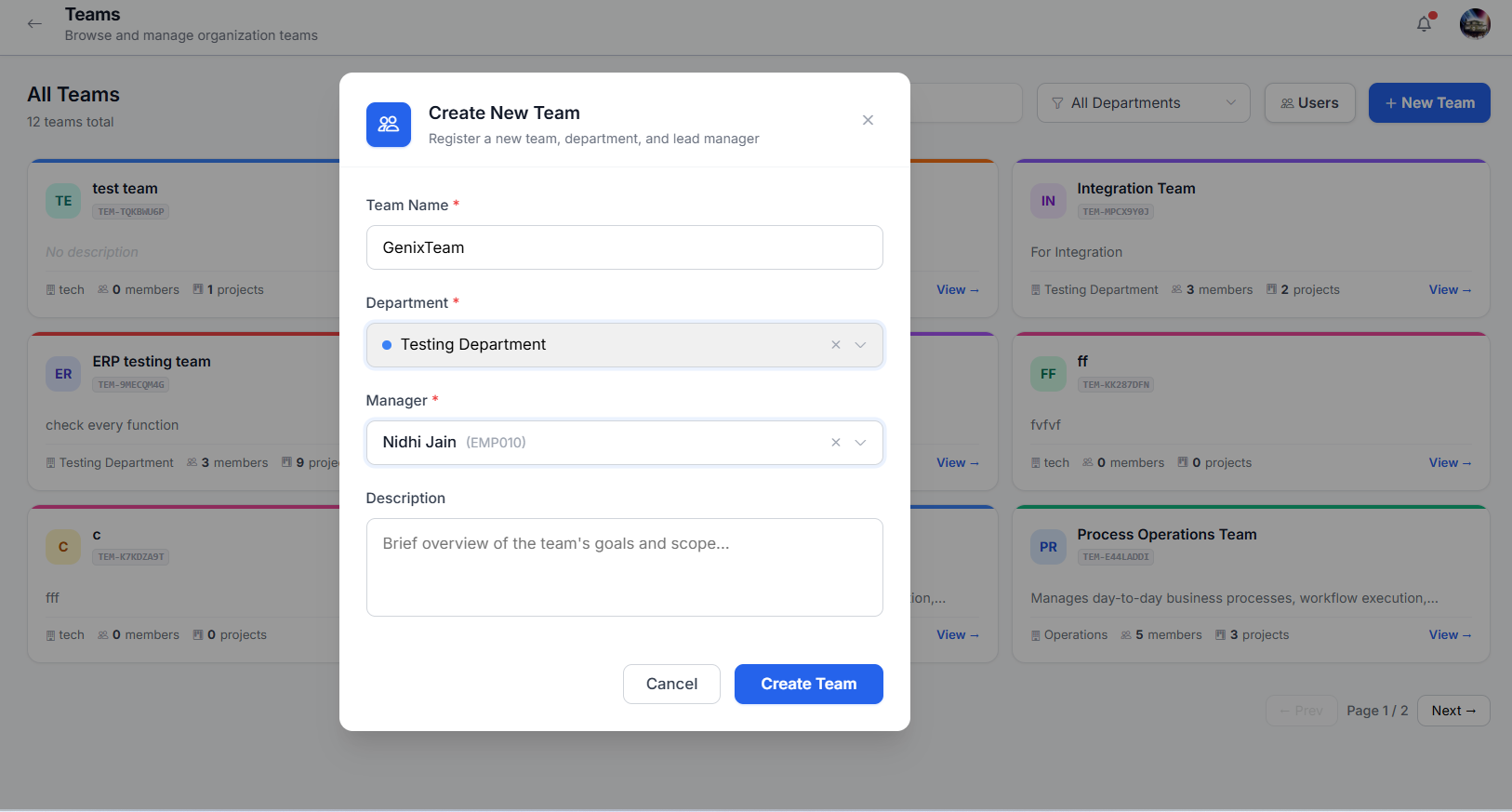
- 1Navigate to your department detail page
Click "Departments" in the sidebar, then open your department.
- 2Click "Add Team"
On the Teams tab, click the "Add Team" button. A form modal will appear.
- 3Enter team details
Team Name, Description, and assign a Manager (must be a MANAGER-role user belonging to your department).
- 4Click "Create"
The team is created and appears in your department's team list. The assigned manager is automatically added as a member.
Add Members to a Team
- 1Open the team detail page
Click on the team name from the list.
- 2Click "Add Member"
A user search dropdown appears. Search for users in the team's department who are not already in a team.
- 3Select a user
The user must belong to the same department as the team. Super Admin and Admin users cannot be added as team members.
- 4Confirm
The member is added and appears in the team's member list.
Remove Members from a Team
- 1Open the team detail page
Click on the team name.
- 2Find the member
Browse the members list or use the search.
- 3Click the remove icon
Click the X button next to the member's name. You cannot remove yourself or the team manager.
- 4Confirm
The member is removed from the team, their project memberships are cleaned up, and assigned work packages are unassigned.
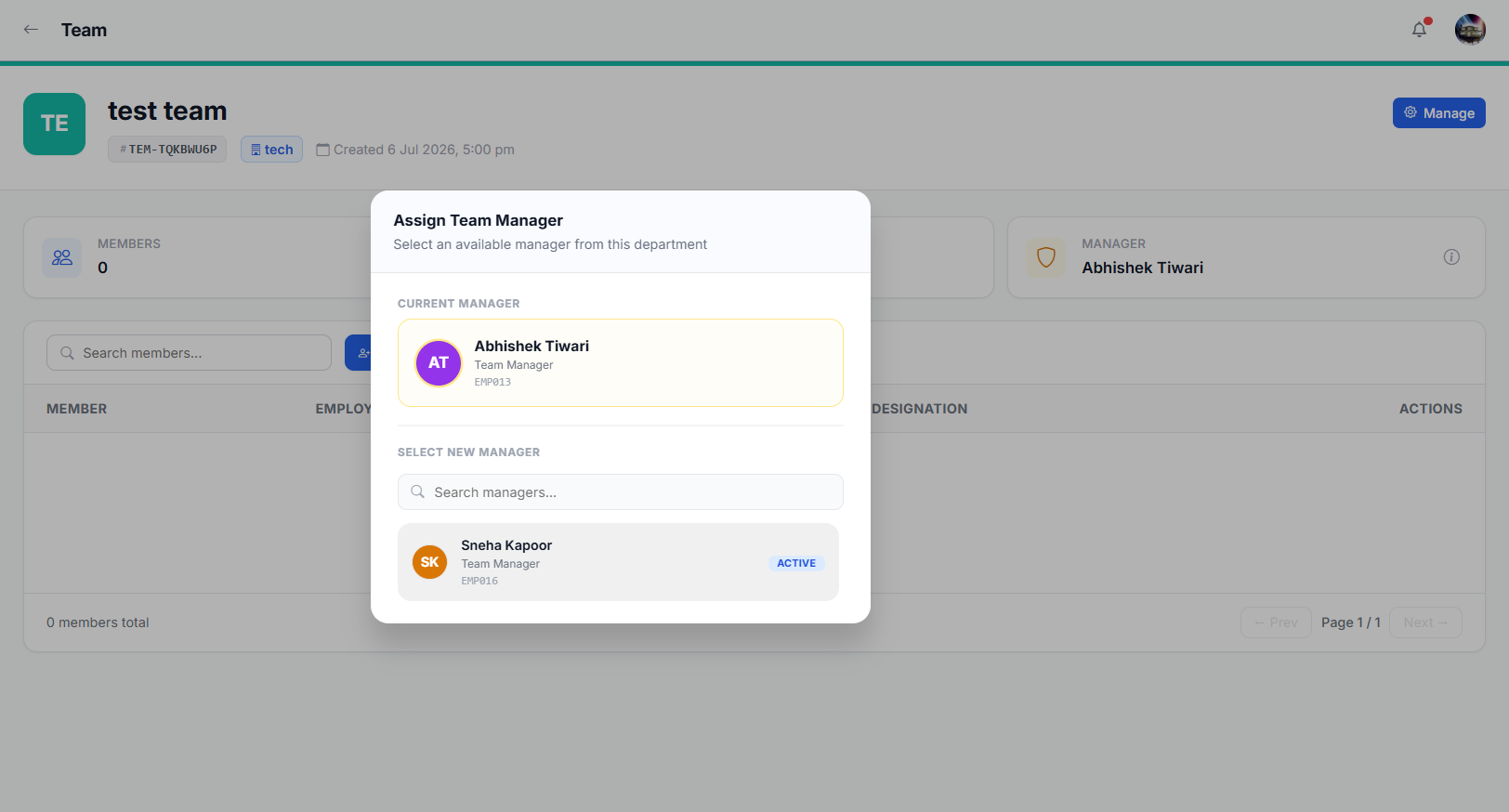
Change Team Manager
- 1Open the team detail page
Click on the team name from the list.
- 2Click "Change Manager"
A dropdown appears with the current manager and available MANAGER-role users in the same department.
- 3Select a new manager
The new manager is assigned and auto-added to all team projects and meetings. The old manager is removed from project memberships and their work packages are reassigned.
Delete a Team
- 1Open the team detail page
Click on the team name from the list.
- 2Click the delete icon
A confirmation dialog will appear.
- 3Confirm deletion
All team members are unassigned and the team is permanently deleted.
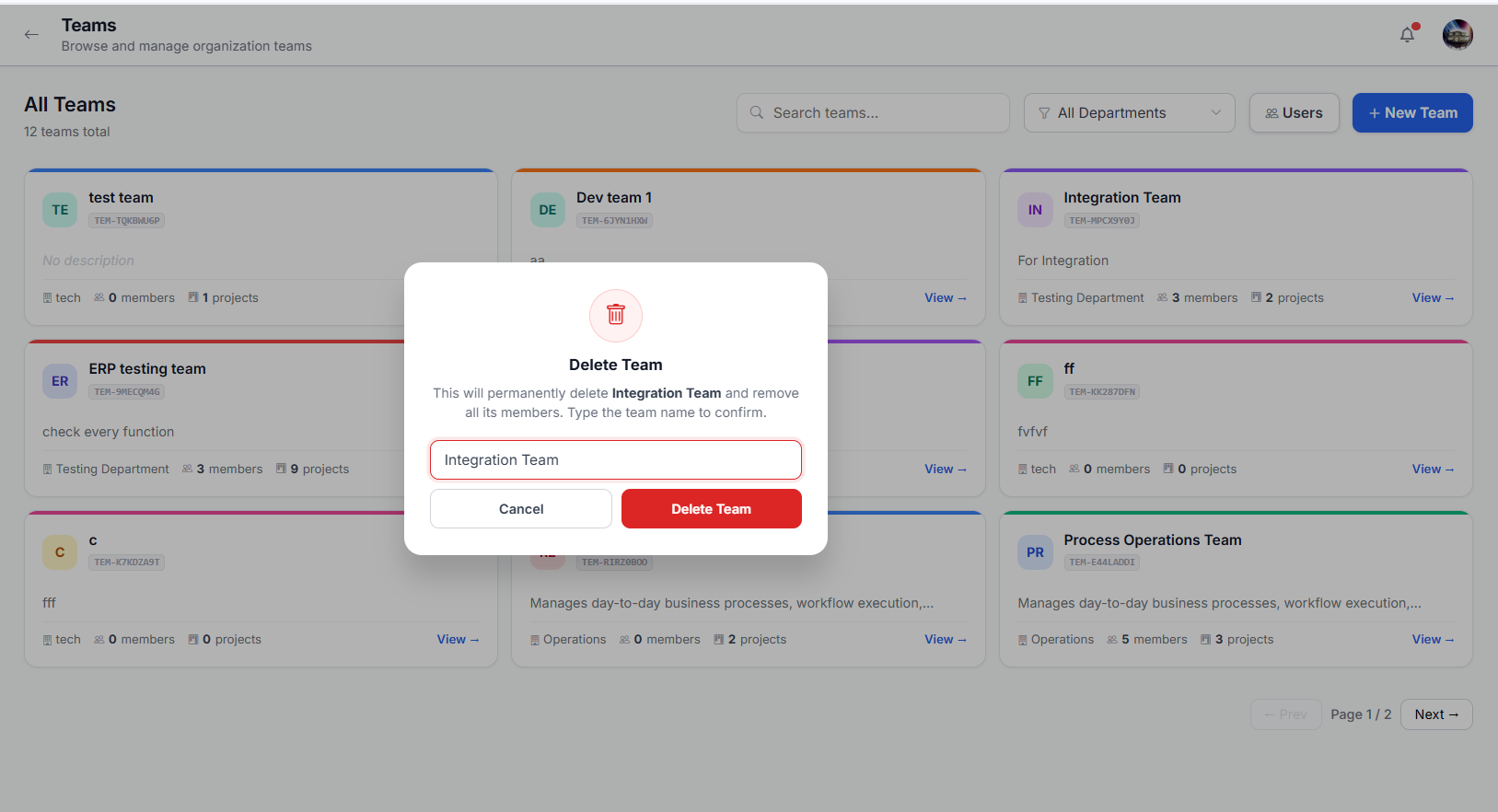
You cannot delete a team that still has projects assigned to it. Reassign or delete all team projects first. The Team Manager must be a Manager-role user belonging to the team's department. Super Admin and Admin users cannot be added as team members.
Projects
Projects are the central workspace for organizing work packages, meetings, and discussions. As an Admin, you can create projects within your own department, edit all project details, manage members, and archive or delete projects.
Create a Project
- 1Navigate to Projects
Click "Projects" in the sidebar.
- 2Click "Create Project"
A form modal will appear.
- 3Enter project details
Project Name, Description, select a Team within your department, Status (PLANNING/IN PROGRESS/COMPLETED/ON HOLD), and Due Date.
- 4Click "Create"
The project is created. You, all Super Admins, the department admin, and the team manager are automatically added as members.
You can only create projects for teams within your own department. To create projects for other departments, contact your Super Admin.
Edit Project Details
- 1Open the project detail page
Click on the project name.
- 2Click the edit icon
An edit form will appear with the current project details.
- 3Modify details
Update the project name, description, status, or due date as needed.
- 4Save changes
The project is updated and all members are notified.
Add Members to a Project
- 1Open the project detail page
Click on the project name.
- 2Click "Add Member"
A user search dropdown appears, showing users from the project's assigned team.
- 3Select a user
Only users who are members of the project's assigned team (or its manager) can be added.
- 4Confirm
The member is added. They are also auto-added to all linked discussion groups and meetings.
Remove Members from a Project
- 1Open the project detail page
Click on the project name.
- 2Find the member
Browse the project members list.
- 3Click the remove icon
Click the X button next to the member's name. You can only remove Member-role users.
- 4Confirm
The member is removed from the project and all linked meetings and discussion groups.
As an Admin, you can remove Member-role users from projects only. You cannot remove Manager, Super Admin, or other Admin users. You also cannot remove yourself from a project.
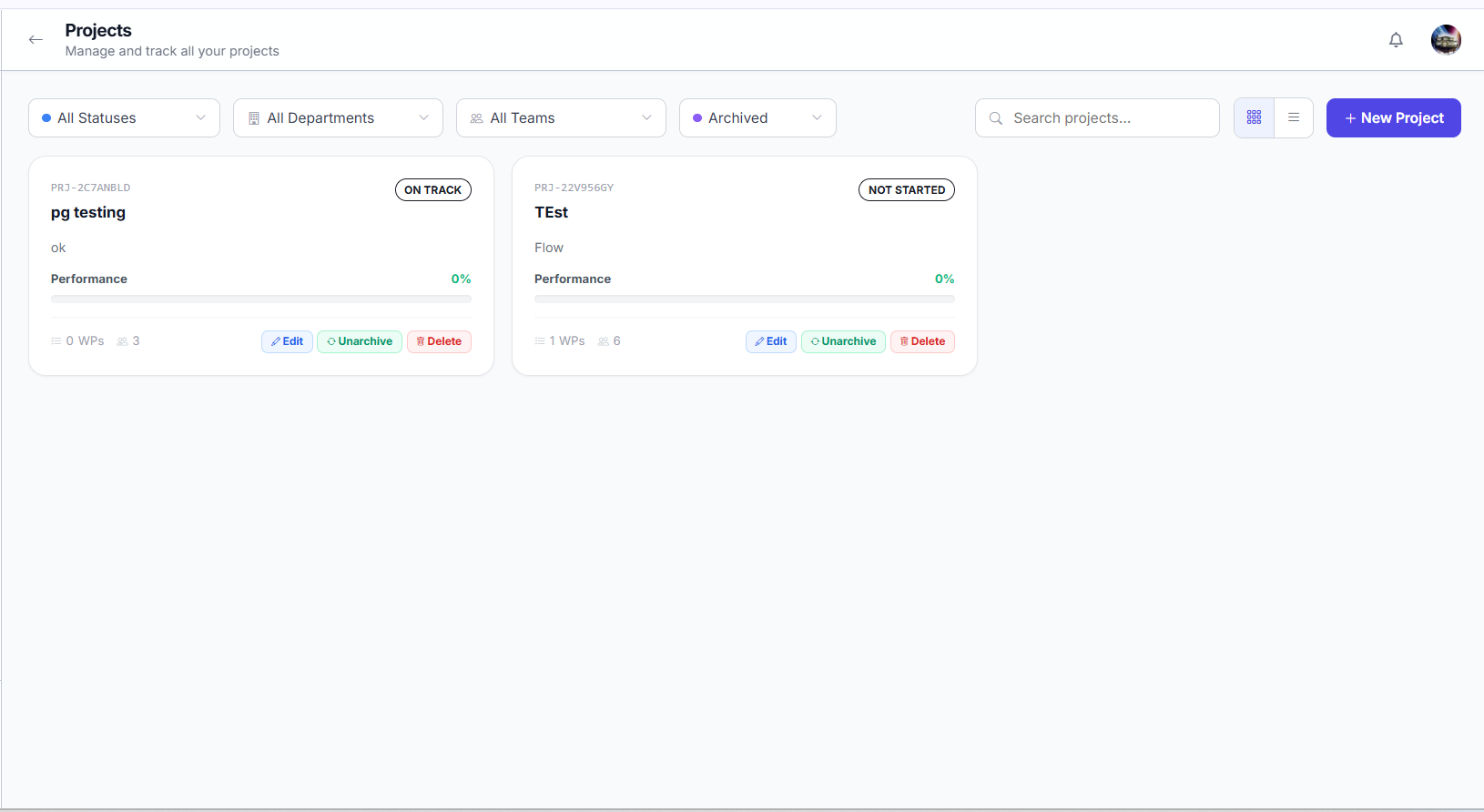
Archive a Project
- 1Open the project detail page
Click on the project name.
- 2Click "Archive Project"
The project status changes to ARCHIVED.
- 3Confirm
The project is archived and no longer appears in the active projects list.
Delete a Project
- 1Open the project detail page
Click on the project name.
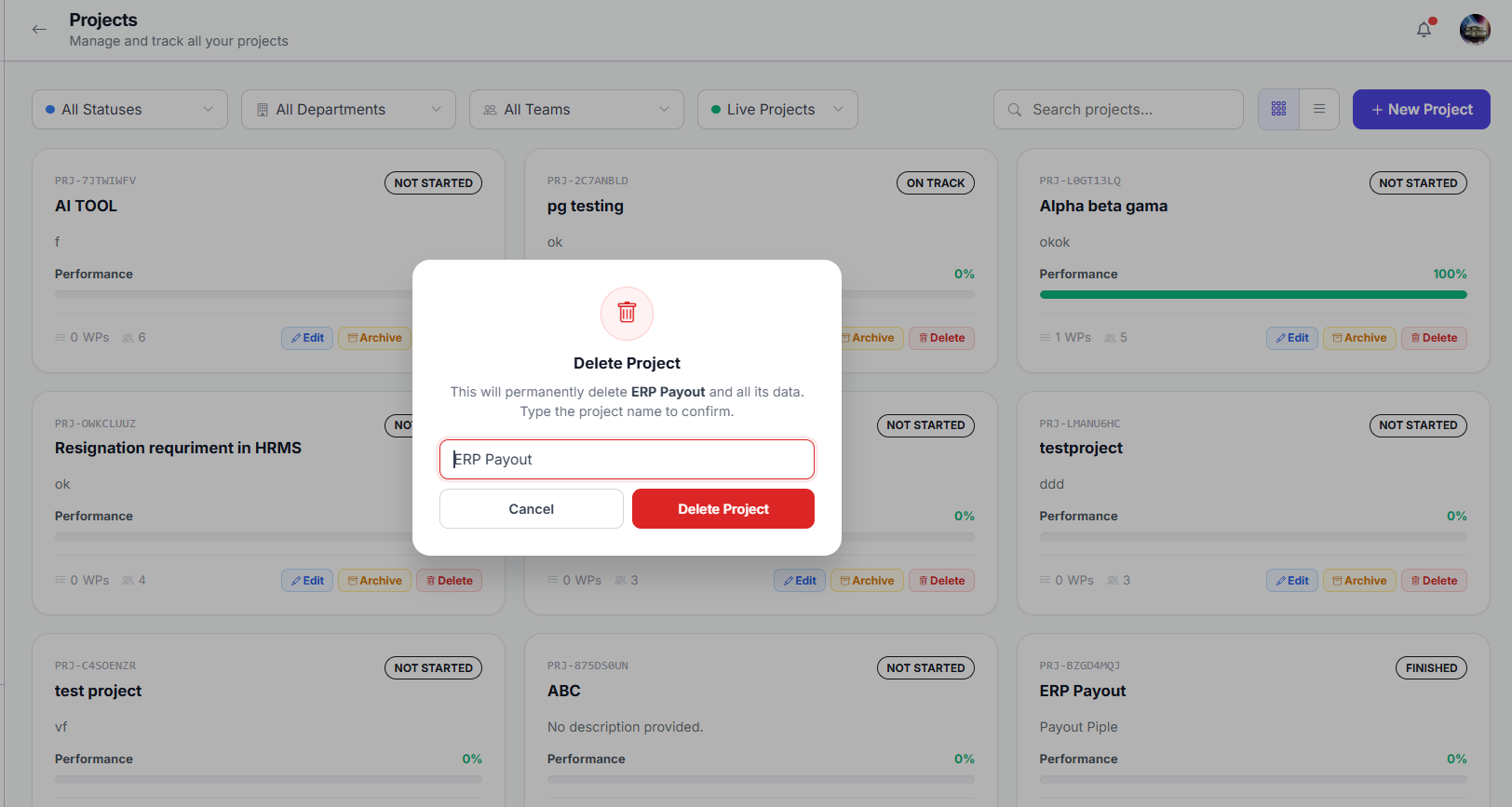
- 2Click the delete icon
A confirmation dialog will appear.
- 3Confirm deletion
The project and all its work packages, meetings, and discussions are deleted. This action cannot be undone.
Work Packages
Work packages are the tasks, stories, or deliverables within a project. As an Admin, you can create work packages and assign them to users in your department. The Accountable tab shows work packages you created and are responsible for overseeing.
Work Package Tabs
| Tab | What It Shows | Visibility |
|---|---|---|
| Assigned to Me | Work packages where you are the assignee (the person doing the work) | All roles |
| Accountable | Work packages you created and are responsible for overseeing | Manager, Admin, Super Admin (hidden for Employee) |
Assignment Rules
| Role | Can Assign To | Scope |
|---|---|---|
| Super Admin | Anyone | No restriction |
| Admin | Employee or Manager | Same department only |
| Manager | Employee only | Same team only |
As an Admin, you can only assign work packages to users within the same department as the project. Super Admin is the only role that can assign work packages across departments. You cannot assign work packages to Super Admin users.
Create a Work Package
- 1Open a project
Navigate to Projects and select the project.
- 2Click "Create Work Package"
A form modal will appear.
- 3Enter work package details
Title, Description, Assignee (must be same department), Status (INITIAL/IN PROGRESS/ON HOLD/COMPLETED), Priority (LOW/NORMAL/HIGH/CRITICAL), and Due Date.
- 4Click "Create"
The work package appears on the project board.
Edit a Work Package
- 1Open a work package
Click on any work package card on the board or list.
- 2Click "Edit"
The edit form appears with current details.
- 3Modify details
Update title, description, assignee, priority, due date, or status as needed.
- 4Save changes
The work package is updated and the assignee is notified.
Status Board
- 1Open the project
Navigate to the project containing the work packages.
- 2View the Kanban board
Work packages are organized by status columns.
- 3Drag and drop
Move a work package card from one column to another to update its status.
Work Package Detail & Time Tracking
Work Package Fields
| Field | Description |
|---|---|
| Subject | Title of the work package |
| Description | Detailed description of the task |
| Status | INITIAL → IN PROGRESS → ON HOLD → COMPLETED |
| Priority | LOW, NORMAL, HIGH, CRITICAL |
| Assignee | The person doing the work (you or a teammate) |
| Accountable | Person responsible for ensuring the work gets done — automatically set to the creator |
| Estimated Hours | Expected effort in hours |
| Due Date | When the task should be completed |
The Assignee is the person doing the work. The Accountable person is the one who created the work package and is responsible for ensuring it gets done. Only the Accountable person (or a privileged role like Admin/Super Admin) can reassign or delete a work package.
Log Time on a Work Package
- 1Open a work package
Click on any work package card on the board.
- 2Enter time
In the Time Tracking section, enter the hours spent and an optional comment.
- 3Click "Log"
The time entry is saved and added to your time logs.
Add a Comment
- 1Open a work package
Click on the work package card.
- 2Type your comment
Use the comment box at the bottom to communicate with the team.
- 3Click "Post"
Your comment is visible to all project members.
Meetings
As an Admin, you can schedule meetings for any project in your department and invite any organization member.
View Meetings
Navigate to Meetings from the sidebar. You see:
- Meetings you created
- Meetings you were invited to as a participant
Create a Meeting
- 1Click "Schedule Meeting"
A form modal will appear.
- 2Enter meeting details
Title, Description, Date & Time, Duration, and Meeting Link (URL).
- 3Link a project (optional)
If you link a project, all project members are automatically added to the participant list. You can remove anyone before saving.
- 4Add participants
Invite any organization member regardless of their team or department, or add external participants by entering their email addresses.
- 5Click "Create"
You are automatically added as an ADMIN participant. The Super Admin is also auto-added. All participants receive notifications and the meeting appears on their Calendar.
Participant Types
- Auto-added project membersfrom linked projects
- Organization membersmanually invited by you
- External participantsinvited via email addresses
Edit a Meeting
- 1Open the meeting detail page
Click on the meeting title from the list.
- 2Click "Edit"
You can update the title, description, date, time, duration, meeting link, and participants. The edit button appears if you are the organizer.
- 3Save changes
If the date or time changed, all participants receive an updated email invitation. If only participants changed, newly added participants receive an invitation.
Cancel a Meeting
- 1Open the meeting detail page
Click on the meeting title.
- 2Click "Cancel Meeting"
This button is only visible if you are the organizer.
- 3Confirm
The meeting status changes to CANCELLED and all participants are notified.
Delete a Meeting
- 1Open the meeting detail page
Click on the meeting title.
- 2Click "Delete"
A confirmation dialog will appear. This button is only visible if you are the organizer.
- 3Confirm
The meeting is permanently removed from the system.
If you cannot see the Edit, Cancel, or Delete buttons, it means you are not the meeting organizer. Only the organizer and Super Admin can edit, cancel, or delete meetings. The Super Admin is automatically added as an ADMIN participant to every meeting.
Discussions
As an Admin, you can create discussion groups, add or remove members, and participate in real-time group chats. The creator automatically becomes the Group Admin with full management access.
View Discussion Groups
Navigate to Discussions from the sidebar. You see groups where you are a member — either created by you or where you were added.
Create a Discussion Group
- 1Click "Create Discussion"
A form modal will appear.
- 2Enter group details
Title and Description for the discussion group.
- 3Link a project (optional)
If you link a project, all project members are automatically added to the participant list. You can review and remove anyone before creating.
- 4Add participants
Invite any organization member regardless of their team or department.
- 5Click "Create"
You are automatically set as the Group Admin. All participants are notified and a system message appears in the chat.
Add Members
- 1Open the discussion group
Click on the group name from the list.
- 2Click the info icon
Opens the right-side panel showing group details and member list.
- 3Click "Add Member"
Search for and select any user in the organization to add.
- 4Confirm
The member is added and a system message appears in the chat.
Remove Members
- 1Open the discussion group
Click on the group name.
- 2Click the info icon
Opens the right-side panel.
- 3Click the remove icon next to a member
A confirmation dialog will appear.
- 4Confirm
The member is removed and a system message appears.
You cannot remove the group creator — only Super Admin can remove the creator. You also cannot leave a group you created; you must delete it instead.
Edit a Discussion Group
- 1Open the discussion group
Click on the group name.
- 2Click "Edit"
You can update the title, description, and manage linked projects and members.
- 3Save changes
All members are notified of the update.
Delete a Discussion Group
- 1Open the discussion group
Click on the group name.
- 2Click "Delete Group"
A confirmation dialog will appear. This button is only visible for the Group Admin (creator) or Super Admin.
- 3Confirm
The group is permanently deleted and all members are notified.
Send Messages
- 1Open a discussion group
Click on the group name from the list.
- 2Type a message
Use the message input box at the bottom. You can attach files, use emojis, and @mention members.
- 3Send
Press Enter or click the send button. Messages appear in real-time for all group members.
Calendar
The Calendar is your central timeline — all your upcoming meetings, project deadlines, and work package due dates in one visual view. The calendar is personalized to show only events relevant to you.
View Your Calendar
- 1Click "Calendar" in the sidebar
The calendar opens showing the current month with all your events.
- 2Click on a day to see events
A side panel shows all events for that day with details.
- 3Click on an event to navigate
Clicking a meeting takes you to the Meetings page. Clicking a work package or project takes you to its detail page.
What Appears on Your Calendar
- Meetingsmeetings you organized or are participating in
- Work Package Due Dateswork packages where you are the assignee or accountable person, with due dates in the visible range
- Project Due Datesprojects you are a member of, with due dates in the visible range
Event Color Coding
- Blue — Meetings
- Yellow — Due Today
- Red — Overdue
- Green — On Track
Navigating the Calendar
- 1Previous / Next Month
Click the arrow buttons to move between months.
- 2Today Button
Click "Today" to jump back to the current date.
- 3Click any day
A side panel shows all events for that day — meetings, work package deadlines, and project deadlines.
The calendar is a read-only view of your events. To create or edit meetings, use the Meetings page. Events are added automatically when meetings are scheduled or tasks are assigned to you.
Notes
Notes is your private workspace inside WorkDesk. Write meeting summaries, capture ideas, save reference information — stored securely and visible only to you. No one else can see your notes.
View Your Notes
- 1Click "Notes" in the sidebar
The left panel shows your note list with Active and Archived tabs; the right panel is the editor. Use the search box to find notes by keyword, and the sort dropdown to order by Date Created, Last Modified, or Title Name.
- 2Click on a note to open it
The note content loads in the editor panel on the right.
Create a Note
- 1Click "+ New Note"
A blank note opens in the editor.
- 2Enter a title
Type a descriptive name, e.g., "Sprint 4 Planning Notes".
- 3Write your content
The editor supports bold, italic, bullet lists, and headings.
- 4Notes save automatically
Changes are saved as you type. You can also click Save manually.
Notes are tied to your account. No one else — not your Manager or Super Admin — can see or access your notes. They are stored securely and visible only to you.
Todos
Todos are your private personal checklist in WorkDesk. Use them for reminders, personal action items, and anything you need to track that isn't a formal project task. Only you can see your todos.
Your Todo List
The Todos page is organized into four tabs:
- Activecurrent todos that need your attention
- Completedtodos you have checked off
- Overduetodos whose due date has passed without completion — highlighted in red
- Archivedtodos you have archived to hide from Active without deleting
Create a Todo
- 1Click "+ Add Todo"
Found at the top of the Todos page.
- 2Write a Title and optional Description
The title appears in the list and on your Dashboard. An optional description adds context or sub-steps.
- 3Set a Priority and Due Date
Choose LOW, MEDIUM, or HIGH. Adding a due date makes the todo appear on the Calendar and moves it to the Overdue tab if not completed in time.
- 4Click "Create"
The item appears in your Active tab and on the Dashboard Todos widget.
Managing Todos
- 1Complete a todo
Click the circular checkbox next to the todo. It moves to the Completed tab and the title gets a strikethrough.
- 2Clear Completed
On the Completed tab, click Clear Completed to delete all completed todos at once.
- 3Archive a todo
Click the three-dot menu (…) and select Archive. Hides from Active without deleting. Restore later from the Archived tab.
- 4Delete a todo permanently
Click the three-dot menu and select Delete. Permanent and cannot be undone.
Todos are tied to your account. No one else — not your Manager or Super Admin — can see or access your todos. They are stored securely and visible only to you. For formal project tasks that need team visibility, use Work Packages instead.
Users
The Users page is your Admin Panel for managing the organization’s user base. As an Admin, you can view all users and create new accounts. Editing, deactivating, and deleting users is restricted to Super Admin only.
User List
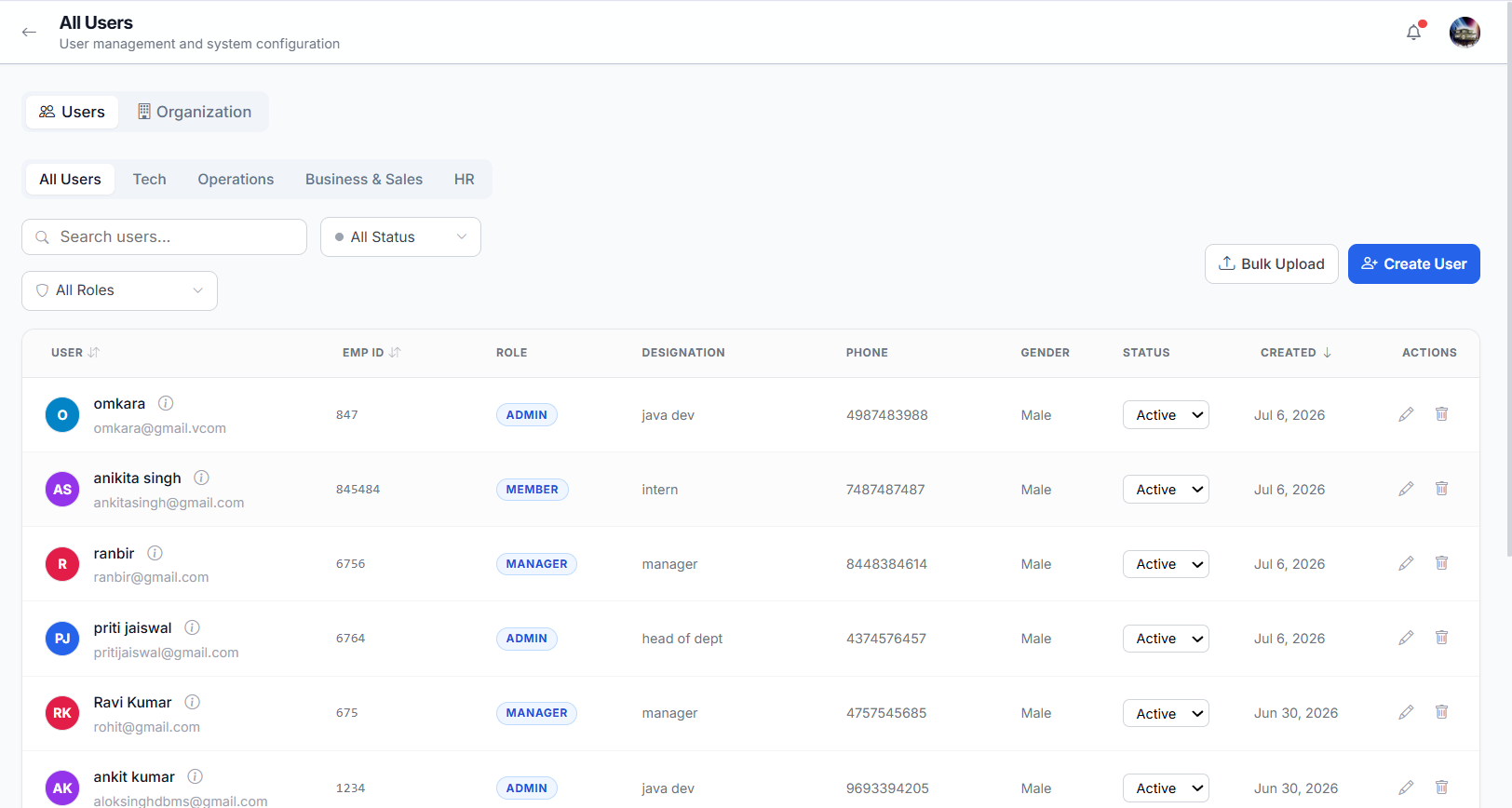
The Users page displays every user in your organization in a table format. Use the search bar to find users by name, email, or employee ID. The table shows each user’s name, email, role, department, status, and — for Super Admin only — action buttons to edit, delete, or toggle status.
Create a New User
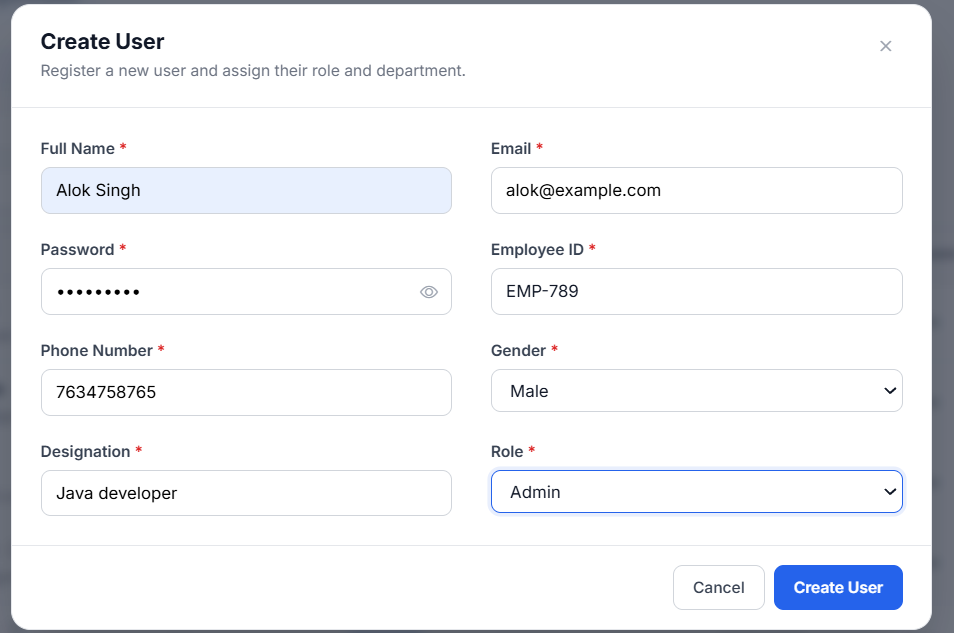
- 1Navigate to Users
Click "Users" in the sidebar (Admin Panel section).
- 2Click "Create User"
A form modal will appear with user details fields.
- 3Fill in user details
Name, Email, Password, Phone Number, Gender, Designation, and Role.
- 4Assign a Role
Choose from Employee or Manager. You cannot create Admin or Super Admin users — the system blocks these roles for Admin-level creators.
- 5Click "Create"
The user is created and appears in the list. They can now log in with their email and password.
The Super Admin account is protected and cannot be edited, deleted, or deactivated by anyone. You also cannot create a new Super Admin user through the Users page — the system blocks SUPER_ADMIN role assignment during user creation.
Settings
Manage your personal account in one place — view your profile information, update your profile photo, change your password, and control which notifications you receive. As an Admin, your profile details are maintained by your administrator; only the profile photo and notification preferences are editable by you.
Profile Information
Go to Settings → Profile to view your account details. The left column shows your profile photo (with a camera icon to upload a new one), your name, email, role badge, and organization name. The right column displays a read-only form with all your personal information.
Profile Fields (Read-Only)
The following fields are displayed in the Personal Information form. All fields are read-only — they are managed by your administrator and cannot be changed from this page:
- Full Nameyour display name shown across WorkDesk
- Email Addressyour login email (used for authentication)
- Phone Numberyour contact number
- Employee IDyour organization’s unique identifier
- Designationyour job title
- Genderyour gender
- Roles / Access Levelyour system role
At the bottom of the form, you’ll see your last login time and the Organization section showing your department and team membership.
Your profile fields (name, email, designation, etc.) are set and maintained by your Super Admin. If any information is incorrect, contact your Super Admin to update it. Only the profile photo can be changed by you.
Change Your Profile Photo
- 1Click the camera icon on your profile photo
In the left column of the Profile tab, hover over your current profile photo and click the camera icon overlay.
- 2Select an image file
Choose an image from your device (JPG or PNG recommended). The file picker opens.
- 3Adjust the crop area
Use the built-in cropper to drag and reposition the image inside the circular crop frame. Zoom in or out as needed.
- 4Click "Save"
Your new profile photo is uploaded and appears across all pages immediately — your avatar in the sidebar, work packages, discussions, and all other views.
Use a clear, well-lit headshot. A square image (1:1 ratio) works best with the circular crop. Avoid busy backgrounds.
Change Password
Go to Settings → Change Password to update your login password. You must know your current password to make this change.
- 1Go to Settings → Change Password tab
Click the Change Password tab at the top of Settings. A form with three fields appears.
- 2Enter your Current Password
Type your existing password in the first field. This verifies your identity before allowing the change.
- 3Enter your New Password
Choose a strong new password. Minimum 6 characters. A hint below the field reminds you of this requirement.
- 4Confirm the New Password
Retype your new password in the Confirm field — it must match the New Password field exactly.
- 5Click "Update Password"
Your password is changed immediately. You’ll need to log in with the new password on your next session.
Change your password regularly. Never share it. If you were given an initial password by your Super Admin, change it immediately after your first login. If you forget your current password, contact your Super Admin to reset it.
Notification Preferences
Go to Settings → Notifications to choose which notifications you receive. There are two independent toggles:
Push Notifications
- 1Locate the "Push Notifications" toggle
At the top of the Notifications tab. When enabled, you receive in-app notifications for activity updates (task assignments, meeting invitations, discussion replies, project changes, etc.).
- 2Toggle ON or OFF
Click the toggle switch to enable or disable. The change is saved automatically — no save button needed.
Email Notifications
- 1Locate the "Email Notifications" toggle
Below the Push Notifications toggle. When enabled, you receive email alerts for the same events — sent to your registered email address.
- 2Toggle ON or OFF
Click the toggle to enable or disable email notifications. Changes save automatically.
Viewing Your Notifications
- 1Click the bell icon in the navigation bar
The bell icon () is in the top-right corner of the navigation bar. A badge shows the count of unread notifications.
- 2Browse your notifications
The panel opens showing all your recent notifications. Unread alerts are highlighted with a blue dot or background.
- 3Click a notification
Clicking any notification takes you directly to the related item — a work package, meeting, discussion, or project page.
- 4Mark as read
Clicking a notification marks it as read. The unread badge count decreases automatically.
Dashboard
Your personal home screen. As the Super Admin, you have full visibility across the entire organization — every project, every department, every team.
KPI Cards
At the top of the dashboard, four summary cards give you organization-wide numbers:
| Card | Icon | What It Shows |
|---|---|---|
| Total Projects | Number of projects across the entire organization | |
| Total Work Packages | Total work packages you have created | |
| Pending | Work packages that are still open | |
| Completed | Work packages that have been completed |
My Work Packages
| Column | What It Shows |
|---|---|
| Task Subject | Name and ID of the work package |
| Priority | HIGH MEDIUM LOW |
| Status | Current state (INITIAL, IN PROGRESS, ON HOLD, COMPLETED) |
| Due Date | Task deadline |
Shows up to 3 items where you are the accountable person (the creator). Click any row or View All to go to the full Work Packages page.
My Projects
As Super Admin, you are auto-added as a member to every project in the organization:
| Column | What It Shows |
|---|---|
| Project Name | Project title and ID |
| Department | Which department the project belongs to |
| Status | Active, Completed, etc. |
| Progress | Completion percentage bar |
Click any row or View All to go to the full Projects page.
Next Meetings
Shows upcoming meetings across all departments with:
| Field | What It Shows |
|---|---|
| Project Badge | Which project the meeting is for |
| Title | Meeting name |
| Date & Time | When the meeting is scheduled |
| Join Link | Click to open the meeting link (if provided) |
Shows up to 3 items. Click View All to see the full Meetings page.
My Todos
Shows your personal todos as compact cards with:
| Field | What It Shows |
|---|---|
| Checkbox | Click to mark as done (strikethrough style) |
| Title | Todo name |
| Due Date | If set, shown below the title |
| Priority Badge | HIGH MEDIUM LOW |
You see the entire organization at a glance. The Work Packages section shows only packages where you are the accountable person (the creator). Use the Dashboard to monitor progress, then drill into specific departments or projects from the sidebar.
Departments
Departments represent the highest level of organizational structure. As the Super Admin, you have full control — create, edit, delete, assign heads, and manage members. You see all departments across the organization.
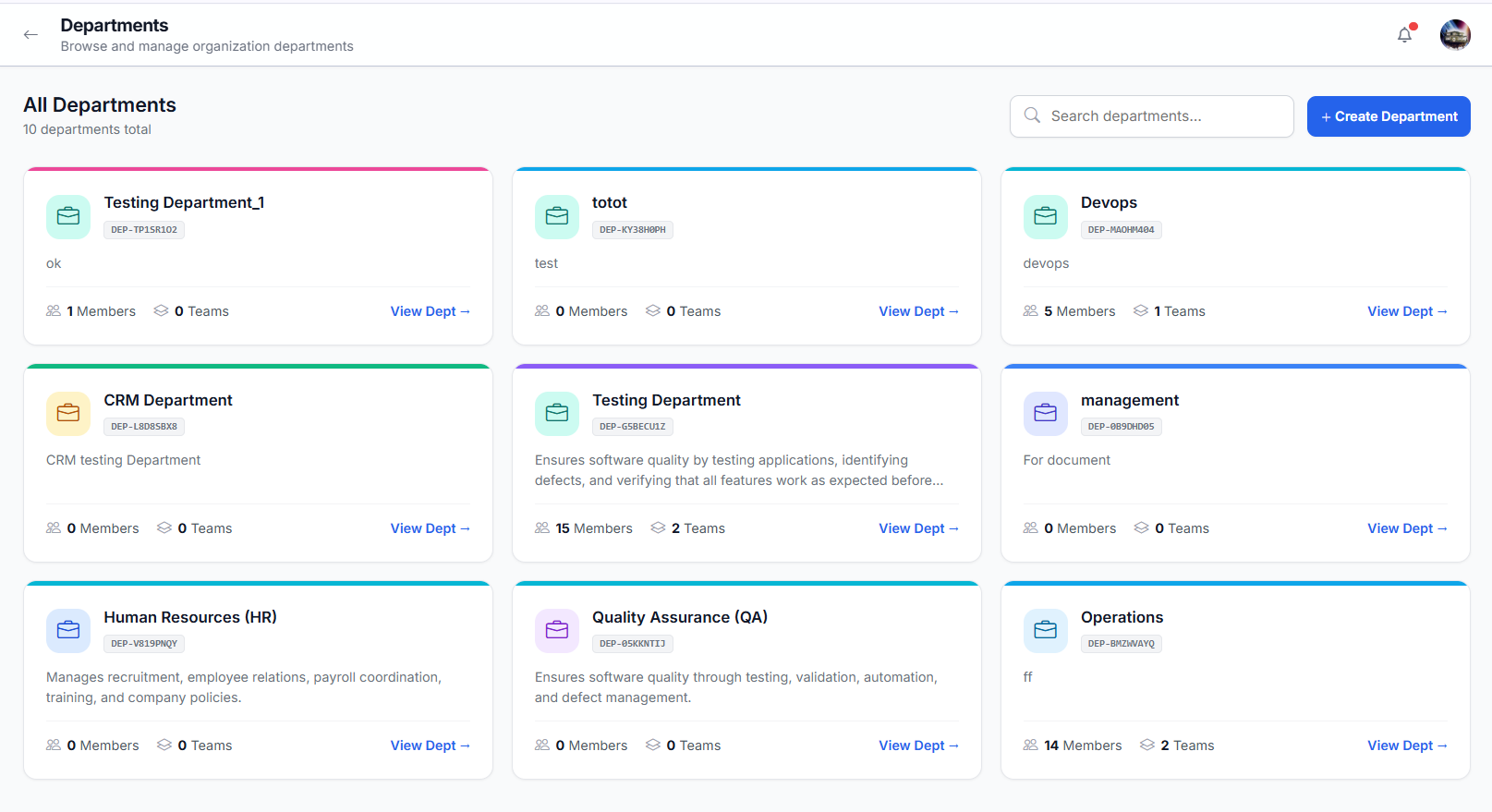
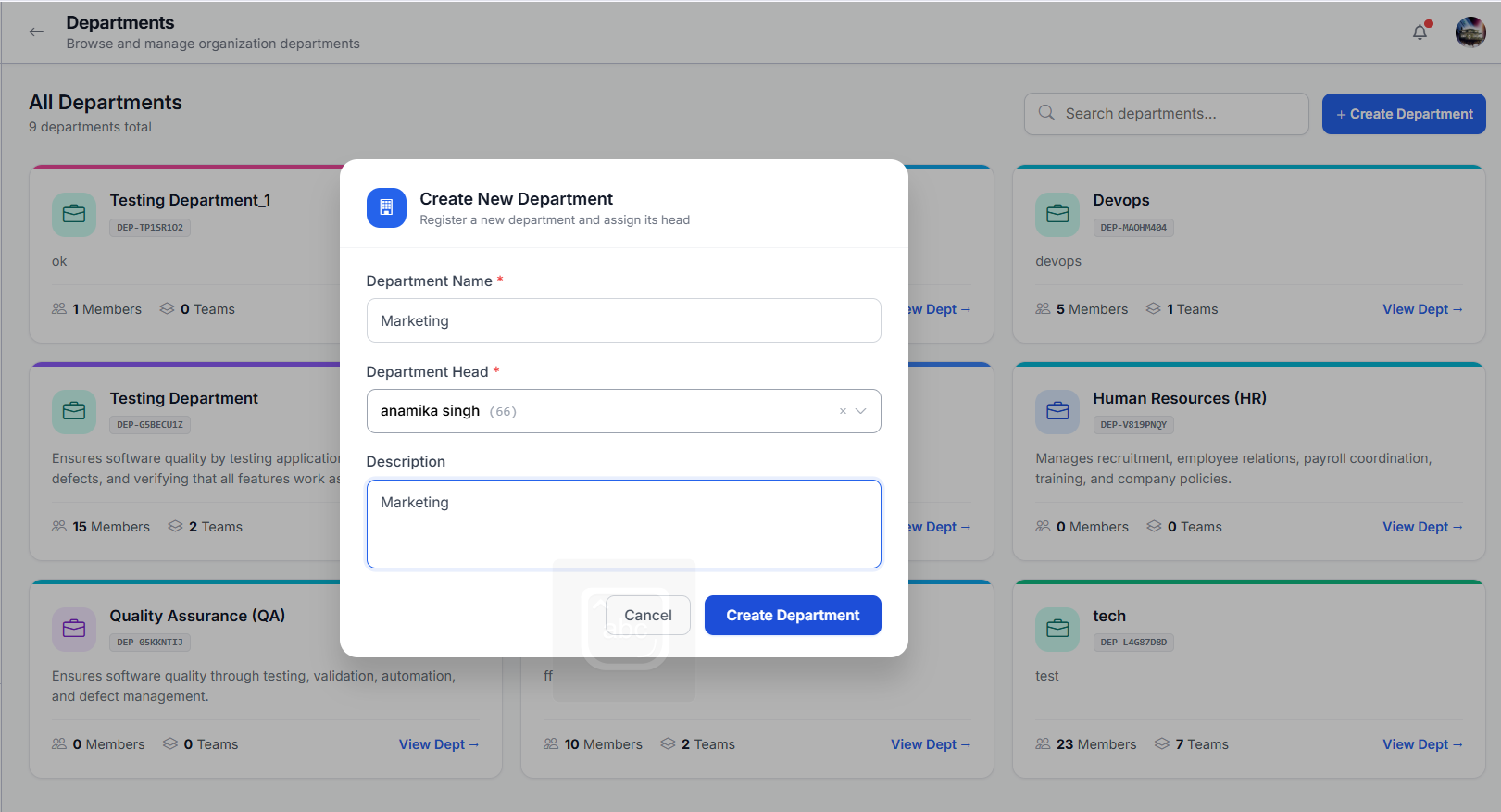
Create a Department
- 1Navigate to Departments
Click "Departments" in the sidebar.
- 2Click "Create Department"
A form modal will appear.
- 3Enter department details
Department Name, Description, and assign a Department Head (must be an Admin-role user).
- 4Click "Create"
The department is created and appears in the list.
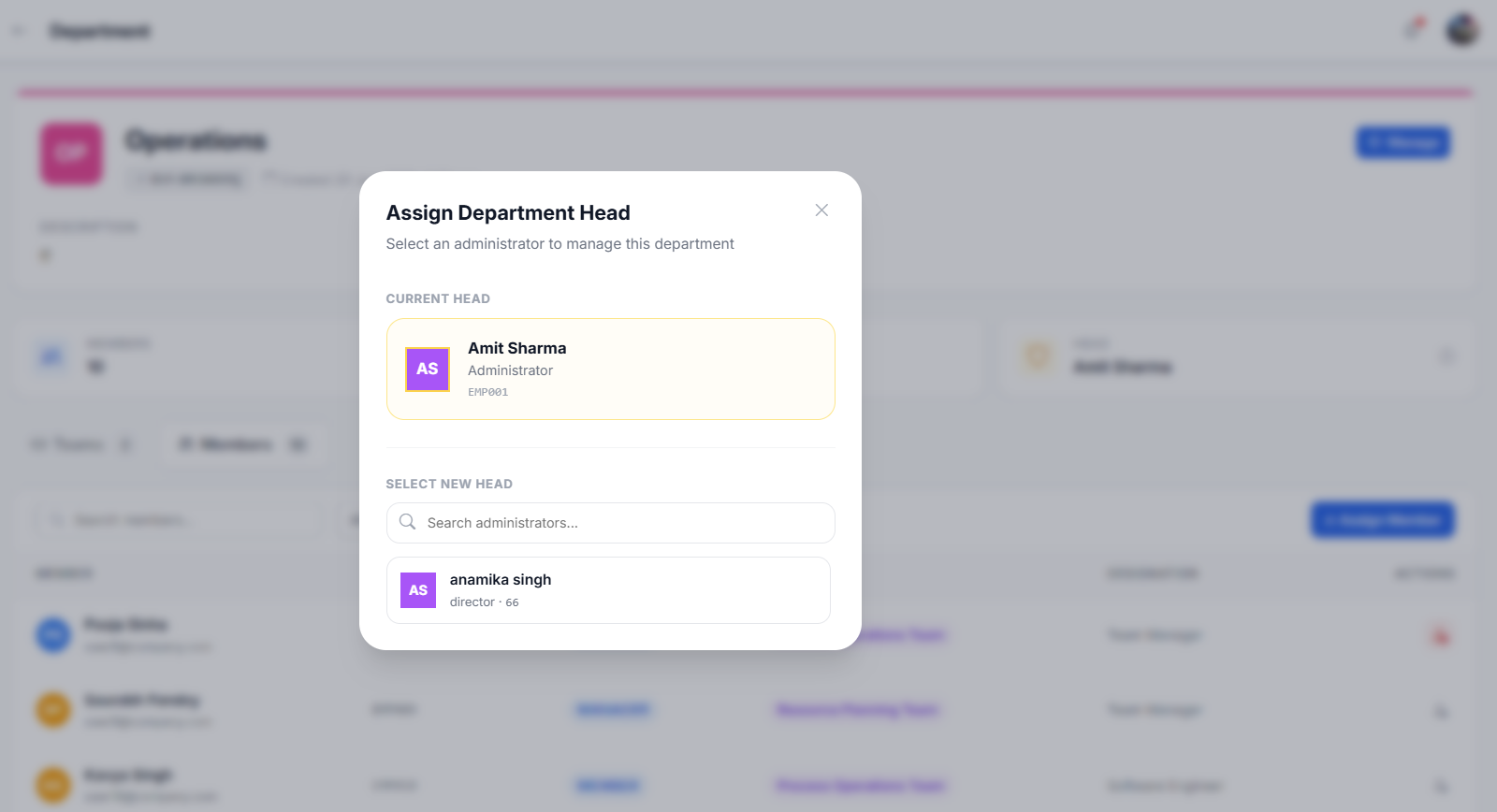
Change Department Head
- 1Open the department detail page
Click on the department name.
- 2Click "Manage"
A dropdown appears with the current head and available Admin users.
- 3Select a new head
The old head is removed from the department. The new head is assigned and added to all department projects and meetings.
Add Members to a Department
- 1Open the department detail page
Click on the department name.
- 2Click "Add Member"
A user search dropdown appears. Search for users who are not yet assigned to any department.
- 3Select a user
The user must not already belong to another department. Super Admin cannot be added to any department.
- 4Confirm
The member is added to the department and appears in the members list.
When you remove a member from a department, they are also removed from all projects, discussion groups, and meetings within that department. Work packages assigned to them are unassigned.
Remove Members from a Department
- 1Open the department detail page
Click on the department name.
- 2Find the member
Browse the members list or use the search.
- 3Click the remove icon
Click the X button next to the member's name.
- 4Confirm
The member is removed from the department, all their project memberships, discussions, and meetings within the department are cleaned up.
Delete a Department
- 1Navigate to Departments
Click "Departments" in the sidebar.
- 2Click the delete icon
Hover over the department card and click the trash icon.
- 3Confirm deletion
A confirmation dialog will appear. The department head is removed, all members are unassigned, and the department is permanently deleted.
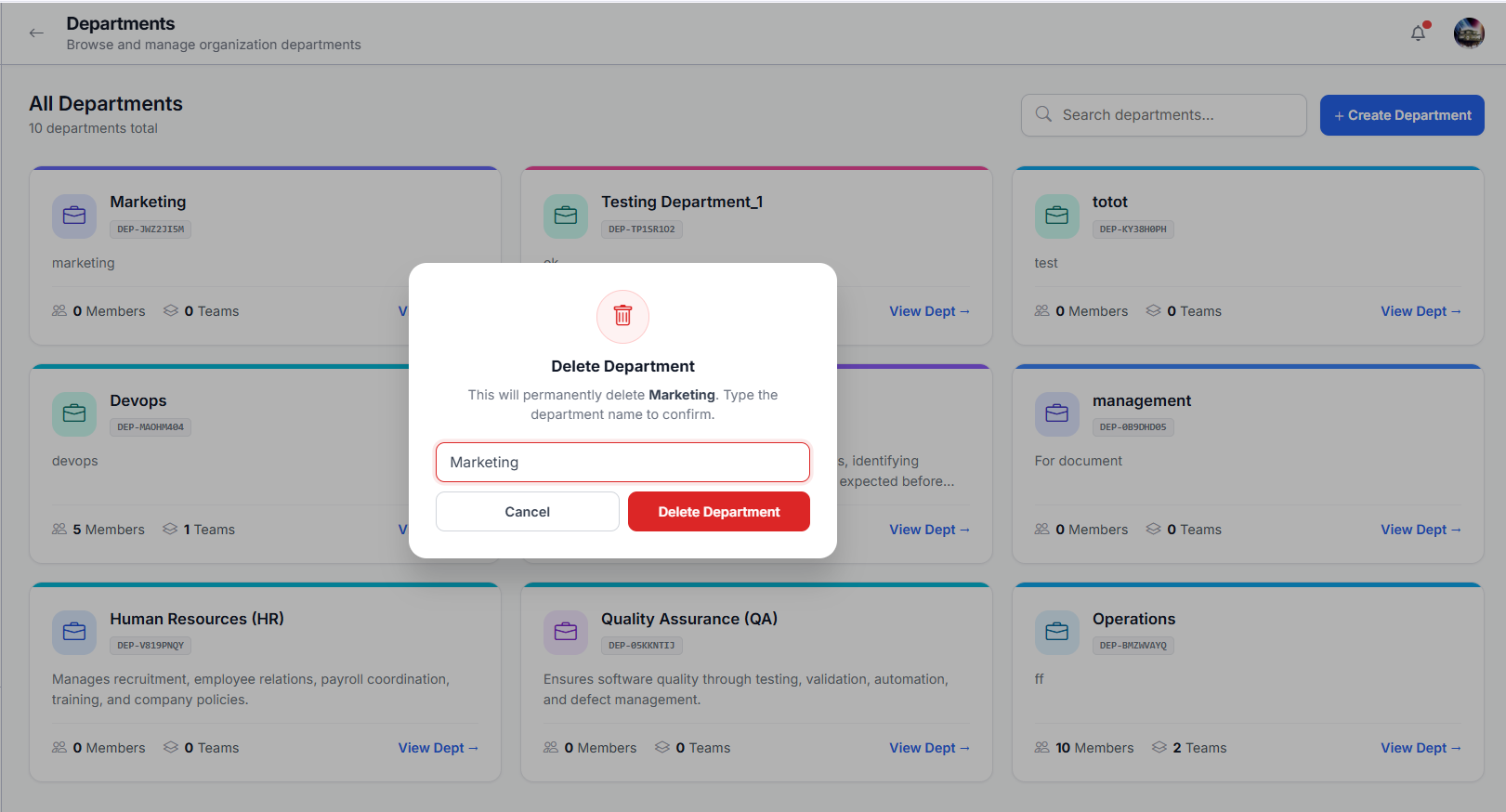
You cannot delete a department that still has teams in it. Remove or reassign all teams first before deleting a department. The Department Head must be an Admin-role user — Members and Managers cannot lead a department.
Teams
Teams are groups of users within a department. As Super Admin, you have full control over every team in the organization — create, edit, delete, assign managers, and manage members from any department.
Create a Team
- 1Navigate to Teams
Click "Teams" in the sidebar.
- 2Click "New Team"
A form modal will appear.
- 3Enter team details
Team Name, Description, select a Department from the dropdown, and assign a Manager (must be a Manager-role user belonging to the selected department).
- 4Click "Create"
The team is created and appears in the list. The assigned manager is automatically added as a member.
Team Detail Page
Add Members to a Team
- 1Open the team detail page
Click on the team name from the list.
- 2Click "Add Member"
A user search dropdown appears. Search for users within the team's department who are not yet assigned to any team.
- 3Select a user
The user must belong to the same department as the team. Super Admin and Admin-role users cannot be added as team members.
- 4Confirm
The member is added to the team and appears in the members list.
Remove Members from a Team
- 1Open the team detail page
Click on the team name.
- 2Find the member
Browse the members list or use the search.
- 3Click the remove icon
Click the X button next to the member's name. You cannot remove yourself or the team manager.
- 4Confirm
The member is removed from the team, their project memberships are cleaned up, and assigned work packages are unassigned.
Change Team Manager
- 1Open the team detail page
Click on the team name.
- 2Click "Manage"
A dropdown appears with the current manager and available Manager-role users in the same department.
- 3Select a new manager
The new manager is assigned and auto-added to all team projects and meetings. The old manager is removed from project memberships and their work packages are reassigned.
Delete a Team
- 1Navigate to Teams
Click "Teams" in the sidebar.
- 2Click the delete icon
Hover over the team card and click the trash icon.
- 3Confirm deletion
A confirmation dialog will appear. All team members are unassigned and the team is permanently deleted.
You cannot delete a team that still has projects assigned to it. Reassign or delete all team projects first. The Team Manager must be a Manager-role user belonging to the team's department. Super Admin and Admin users cannot be added as team members.
Projects
Projects are the central workspace for organizing work packages, meetings, and discussions. As Super Admin, you can create projects in any department, edit all project details, manage members across teams, and archive or delete projects.
Create a Project
- 1Navigate to Projects
Click "Projects" in the sidebar or the "New Project" button in the header.
- 2Click "Create Project"
A form modal will appear.
- 3Enter project details
Project Name, Description, Status (PLANNING/IN PROGRESS/COMPLETED/ON HOLD), Due Date, and select any Department from the dropdown — you are not limited to your own department.
- 4Select a Team
Choose a team within the selected department. The team must belong to the selected department.
- 5Click "Create"
The project is created. You, the department admin, and the team manager are automatically added as members.
Edit Project Details
- 1Open the project detail page
Click on the project name.
- 2Click the edit icon
Click the pencil icon next to the project name or description.
- 3Modify details
Update the project name, description, status, or due date.
- 4Save changes
The project is updated and all members are notified.
Add Members to a Project
- 1Open the project detail page
Click on the project name from the list.
- 2Click "Add Member"
A user search dropdown appears. Search for any user in the organization — you are not limited to your own department or team.
- 3Select users
You can add multiple users at once. The users become project members and can access the project's work packages, discussions, and meetings.
- 4Confirm
The members are added and appear in the project members list.
Remove Members from a Project
- 1Open the project detail page
Click on the project name.
- 2Find the member
Browse the project members list.
- 3Click the remove icon
Click the X button next to the member's name. As Super Admin, you can remove anyone.
- 4Confirm
The member is removed from the project. Their assigned work packages are unassigned and time entries are deleted.
Archive a Project
- 1Open the project detail page
Click on the project name.
- 2Click "Archive"
The project is archived and hidden from the active projects list. Archived projects can be viewed by filtering.
Delete a Project
- 1Open the project detail page
Click on the project name.
- 2Click "Delete"
A confirmation dialog will appear.
- 3Confirm deletion
The project and all associated work packages, discussions, and meetings are permanently deleted.
Work Packages
Work packages are the tasks, stories, or deliverables within a project. As Super Admin, you can assign work packages to any user in the organization — including Admin-role users. You have no scope restrictions.
Work Package Tabs
| Tab | What It Shows | Visibility |
|---|---|---|
| Assigned to Me | Work packages where you are the assignee (the person doing the work) | All roles |
| Accountable | Work packages you created and are responsible for overseeing | Manager, Admin, Super Admin (hidden for Employee) |
Assignment Rules
| Role | Can Assign To | Scope |
|---|---|---|
| Super Admin | Anyone | Any department, any team |
| Admin | Employee or Manager | Same department only |
| Manager | Employee only | Same team only |
Create a Work Package
- 1Open a project
Navigate to Projects and select the project.
- 2Click "Create Work Package"
A form modal will appear.
- 3Enter work package details
Title, Description, Assignee (any user in the organization), Status (INITIAL/IN PROGRESS/ON HOLD/COMPLETED), Priority (LOW/NORMAL/HIGH/CRITICAL), Estimated Hours, and Due Date.
- 4Click "Create"
The work package appears on the project board. You cannot assign a work package to yourself.
Status Board (Kanban)
- 1View the board
Open a project to see the Kanban board with columns for each status.
- 2Drag and drop
Click and hold a work package card, then drag it to a different status column to update its status.
- 3Filter the board
Use the filter bar to narrow by assignee, priority, or search by title.
Work Package Detail & Time Tracking
Work Package Fields
| Field | Description |
|---|---|
| Subject | Title of the work package |
| Description | Detailed description of the task |
| Status | INITIAL → IN PROGRESS → ON HOLD → COMPLETED |
| Priority | LOW, NORMAL, HIGH, CRITICAL |
| Assignee | The person doing the work (may be you or a teammate) |
| Accountable | Person responsible for ensuring the work gets done — automatically set to the creator |
| Estimated Hours | Expected effort in hours |
| Due Date | When the task should be completed |
The Assignee is the person doing the work. The Accountable person is the one who created the work package and is responsible for ensuring it gets done. Only the Accountable person (or a privileged role like Admin/Super Admin) can reassign or delete a work package. Both the Assignee and Accountable can comment, upload attachments, and log time.
- 1Open a work package
Click on any work package card on the board.
- 2Edit details
Change title, description, status, priority, assignee, or due date from the detail view.
- 3Log Time
Enter hours spent and an optional comment in the Time Tracking section at the bottom.
- 4Add Comment
Use the comment box to communicate with the team about this work package.
You can assign work packages to Admin-role users — no other role can do this. Admins cannot assign to Super Admins, but you can assign to anyone.
Meetings
As Super Admin, you have full access to every meeting in the organization. You can create meetings, invite anyone, edit any meeting, update meeting status, and delete any meeting — even those you did not create. You are automatically added as an ADMIN participant to every meeting.
View All Meetings
Navigate to Meetings from the sidebar. You see all meetings in the organization — every meeting you created, every meeting you were invited to, and every meeting where you were auto-added as an ADMIN participant.
Create a Meeting
- 1Click "Create Meeting"
A form modal will appear.
- 2Enter meeting details
Title, Description, Date, Start Time, Duration (in minutes), and Meeting Link (URL).
- 3Link a project (optional)
If you link a project, all project members are automatically added to the participant list. You can remove anyone before saving.
- 4Add participants
Select project members, internal users from any department, or add external email addresses. You can add any user in the organization.
- 5Click "Create"
All participants receive email invitations and the meeting appears on their Calendar.
Participant Types
- Auto-added project membersfrom linked projects
- Organization membersmanually invited by you
- External participantsinvited via email addresses
Edit a Meeting
- 1Open the meeting detail page
Click on the meeting title from the list.
- 2Click "Edit"
You can edit any meeting — not just the ones you created. Update title, description, date, time, duration, meeting link, and participants.
- 3Save changes
If the date or time changed, all participants receive an updated email invitation. If only participants changed, newly added participants receive an invitation.
Update Meeting Status
- 1Open the meeting detail page
Click on the meeting title.
- 2Change the status
Select a new status from the dropdown: SCHEDULED, ONGOING, COMPLETED, or CANCELLED.
Cancel a Meeting
- 1Open the meeting detail page
Click on the meeting title.
- 2Click "Cancel Meeting"
The cancel button appears on all meetings — not just ones you created.
- 3Confirm
The meeting status changes to CANCELLED and all participants are notified.
Delete a Meeting
- 1Open the meeting detail page
Click on the meeting title.
- 2Click "Delete"
A confirmation dialog will appear. You can delete any meeting in the system.
- 3Confirm
The meeting is permanently removed from the system.
Full access to every meeting — view, edit, delete, update status, manage participants, and access notes. You are automatically added as an ADMIN participant to every meeting.
Discussions
As Super Admin, you have full access to every discussion group in the organization. You can create groups with any users, edit any group, delete any group, add or remove any member — including the group creator. You are automatically added to every discussion group.
View All Discussion Groups
Navigate to Discussions from the sidebar. You see all discussion groups in the organization — every group you created, every group where you are a member, and every group where you were auto-added as Super Admin.
Create a Discussion Group
- 1Click "Create Discussion"
A form modal will appear.
- 2Enter group details
Title and Description for the discussion group.
- 3Link a project (optional)
If you link a project, all project members are automatically added to the participant list. You can review and remove anyone before creating.
- 4Add participants
Select project members, internal users from any department, or add external users. You can add any user in the organization.
- 5Click "Create"
You are automatically set as the Group Admin. All participants are notified and a system message appears in the chat.
Add Members
- 1Open the discussion group
Click on the group name from the list.
- 2Click "Add Member"
A user search dropdown appears. Search for any user in the organization.
- 3Select a user
You can add any user — not limited to your team or department.
- 4Confirm
The member is added and a system message appears in the chat.
Remove Members
- 1Open the discussion group
Click on the group name.
- 2Click the info icon
Opens the right-side panel showing the member list.
- 3Click the remove icon next to a member
You can remove any member, including the group creator — only Super Admin has this ability.
- 4Confirm
The member is removed and a system message appears.
You are the only role that can remove the group creator from a discussion. Manager and Admin cannot remove the creator — only you can.
Edit a Discussion Group
- 1Open the discussion group
Click on the group name.
- 2Click "Edit"
You can edit any discussion group — not just the ones you created. Update title, description, and manage linked projects and members.
- 3Save changes
All members are notified of the update.
Delete a Discussion Group
- 1Open the discussion group
Click on the group name.
- 2Click "Delete Group"
You can delete any discussion group in the system — not just the ones you created.
- 3Confirm
The group is permanently deleted and all members are notified.
Send Messages
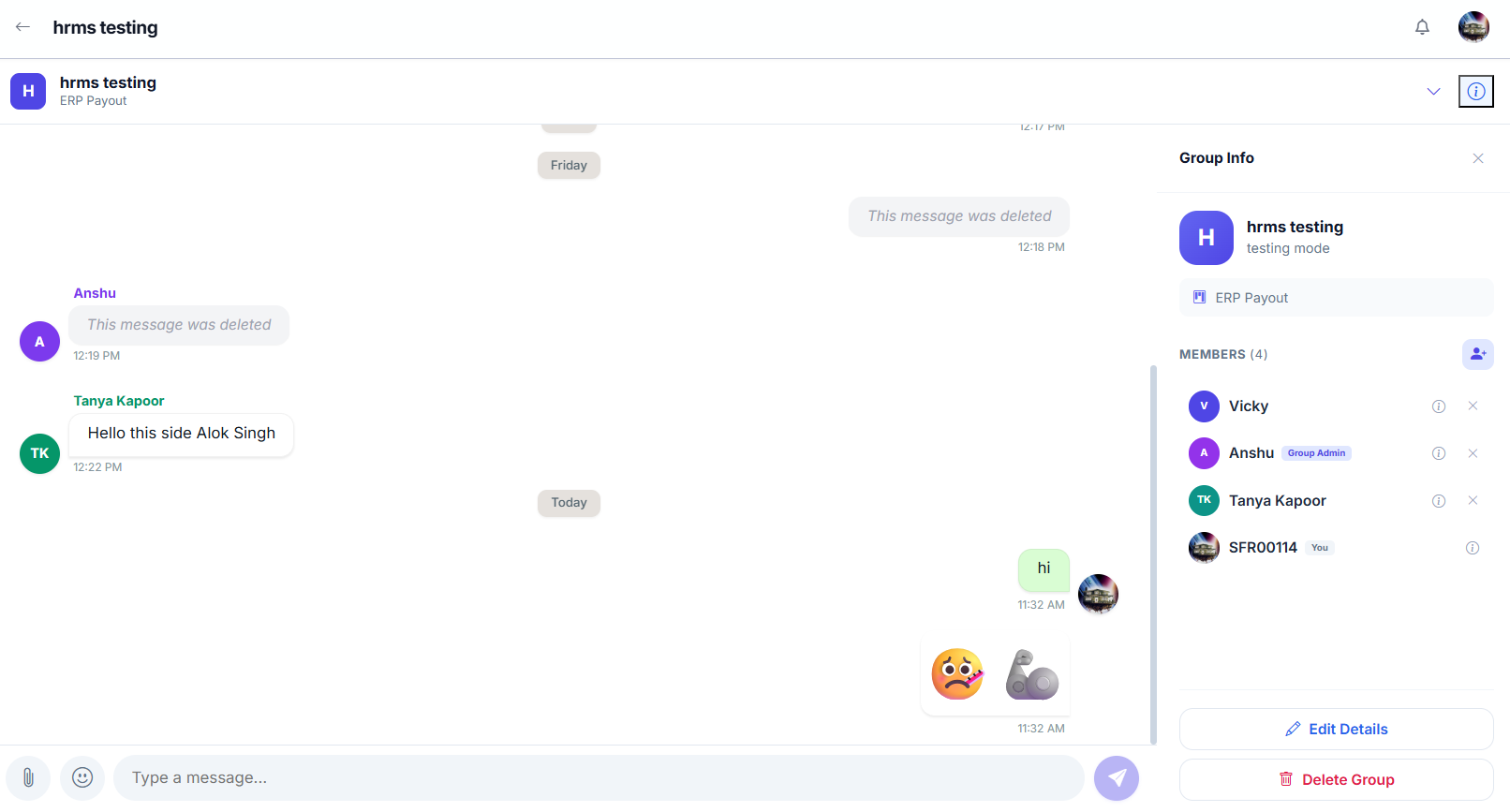
- 1Open a discussion group
Click on the group name from the list.
- 2Type a message
Use the message input box at the bottom. You can attach files, use emojis, and @mention members.
- 3Send
Press Enter or click the send button. Messages appear in real-time for all group members.
Calendar
The Calendar is your central timeline — all your upcoming meetings, project deadlines, and work package due dates in one visual view. As Super Admin, you see events across the entire organization.
View Your Calendar
- 1Click "Calendar" in the sidebar
The calendar opens showing the current month with all your events.
- 2Click on a day to see events
A side panel shows all events for that day with details.
- 3Click on an event to navigate
Clicking a meeting takes you to the Meetings page. Clicking a work package or project takes you to its detail page.
What Appears on Your Calendar
- Meetingsall meetings across the organization
- Work Package Due Dateswork packages where you are the assignee or accountable person, with due dates in the visible range
- Project Due Datesall projects across the organization, with due dates in the visible range
Event Color Coding
- Blue — Meetings
- Yellow — Due Today
- Red — Overdue
- Green — On Track
Navigating the Calendar
- 1Previous / Next Month
Click the arrow buttons to move between months.
- 2Today Button
Click "Today" to jump back to the current date.
- 3Click any day
A side panel shows all events for that day — meetings, work package deadlines, and project deadlines.
You see all meetings across the organization (auto-added as participant), all projects (due dates), and work packages where you are the assignee or accountable. The calendar is read-only — manage meetings from the Meetings page.
Notes
Notes is your private workspace inside WorkDesk. Write meeting summaries, capture ideas, save reference information — stored securely and visible only to you. No one else can see your notes.
View Your Notes
- 1Click "Notes" in the sidebar
The left panel shows your note list with Active and Archived tabs; the right panel is the editor. Use the search box to find notes by keyword, and the sort dropdown to order by Date Created, Last Modified, or Title Name.
- 2Click on a note to open it
The note content loads in the editor panel on the right.
Create a Note
- 1Click "+ New Note"
A blank note opens in the editor.
- 2Enter a title
Type a descriptive name, e.g., "Sprint 4 Planning Notes".
- 3Write your content
The editor supports bold, italic, bullet lists, and headings.
- 4Notes save automatically
Changes are saved as you type. You can also click Save manually.
Notes are tied to your account. No one else in the organization can see or access your notes. They are stored securely and visible only to you.
Todos
Todos are your private personal checklist in WorkDesk. Use them for reminders, personal action items, and anything you need to track that isn't a formal project task. Only you can see your todos.
Your Todo List
The Todos page is organized into four tabs:
- Activecurrent todos that need your attention
- Completedtodos you have checked off
- Overduetodos whose due date has passed without completion — highlighted in red
- Archivedtodos you have archived to hide from Active without deleting
Create a Todo
- 1Click "+ Add Todo"
Found at the top of the Todos page.
- 2Write a Title and optional Description
The title appears in the list and on your Dashboard. An optional description adds context or sub-steps.
- 3Set a Priority and Due Date
Choose LOW, MEDIUM, or HIGH. Adding a due date makes the todo appear on the Calendar and moves it to the Overdue tab if not completed in time.
- 4Click "Create"
The item appears in your Active tab and on the Dashboard Todos widget.
Managing Todos
- 1Complete a todo
Click the circular checkbox next to the todo. It moves to the Completed tab and the title gets a strikethrough.
- 2Clear Completed
On the Completed tab, click Clear Completed to delete all completed todos at once.
- 3Archive a todo
Click the three-dot menu (…) and select Archive. Hides from Active without deleting. Restore later from the Archived tab.
- 4Delete a todo permanently
Click the three-dot menu and select Delete. Permanent and cannot be undone.
Todos are tied to your account. No one else in the organization can see or access your todos. They are stored securely and visible only to you. For formal project tasks that need team visibility, use Work Packages instead.
Users
The Users page is your central hub for managing every user in the organization. As Super Admin, you have unrestricted access — create, edit, promote, deactivate, and delete any user account. Admins can view the list and create users but cannot edit, delete, or change status.
User List
The Users page displays every user in your organization in a table format. Use the search bar to find users by name, email, or employee ID. The table shows each user’s name, email, role, department, status, and — for Super Admin only — action buttons to edit, delete, or toggle status.
Create a User
- 1Click "Create User"
Found at the top of the Users page. A form modal appears.
- 2Fill in user details
Enter Full Name, Email, Phone Number, Employee ID, Gender, Designation, and Password.
- 3Assign a Role
Choose from Employee, Manager, or Admin. You cannot assign Super Admin role through this form — the system blocks it.
- 4Assign Department and Team (optional)
You can optionally assign the user to a department and team during creation, or skip and assign later.
- 5Click "Create"
The user is created and appears in the list. They can now log in with their email and password.
Edit a User
- 1Find the user
Use the search bar or browse the list.
- 2Click the edit icon (✎)
The ACTIONS column with edit/delete buttons is visible only to Super Admin. Admins do not see these buttons.
- 3Modify details
Update name, email, phone, gender, designation, department, or team in the edit form.
- 4Click "Save"
Changes are applied immediately across the system.
Promote a Member to Manager
- 1Find the Member user
Only users with the Employee/Member role can be promoted.
- 2Click edit, then change Role
Select Manager from the role dropdown in the edit form.
- 3Save changes
The user is now a Manager with expanded permissions. Their team memberships, project memberships, work packages, and time entries are cleaned up as part of the promotion process.
Toggle User Status (Activate / Deactivate)
- 1Find the user
Use the search or browse the list.
- 2Click the status toggle switch
In the ACTIONS column, toggle the switch to deactivate the user. A deactivated user cannot log in.
- 3Confirm
A confirmation dialog appears. Toggle again to reactivate.
Delete a User
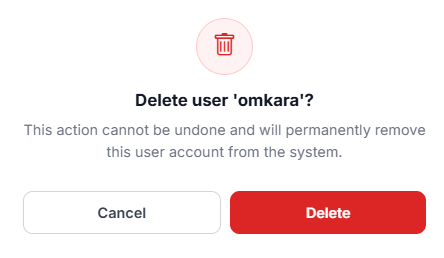
- 1Find the user
Use the search or browse the list.
- 2Click the delete icon (🗑)
Found in the ACTIONS column. A confirmation dialog appears.
- 3Confirm deletion
Deleting a user permanently removes all their data (notes, todos, time entries) and nullifies their references in work packages, meetings, and discussions. This action cannot be undone.
Bulk Upload Users
- 1Navigate to Users
Click "Users" in the sidebar.
- 2Click "Bulk Upload"
Download the template first (CSV or Excel format) to see the required columns.
- 3Fill in the template
Add one user per row with: Employee ID, Full Name, Email, Password, Phone Number, Gender, Designation, and Role Name.
- 4Upload the file
Select the filled CSV or Excel file and upload. The system processes each row and reports successes and errors.
The Super Admin account is protected and cannot be edited, deleted, or deactivated by anyone — including other Super Admins. You also cannot create a new Super Admin user through the Users page — the system blocks SUPER_ADMIN role assignment during user creation.
Settings
Manage your personal account in one place — view your profile information, update your profile photo, change your password, and control which notifications you receive. As the Super Admin, your profile details are maintained by the system; only the profile photo and notification preferences are editable by you.
Profile Information
Go to Settings → Profile to view your account details. The left column shows your profile photo (with a camera icon to upload a new one), your name, email, role badge, and organization name. The right column displays a read-only form with all your personal information.
Profile Fields (Read-Only)
The following fields are displayed in the Personal Information form. All fields are read-only — they are set by the system and cannot be changed from this page:
- Full Nameyour display name shown across WorkDesk
- Email Addressyour login email (used for authentication)
- Phone Numberyour contact number
- Employee IDyour organization’s unique identifier
- Designationyour job title
- Genderyour gender
- Roles / Access Levelyour system role (Super Admin)
At the bottom of the form, you’ll see your last login time and the Organization section showing your organization name.
As the Super Admin, your profile was created during initial setup. If you need to update your name, email, or other details, contact your development team or update the database directly. Only the profile photo can be changed from this page.
Change Your Profile Photo
- 1Click the camera icon on your profile photo
In the left column of the Profile tab, hover over your current profile photo and click the camera icon overlay.
- 2Select an image file
Choose an image from your device (JPG or PNG recommended). The file picker opens.
- 3Adjust the crop area
Use the built-in cropper to drag and reposition the image inside the circular crop frame. Zoom in or out as needed.
- 4Click "Save"
Your new profile photo is uploaded and appears across all pages immediately — your avatar in the sidebar, work packages, discussions, and all other views.
Use a clear, well-lit headshot. A square image (1:1 ratio) works best with the circular crop. Avoid busy backgrounds.
Change Password
Go to Settings → Change Password to update your login password. You must know your current password to make this change.
- 1Go to Settings → Change Password tab
Click the Change Password tab at the top of Settings. A form with three fields appears.
- 2Enter your Current Password
Type your existing password in the first field. This verifies your identity before allowing the change.
- 3Enter your New Password
Choose a strong new password. Minimum 6 characters. A hint below the field reminds you of this requirement.
- 4Confirm the New Password
Retype your new password in the Confirm field — it must match the New Password field exactly.
- 5Click "Update Password"
Your password is changed immediately. You’ll need to log in with the new password on your next session.
As the Super Admin, you have full access to the entire system. Change your password regularly, never share it, and use a strong, unique password. If you forget your password, use the Forgot Password option on the login page to reset it via email.
Notification Preferences
Go to Settings → Notifications to choose which notifications you receive. There are two independent toggles:
Push Notifications
- 1Locate the "Push Notifications" toggle
At the top of the Notifications tab. When enabled, you receive in-app notifications for activity updates (task assignments, meeting invitations, discussion replies, project changes, etc.).
- 2Toggle ON or OFF
Click the toggle switch to enable or disable. The change is saved automatically — no save button needed.
Email Notifications
- 1Locate the "Email Notifications" toggle
Below the Push Notifications toggle. When enabled, you receive email alerts for the same events — sent to your registered email address.
- 2Toggle ON or OFF
Click the toggle to enable or disable email notifications. Changes save automatically.
Viewing Your Notifications
- 1Click the bell icon in the navigation bar
The bell icon () is in the top-right corner of the navigation bar. A badge shows the count of unread notifications.
- 2Browse your notifications
The panel opens showing all your recent notifications. Unread alerts are highlighted with a blue dot or background.
- 3Click a notification
Clicking any notification takes you directly to the related item — a work package, meeting, discussion, or project page.
- 4Mark as read
Clicking a notification marks it as read. The unread badge count decreases automatically.